> ## Documentation Index
> Fetch the complete documentation index at: https://docs.psntools.com/llms.txt
> Use this file to discover all available pages before exploring further.

# Change your account details

> Recover a purchased PSN account and change the email address on it, step by step.

This guide shows how to get back into a purchased PSN account and change the email address on it. It comes in two parts:

1. **Recover the account.** Reset the password using the inbox.
2. **Change the email.** Swap the sign-in email (Sign-In ID) to one you control.

<Info>
  Open the account's inbox before you start. See [Access your account inbox](/account-billing/email-access/landing-page), or use the [magic link](/account-billing/email-access/magic-link) instead.
</Info>

## Before you start

You need three things off the account details page, plus a couple of tabs open:

* The **Login email**, the **Password**, and the **Date of birth (DOB)**. All three are on the account details page.
* The **inbox** open in another tab, so you can read the emails PlayStation sends.
* A **new email address** ready. This is the one you want the account to use from now on.

Keep the account details tab open the whole time. You'll jump back to it a few times to copy things.

## Steps

<Steps>
  <Step title="Go to PlayStation.com">
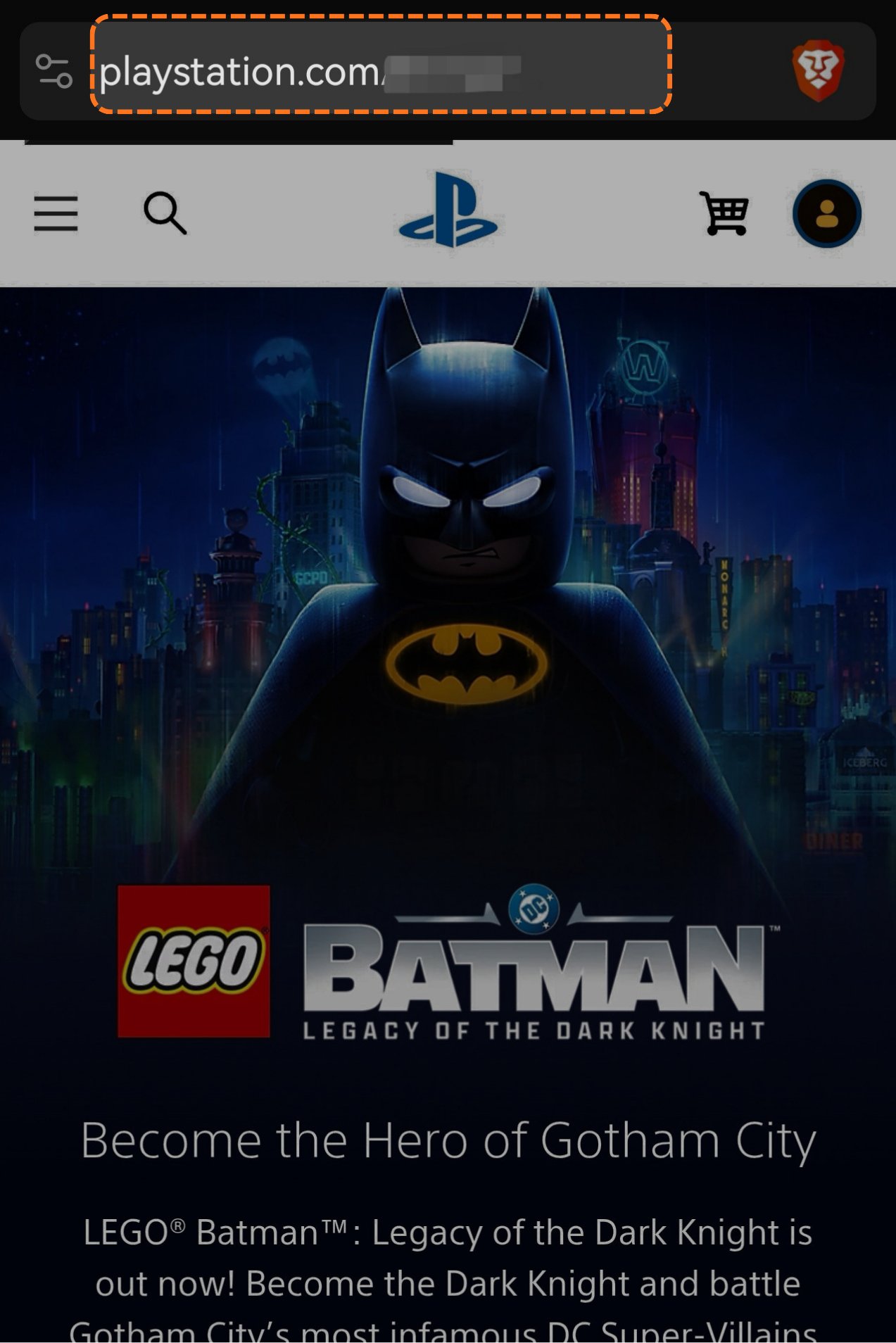
    Go to [playstation.com](https://www.playstation.com). Type it in yourself, don't trust a link from somewhere else. Make sure the address bar says playstation.com.
    <Frame>
      <img src="https://mintcdn.com/psntools-f5c51a70/SLS6e--CzrFiVXYP/account-billing/email-access/images/change-account-details-01.png?fit=max&auto=format&n=SLS6e--CzrFiVXYP&q=85&s=b8d9b2e46e1de5e351225f099a119c2e" alt="PlayStation.com in the address bar" width="1273" height="1908" data-path="account-billing/email-access/images/change-account-details-01.png" />
    </Frame>
  </Step>

  <Step title="Sign out">
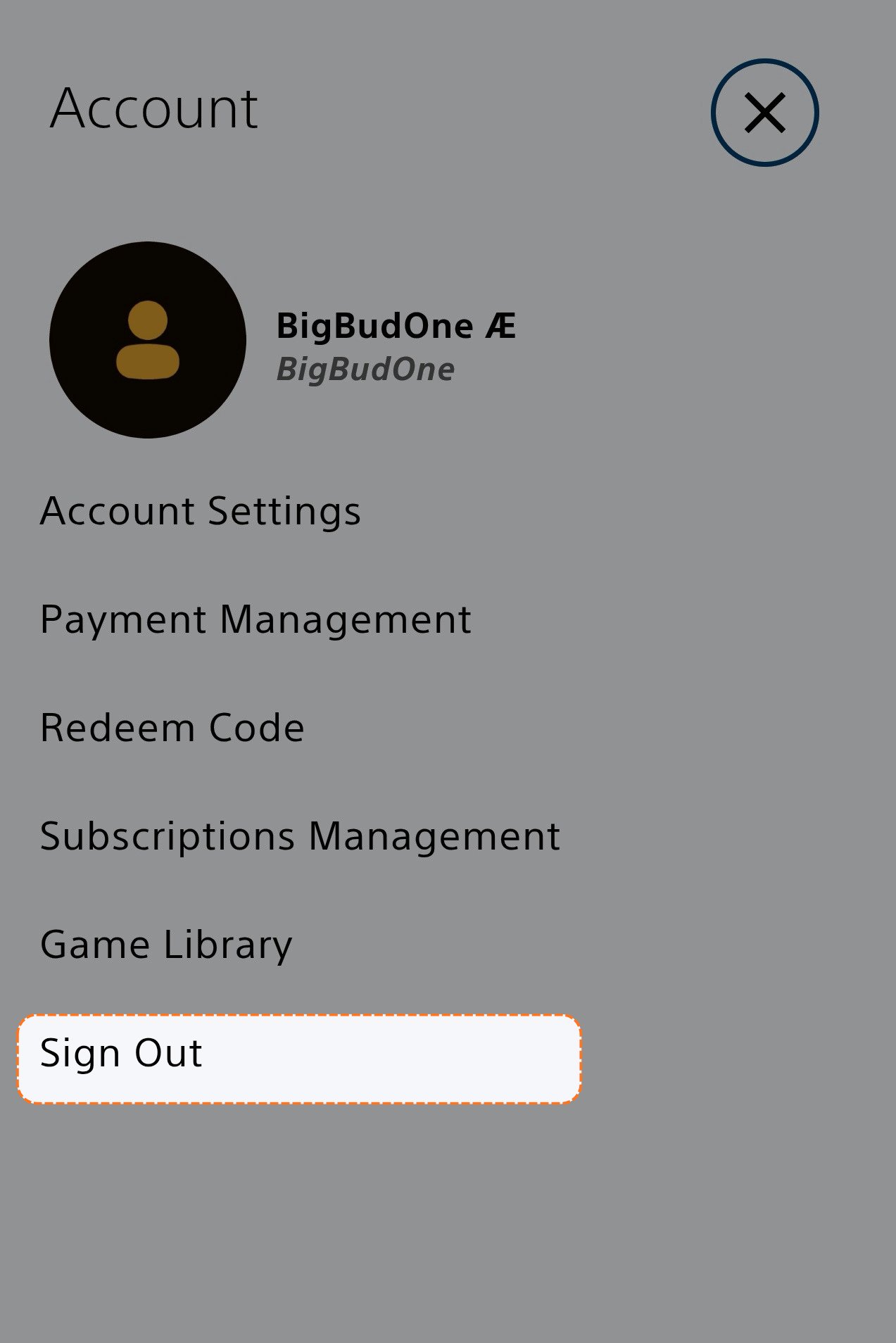
    Click your **profile picture** in the top right corner, then click **Sign Out**. If you're already signed out, skip this.
    <Frame>
      <img src="https://mintcdn.com/psntools-f5c51a70/SLS6e--CzrFiVXYP/account-billing/email-access/images/change-account-details-02.png?fit=max&auto=format&n=SLS6e--CzrFiVXYP&q=85&s=da55220ec38fba852a86e2de88ed1f0c" alt="PlayStation account menu, click Sign Out" width="1273" height="1908" data-path="account-billing/email-access/images/change-account-details-02.png" />
    </Frame>
  </Step>

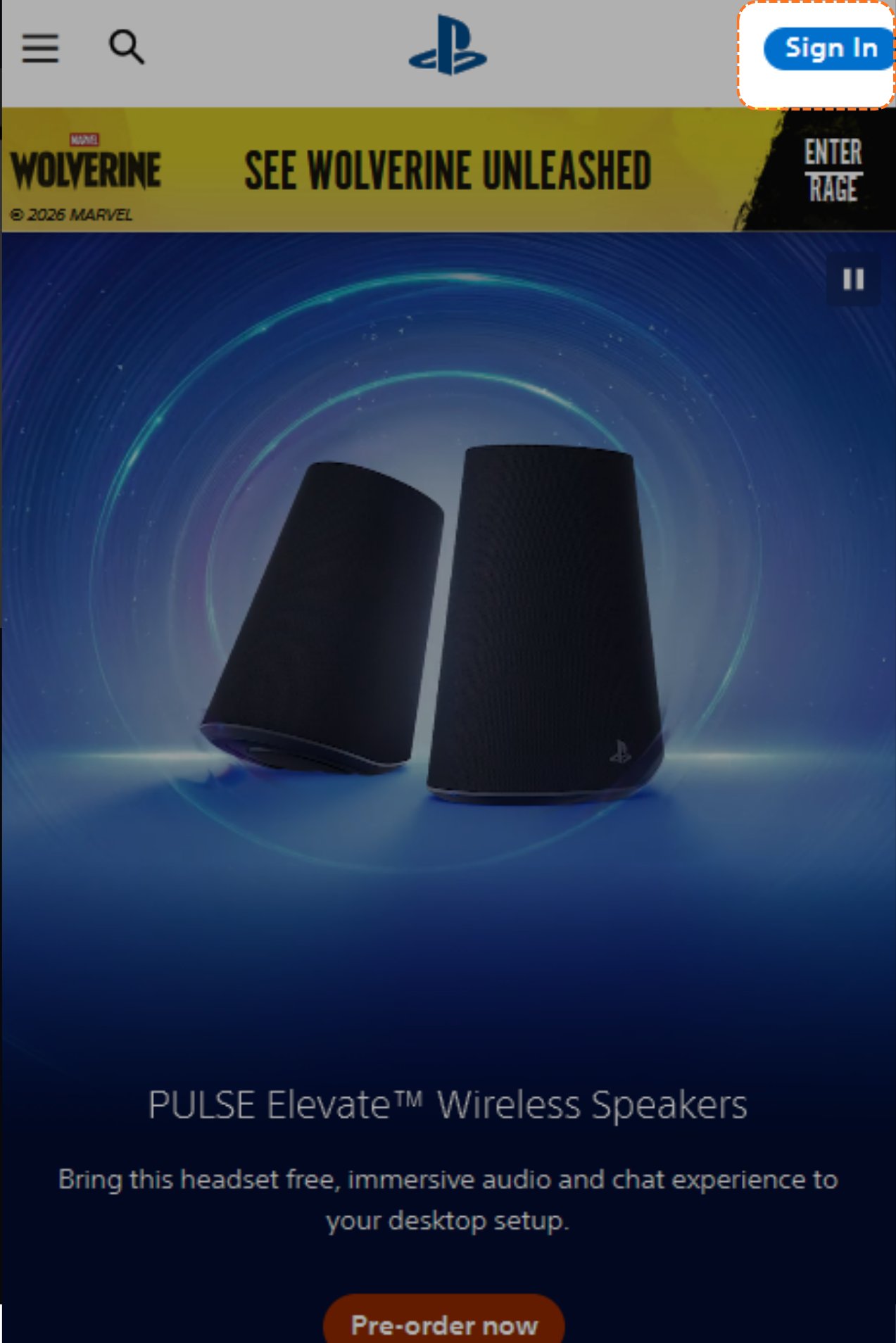
  <Step title="Click Sign In">
    On the main page, click **Sign In**.

    <Frame>
      <img src="https://mintcdn.com/psntools-f5c51a70/SLS6e--CzrFiVXYP/account-billing/email-access/images/change-account-details-03.png?fit=max&auto=format&n=SLS6e--CzrFiVXYP&q=85&s=be32020d9b326af6a9f668816261f328" alt="PlayStation home page, click Sign In" width="1273" height="1908" data-path="account-billing/email-access/images/change-account-details-03.png" />
    </Frame>
  </Step>

  <Step title="Click Trouble Signing In">
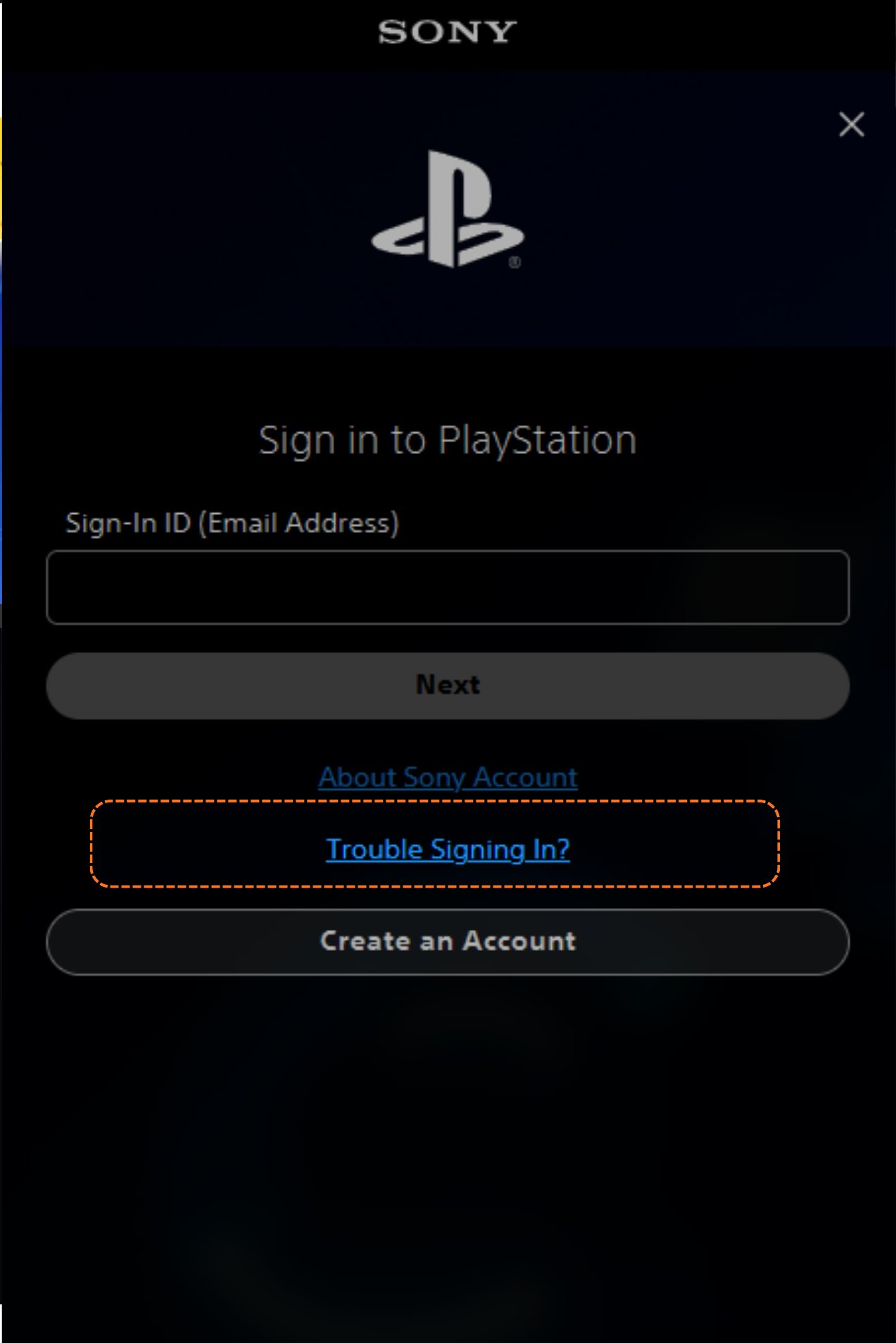
    On the sign-in page, click **Trouble Signing In**.
    <Frame>
      <img src="https://mintcdn.com/psntools-f5c51a70/SLS6e--CzrFiVXYP/account-billing/email-access/images/change-account-details-04.png?fit=max&auto=format&n=SLS6e--CzrFiVXYP&q=85&s=21df74d540818d03f2056dae5a60e3e3" alt="Sign-in page, click Trouble Signing In" width="1273" height="1908" data-path="account-billing/email-access/images/change-account-details-04.png" />
    </Frame>
  </Step>

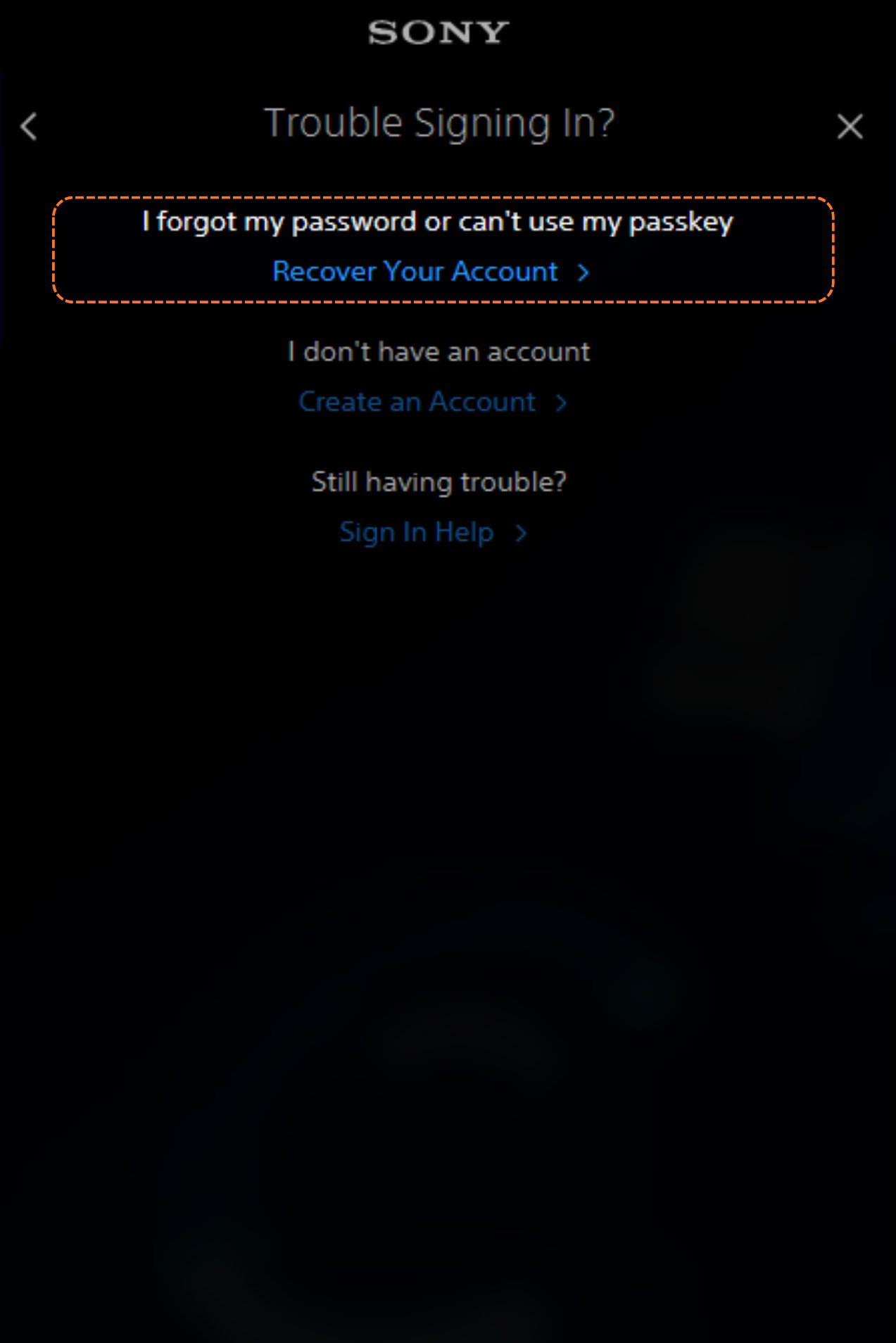
  <Step title="Click Recover Your Account">
    Click **Recover Your Account**.

    <Frame>
      <img src="https://mintcdn.com/psntools-f5c51a70/SLS6e--CzrFiVXYP/account-billing/email-access/images/change-account-details-05.png?fit=max&auto=format&n=SLS6e--CzrFiVXYP&q=85&s=7acd7b28fb2bb0134eb5dcaf5a680a3a" alt="Trouble signing in, click Recover Your Account" width="1273" height="1908" data-path="account-billing/email-access/images/change-account-details-05.png" />
    </Frame>
  </Step>

  <Step title="Copy the login email">
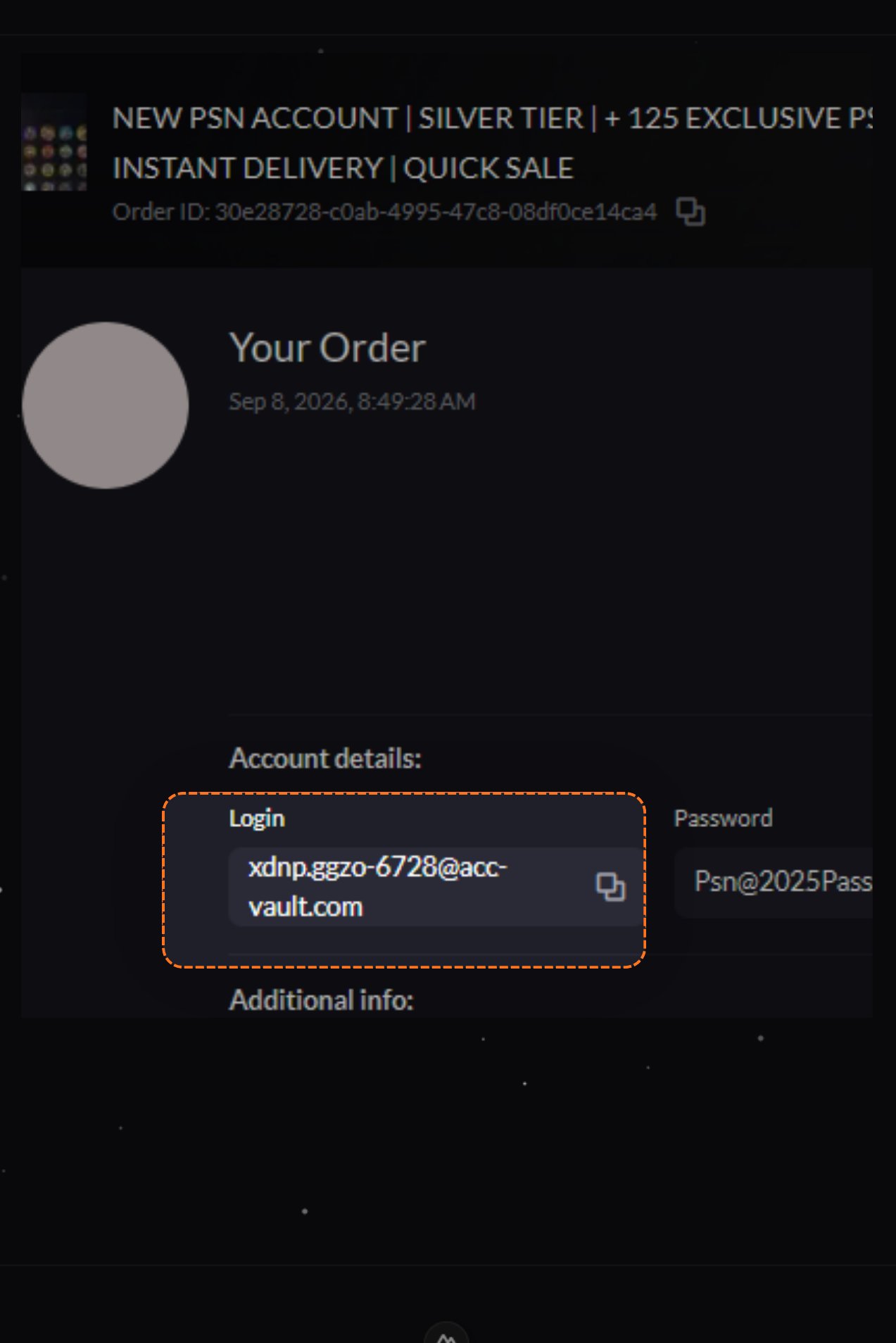
    Go back to your **account details** and copy the **Login email**.
    <Frame>
      <img src="https://mintcdn.com/psntools-f5c51a70/SLS6e--CzrFiVXYP/account-billing/email-access/images/change-account-details-06.png?fit=max&auto=format&n=SLS6e--CzrFiVXYP&q=85&s=3815a028930d02dda9f1a5df51550ba6" alt="Account details, copy the login email" width="1273" height="1908" data-path="account-billing/email-access/images/change-account-details-06.png" />
    </Frame>
  </Step>

  <Step title="Send the link">
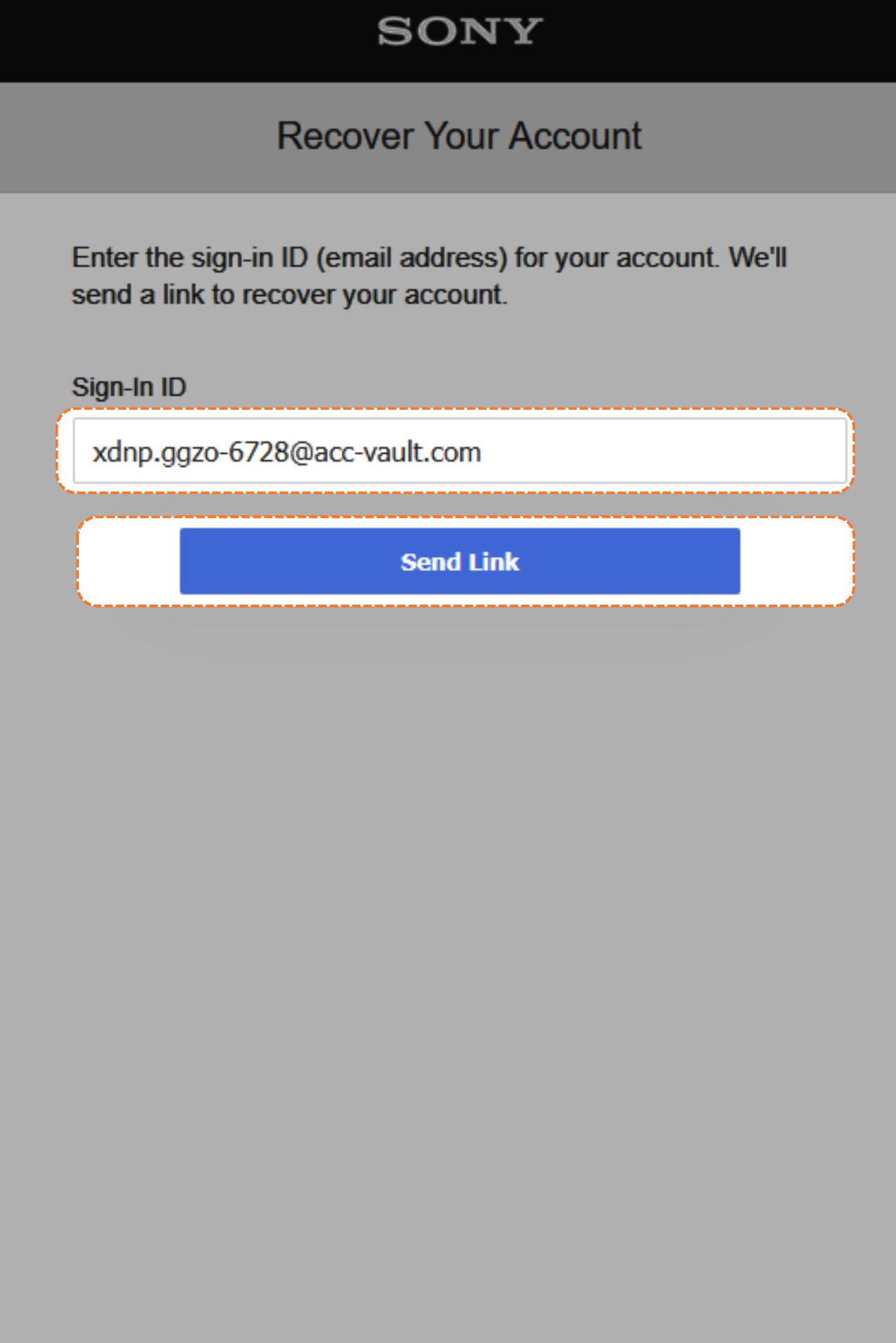
    Paste that email into the **Sign-In ID** box on the Recover Your Account page, then click **Send Link**.
    <Frame>
      <img src="https://mintcdn.com/psntools-f5c51a70/SLS6e--CzrFiVXYP/account-billing/email-access/images/change-account-details-07.png?fit=max&auto=format&n=SLS6e--CzrFiVXYP&q=85&s=e7a180ac0784b4b3d3850bd435f9b3d2" alt="Recover your account, enter the sign-in ID and click Send Link" width="1273" height="1908" data-path="account-billing/email-access/images/change-account-details-07.png" />
    </Frame>
  </Step>

  <Step title="Refresh the inbox">
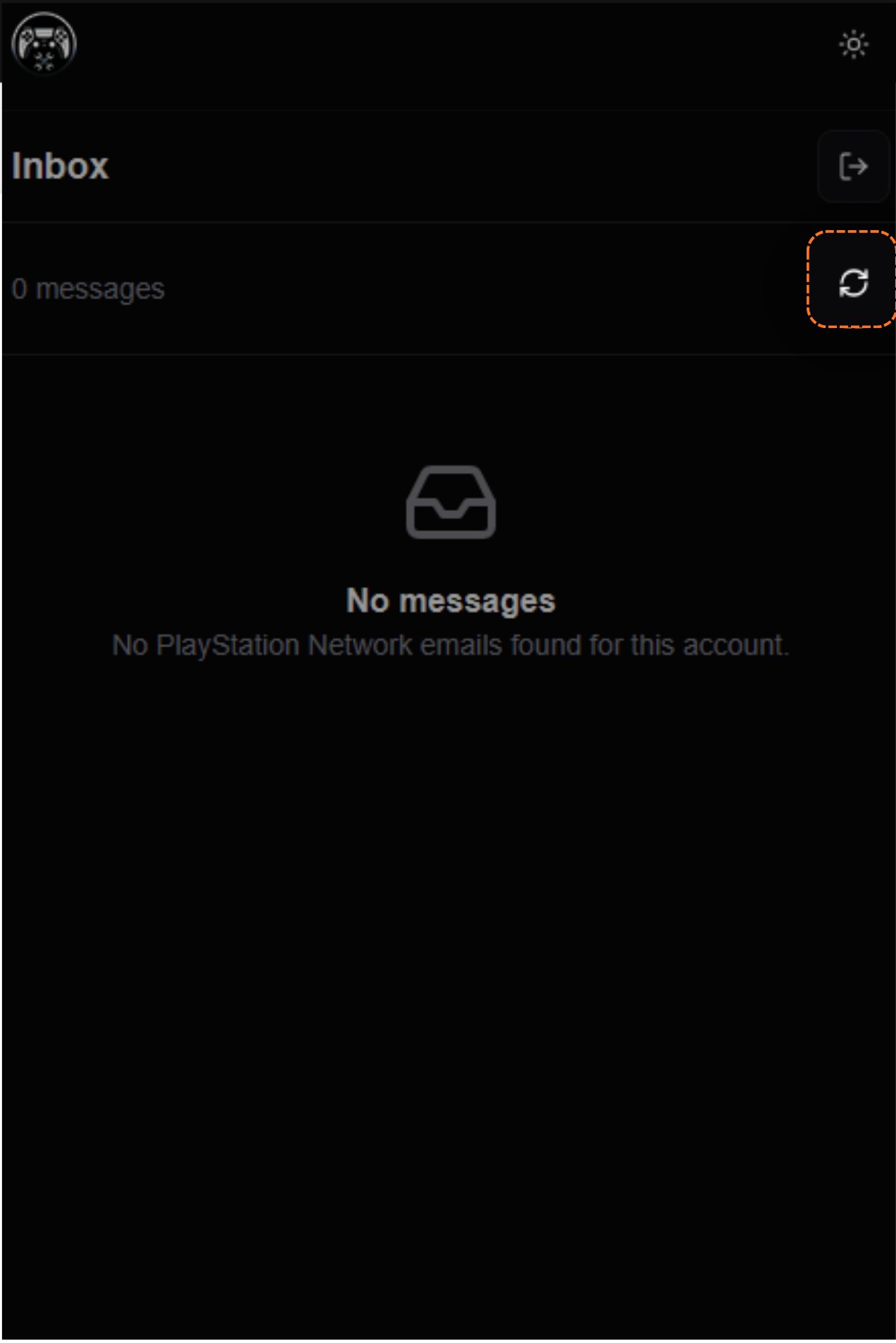
    Switch to **PSNTools** and open your email access link (it looks something like `modding.psntools.com/i/0blahblahblahxxx`). Not sure where that link is? See [Access your inbox with a magic link](/account-billing/email-access/magic-link). Then click the **refresh** button on the inbox.
    <Frame>
      <img src="https://mintcdn.com/psntools-f5c51a70/SLS6e--CzrFiVXYP/account-billing/email-access/images/change-account-details-08.png?fit=max&auto=format&n=SLS6e--CzrFiVXYP&q=85&s=c289f310b164f57d00853e92846031ab" alt="PSNTools inbox, click the refresh button" width="1273" height="1908" data-path="account-billing/email-access/images/change-account-details-08.png" />
    </Frame>
  </Step>

  <Step title="Open the PlayStation email">
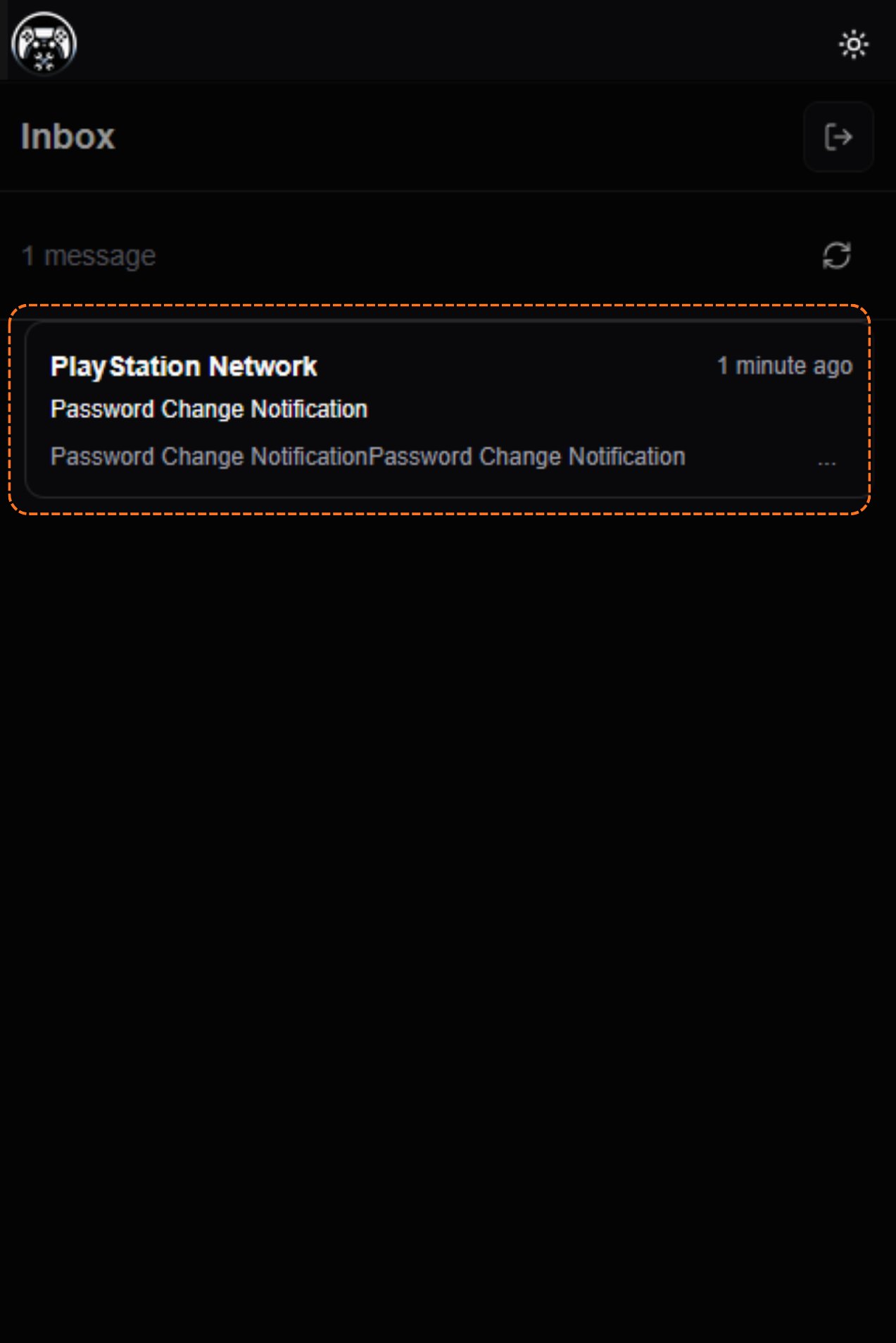
    A new email shows up from **PlayStation Network**, titled **Password Change Notification**. That's the one you want.
    <Frame>
      <img src="https://mintcdn.com/psntools-f5c51a70/SLS6e--CzrFiVXYP/account-billing/email-access/images/change-account-details-09.png?fit=max&auto=format&n=SLS6e--CzrFiVXYP&q=85&s=2ac3e2639e2d3d3ef3aad8b85f2f7ba4" alt="PlayStation Network password change email in the inbox" width="1273" height="1908" data-path="account-billing/email-access/images/change-account-details-09.png" />
    </Frame>
  </Step>

  <Step title="Click Recover Your Account">
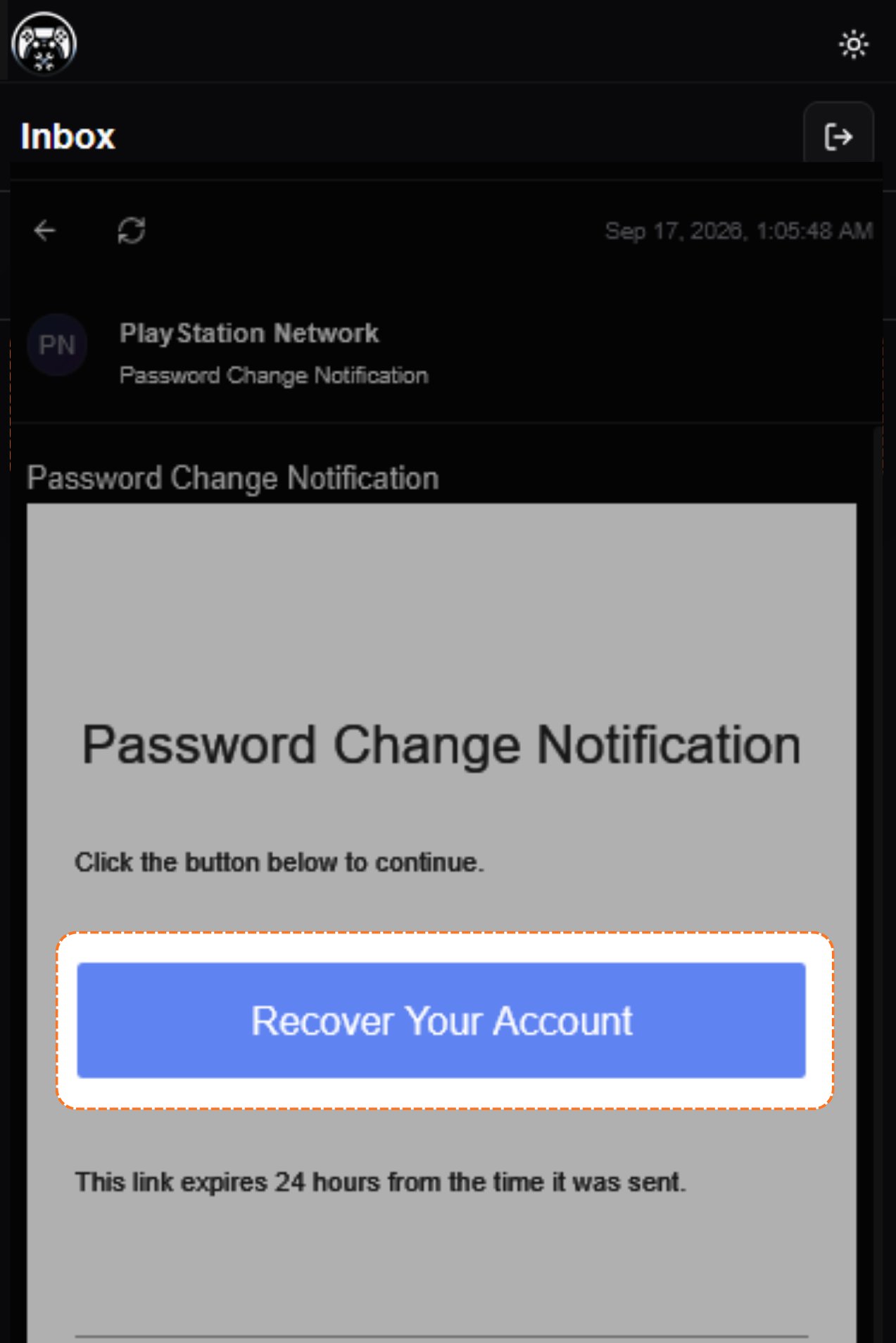
    Open that email and click **Recover Your Account**.
    <Frame>
      <img src="https://mintcdn.com/psntools-f5c51a70/SLS6e--CzrFiVXYP/account-billing/email-access/images/change-account-details-10.png?fit=max&auto=format&n=SLS6e--CzrFiVXYP&q=85&s=4bdca1e90a46498d3b9f5ec26e6e91e3" alt="Password change email, click Recover Your Account" width="1273" height="1908" data-path="account-billing/email-access/images/change-account-details-10.png" />
    </Frame>
  </Step>

  <Step title="Choose how to verify">
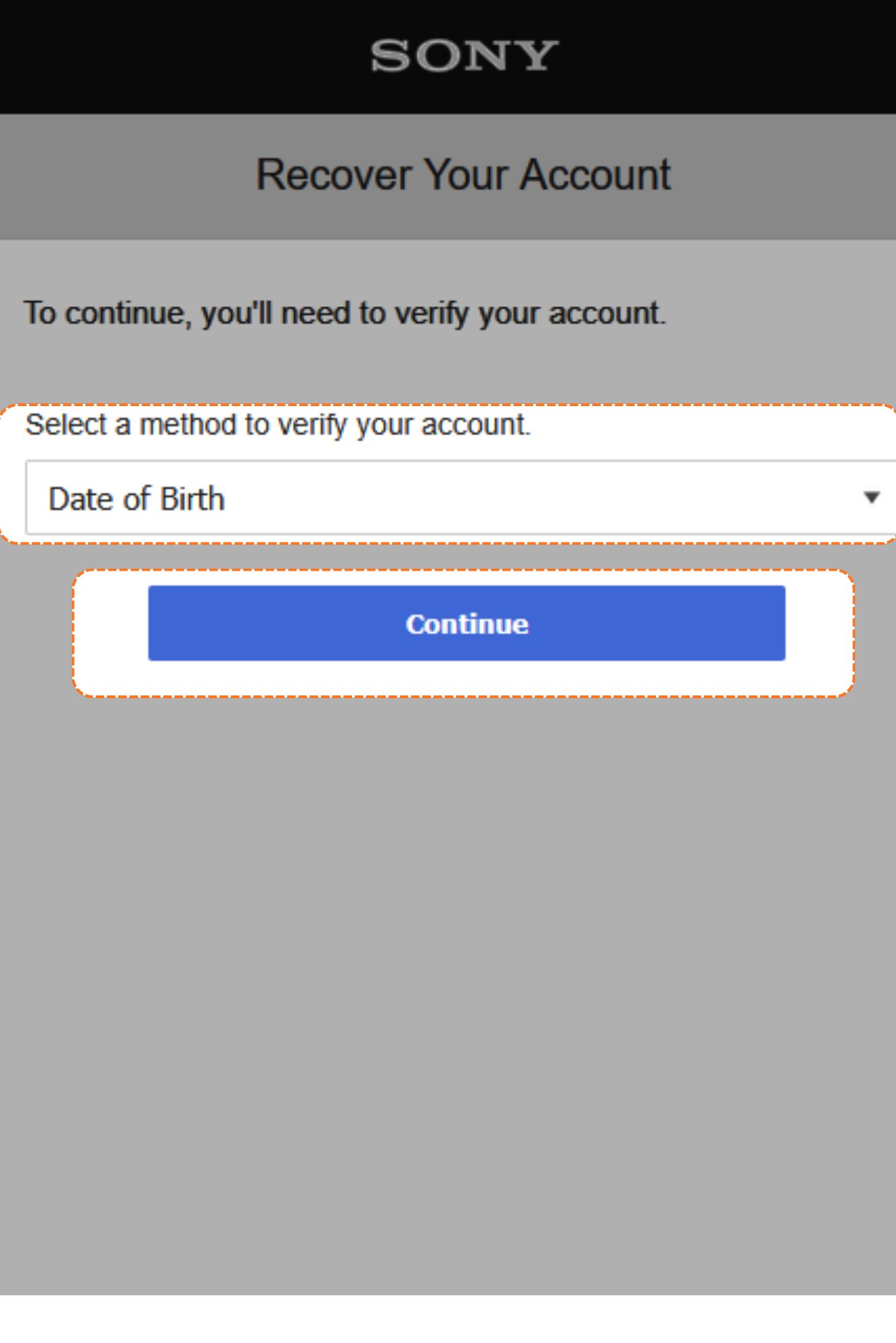
    PlayStation asks how you want to verify the account. Pick **date of birth**, then click **Continue**.
    <Frame>
      <img src="https://mintcdn.com/psntools-f5c51a70/SLS6e--CzrFiVXYP/account-billing/email-access/images/change-account-details-11.png?fit=max&auto=format&n=SLS6e--CzrFiVXYP&q=85&s=488c8380bf88a3729520d0e6fd16dfb5" alt="Recover your account, choose a verification method" width="1273" height="1908" data-path="account-billing/email-access/images/change-account-details-11.png" />
    </Frame>
  </Step>

  <Step title="Copy the date of birth">
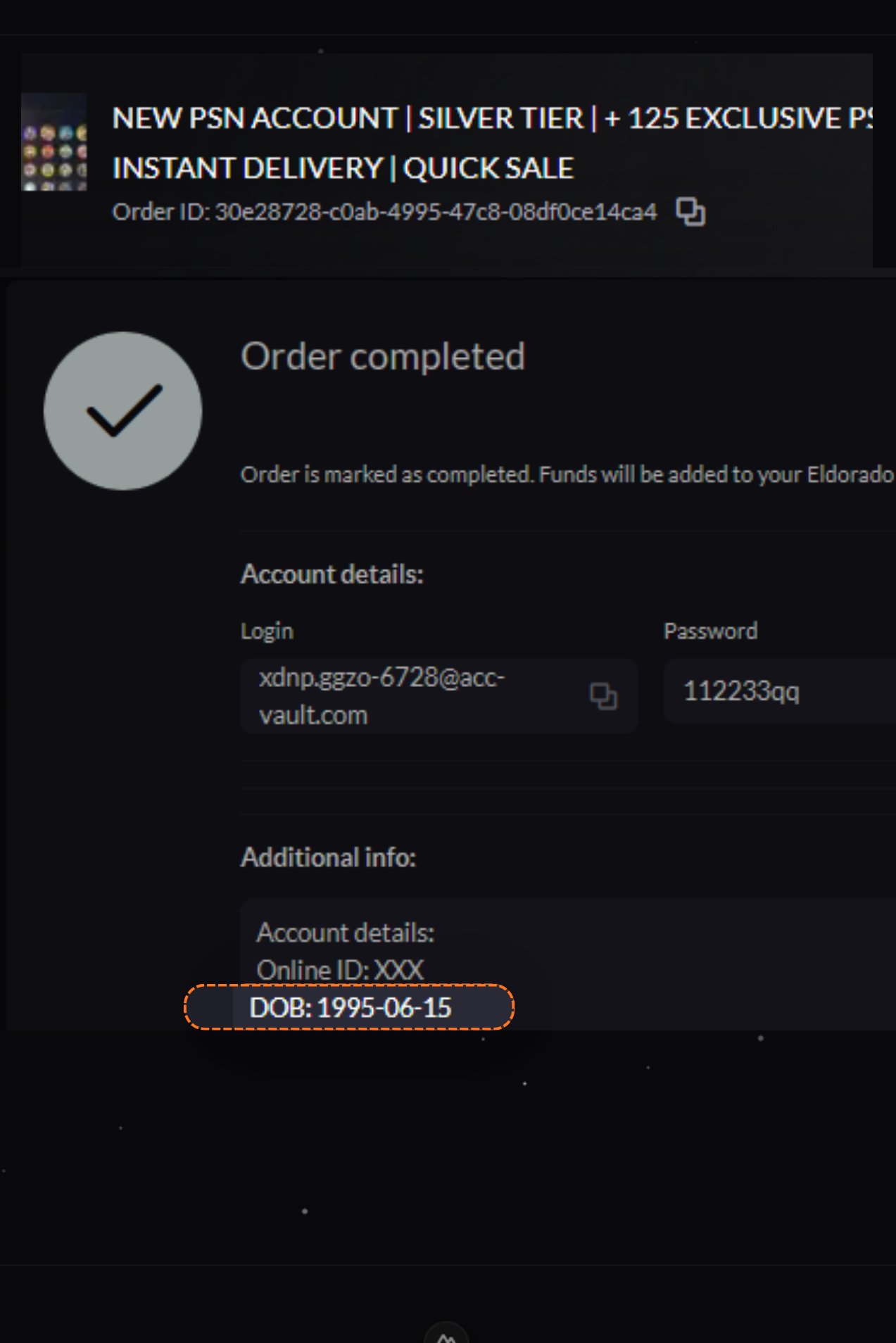
    Back to the **account details** page. Find the **DOB** and copy it.
    <Frame>
      <img src="https://mintcdn.com/psntools-f5c51a70/SLS6e--CzrFiVXYP/account-billing/email-access/images/change-account-details-12.png?fit=max&auto=format&n=SLS6e--CzrFiVXYP&q=85&s=fce33b1b1c410d4c51b2967cf6bc5309" alt="Account details, copy the DOB" width="1273" height="1908" data-path="account-billing/email-access/images/change-account-details-12.png" />
    </Frame>
  </Step>

  <Step title="Enter the date of birth">
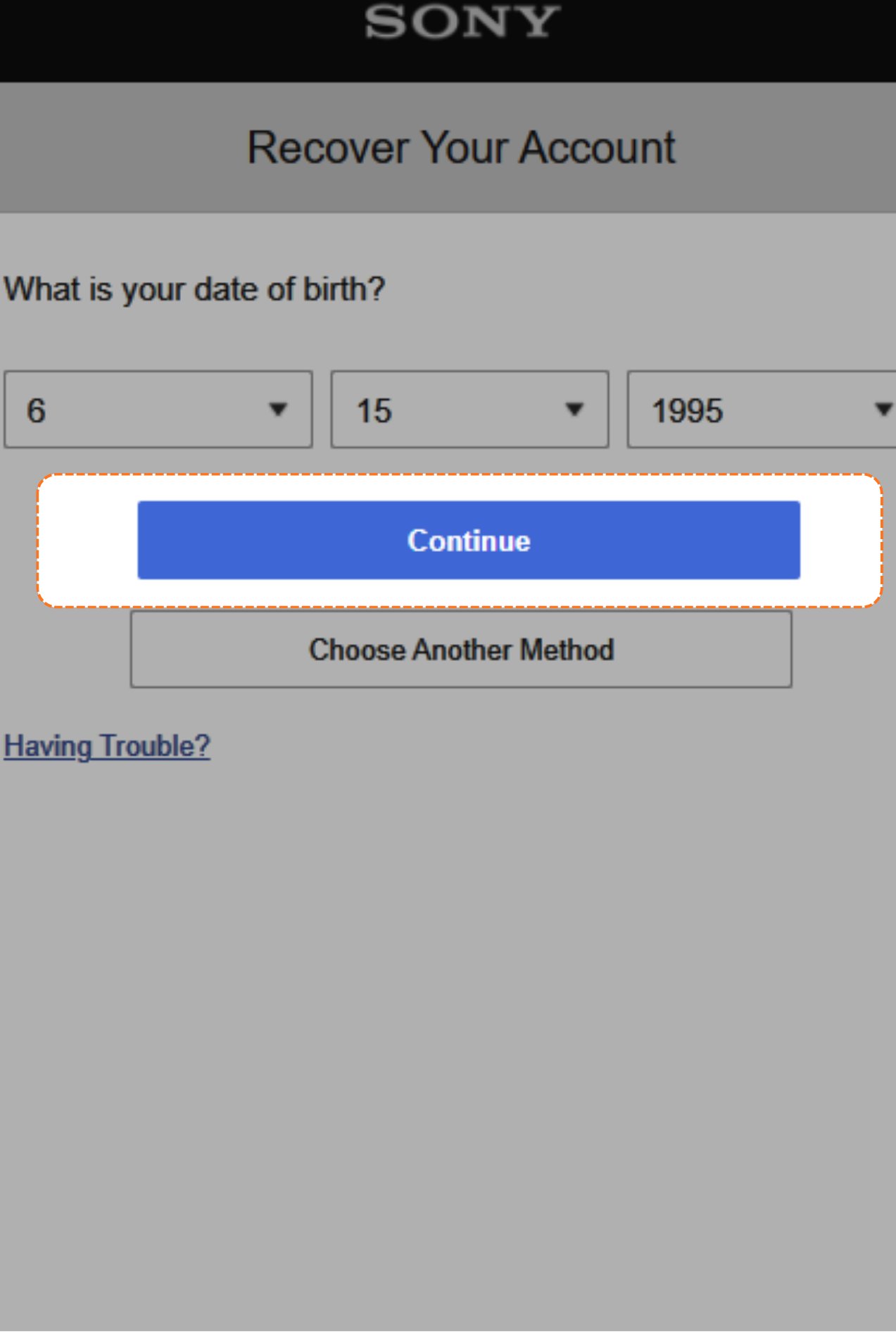
    Type that date of birth in, then click **Continue**.
    <Frame>
      <img src="https://mintcdn.com/psntools-f5c51a70/SLS6e--CzrFiVXYP/account-billing/email-access/images/change-account-details-13.png?fit=max&auto=format&n=SLS6e--CzrFiVXYP&q=85&s=3a4a1f68d18a91aabf6ae55bf7b1ba65" alt="Enter your date of birth, click Continue" width="1273" height="1908" data-path="account-billing/email-access/images/change-account-details-13.png" />
    </Frame>
  </Step>

  <Step title="Create a new password">
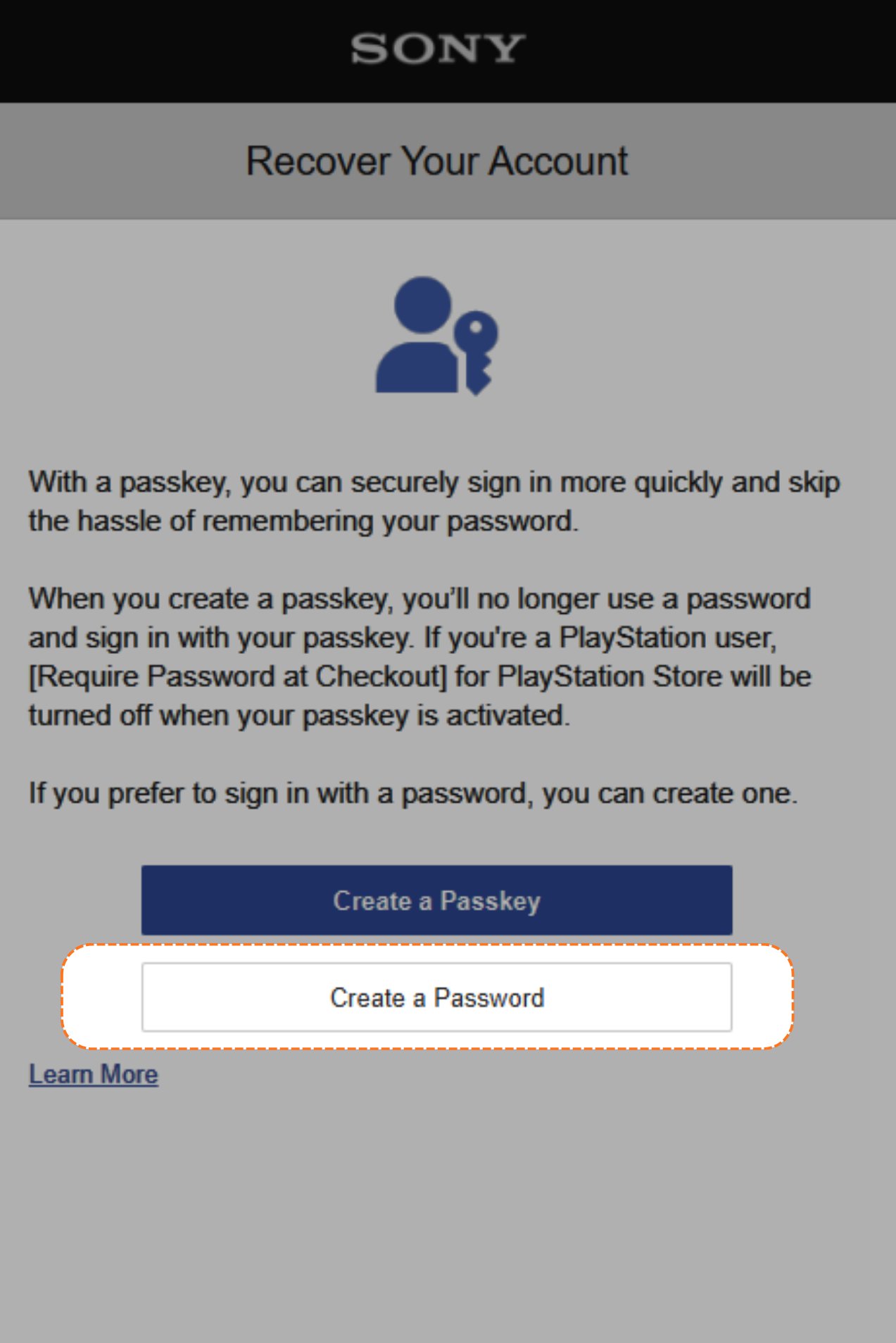
    Now it's time to make a new password. Click the **password** box.
    <Frame>
      <img src="https://mintcdn.com/psntools-f5c51a70/SLS6e--CzrFiVXYP/account-billing/email-access/images/change-account-details-14.png?fit=max&auto=format&n=SLS6e--CzrFiVXYP&q=85&s=13b8de403beebea85b86b51c873709e3" alt="Create a password, click the password box" width="1273" height="1908" data-path="account-billing/email-access/images/change-account-details-14.png" />
    </Frame>
  </Step>

  <Step title="Confirm the new password">
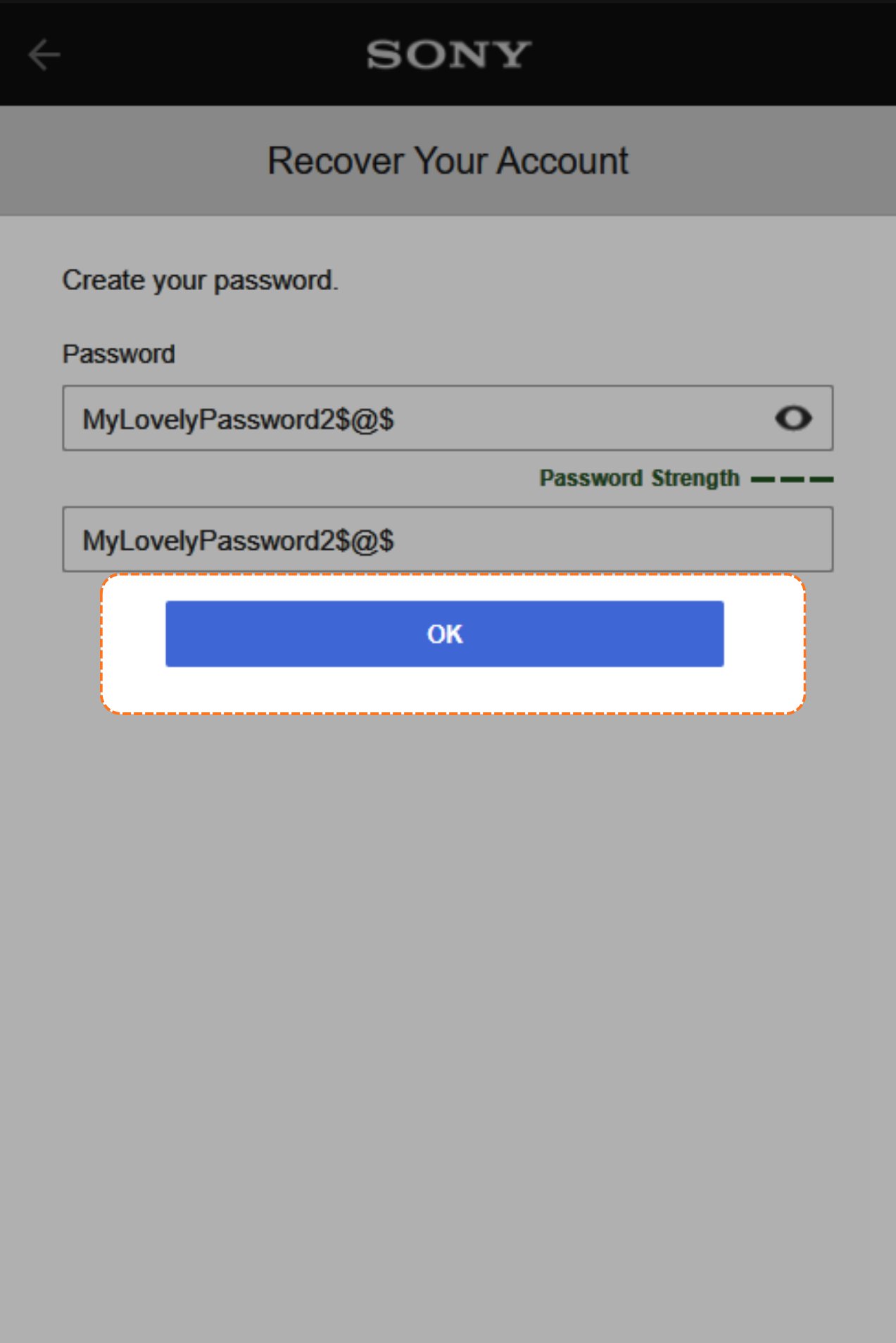
    Type your new password, then click **OK**.
    <Frame>
      <img src="https://mintcdn.com/psntools-f5c51a70/SLS6e--CzrFiVXYP/account-billing/email-access/images/change-account-details-15.png?fit=max&auto=format&n=SLS6e--CzrFiVXYP&q=85&s=f5f4924c5d41836cfeaf8a298143f225" alt="Confirm the new password, click OK" width="1273" height="1908" data-path="account-billing/email-access/images/change-account-details-15.png" />
    </Frame>
  </Step>

  <Step title="Copy the login email again">
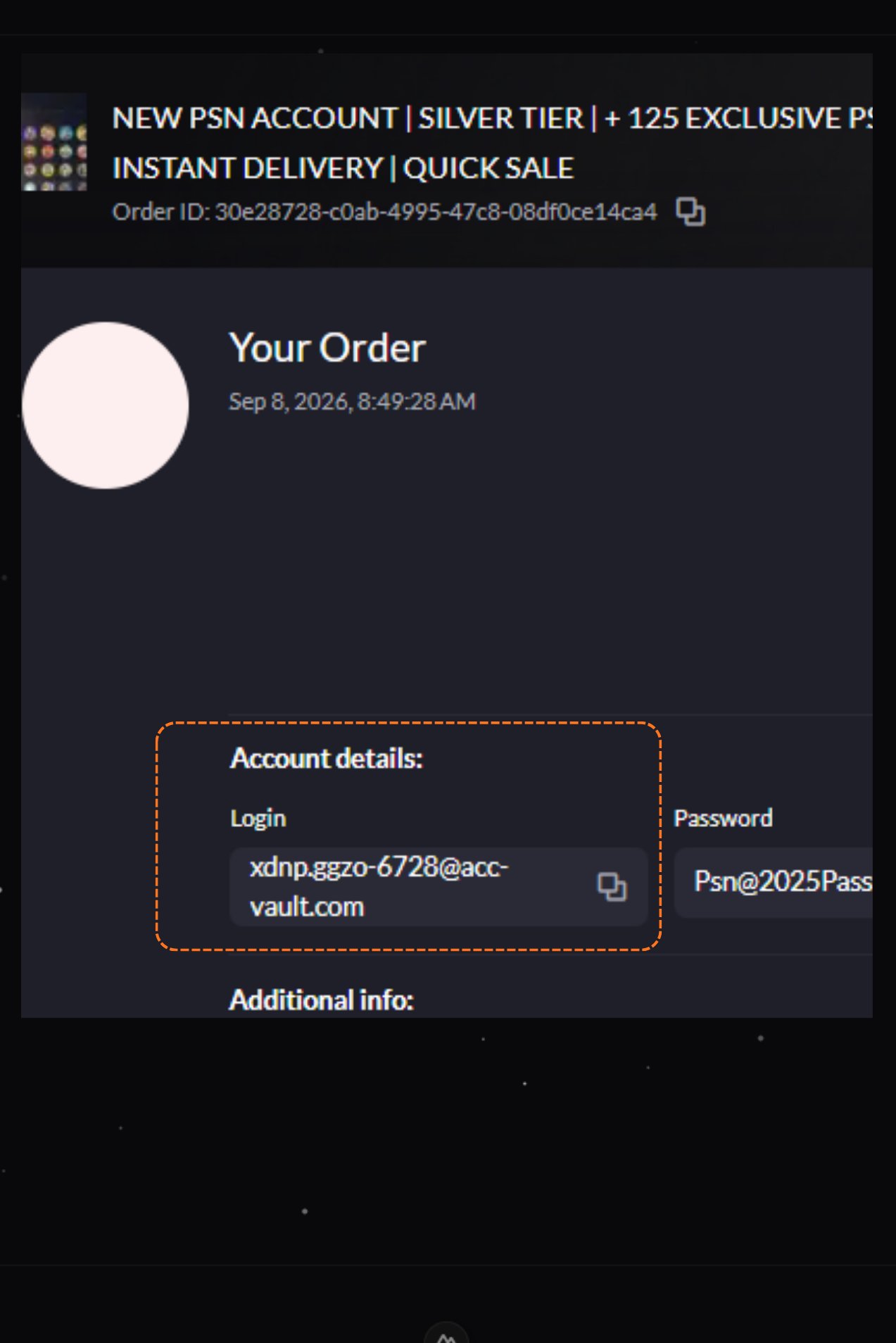
    Go back to the **account details** page and copy the **Login email** again.
    <Frame>
      <img src="https://mintcdn.com/psntools-f5c51a70/SLS6e--CzrFiVXYP/account-billing/email-access/images/change-account-details-16.png?fit=max&auto=format&n=SLS6e--CzrFiVXYP&q=85&s=b563a4ea8996920a7fadf589fbdb7de7" alt="Account details, copy the login email" width="1273" height="1908" data-path="account-billing/email-access/images/change-account-details-16.png" />
    </Frame>
  </Step>

  <Step title="Sign in">
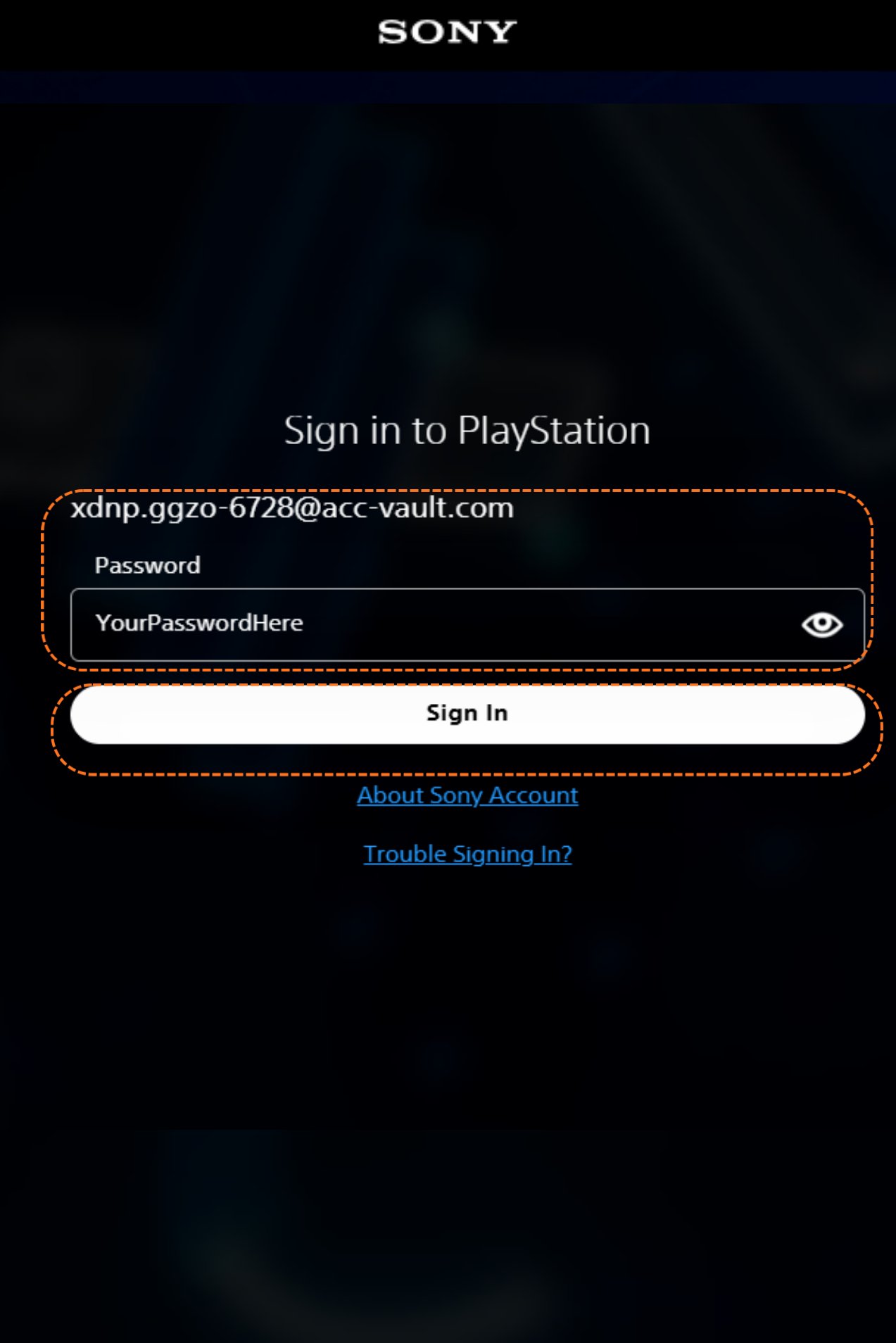
    On the PlayStation sign-in page, enter that **email** and your **new password**, then click **Sign In**.
    <Frame>
      <img src="https://mintcdn.com/psntools-f5c51a70/SLS6e--CzrFiVXYP/account-billing/email-access/images/change-account-details-17.png?fit=max&auto=format&n=SLS6e--CzrFiVXYP&q=85&s=225f62852535dc0dcb7e438cdeea8556" alt="PlayStation sign-in page, enter your email and password" width="1273" height="1908" data-path="account-billing/email-access/images/change-account-details-17.png" />
    </Frame>
  </Step>

  <Step title="Open your profile">
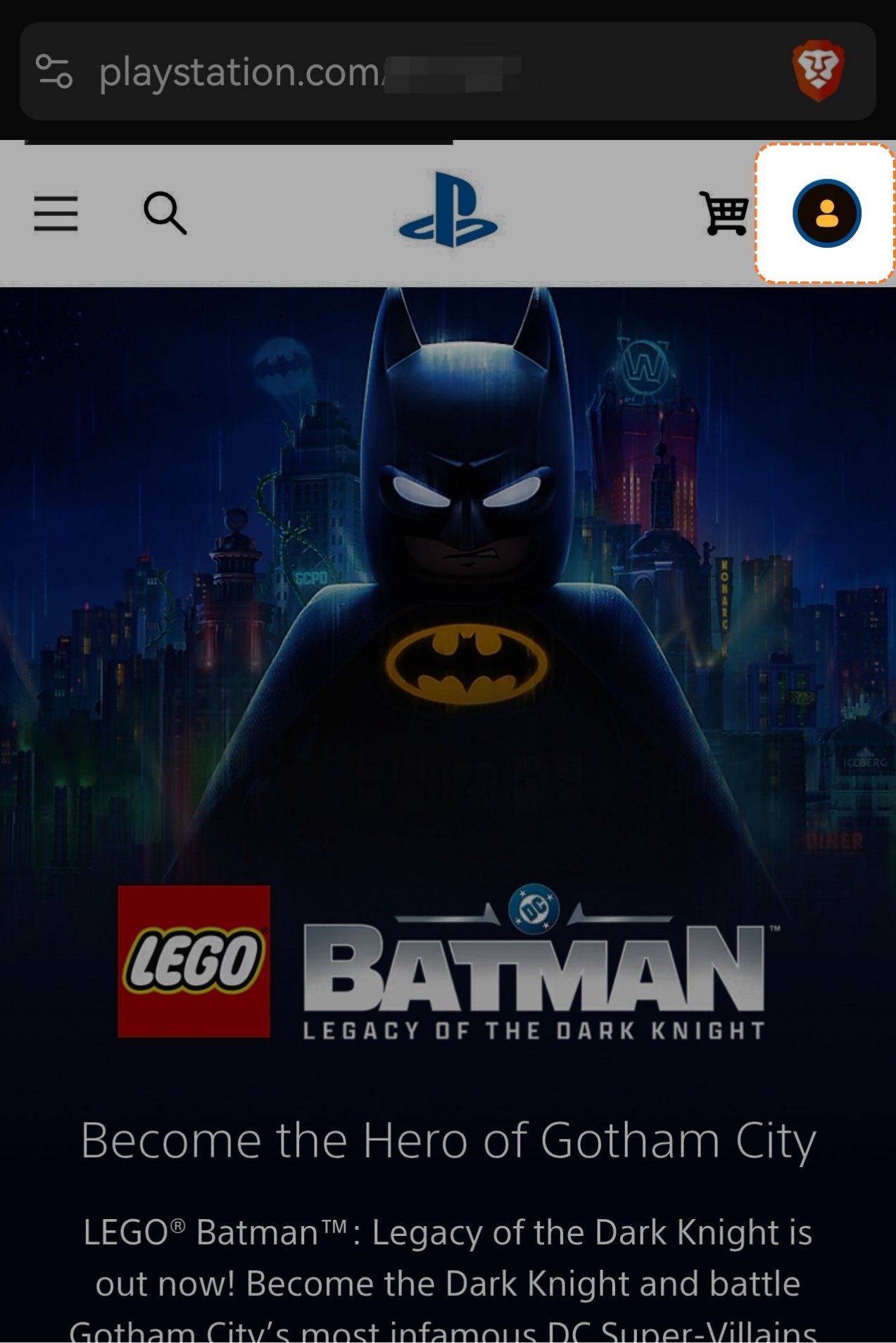
    You're in. Click your **profile picture** in the top right corner.
    <Frame>
      <img src="https://mintcdn.com/psntools-f5c51a70/SLS6e--CzrFiVXYP/account-billing/email-access/images/change-account-details-18.png?fit=max&auto=format&n=SLS6e--CzrFiVXYP&q=85&s=4c508e2d6806ac163ecdb91645704e6b" alt="PlayStation home page, click the profile picture" width="1273" height="1908" data-path="account-billing/email-access/images/change-account-details-18.png" />
    </Frame>
  </Step>

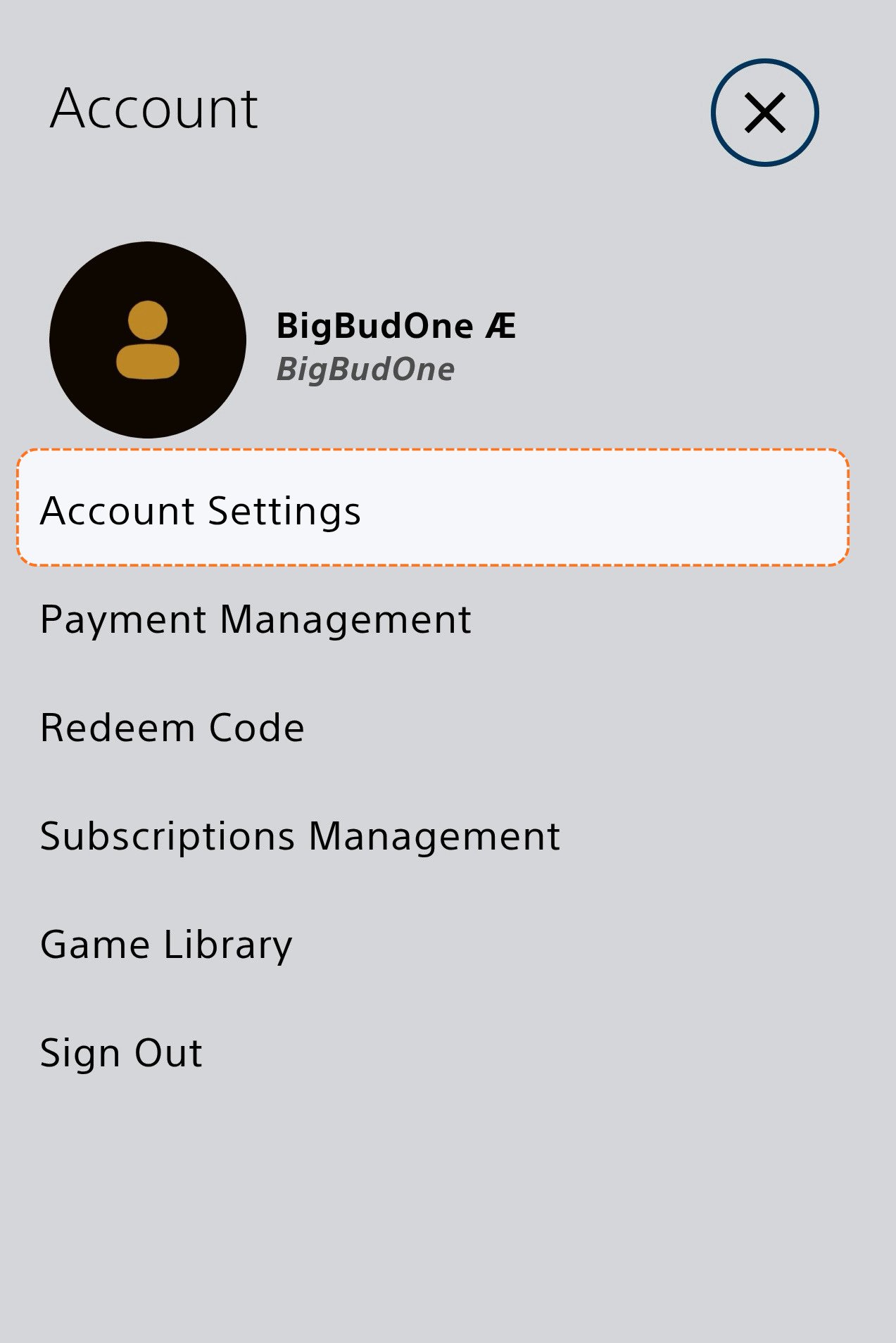
  <Step title="Open Account Settings">
    Click **Account Settings**.

    <Frame>
      <img src="https://mintcdn.com/psntools-f5c51a70/SLS6e--CzrFiVXYP/account-billing/email-access/images/change-account-details-19.png?fit=max&auto=format&n=SLS6e--CzrFiVXYP&q=85&s=1256b407125cbae7bb86c9b0c447caf5" alt="Profile menu, click Account Settings" width="1273" height="1908" data-path="account-billing/email-access/images/change-account-details-19.png" />
    </Frame>
  </Step>

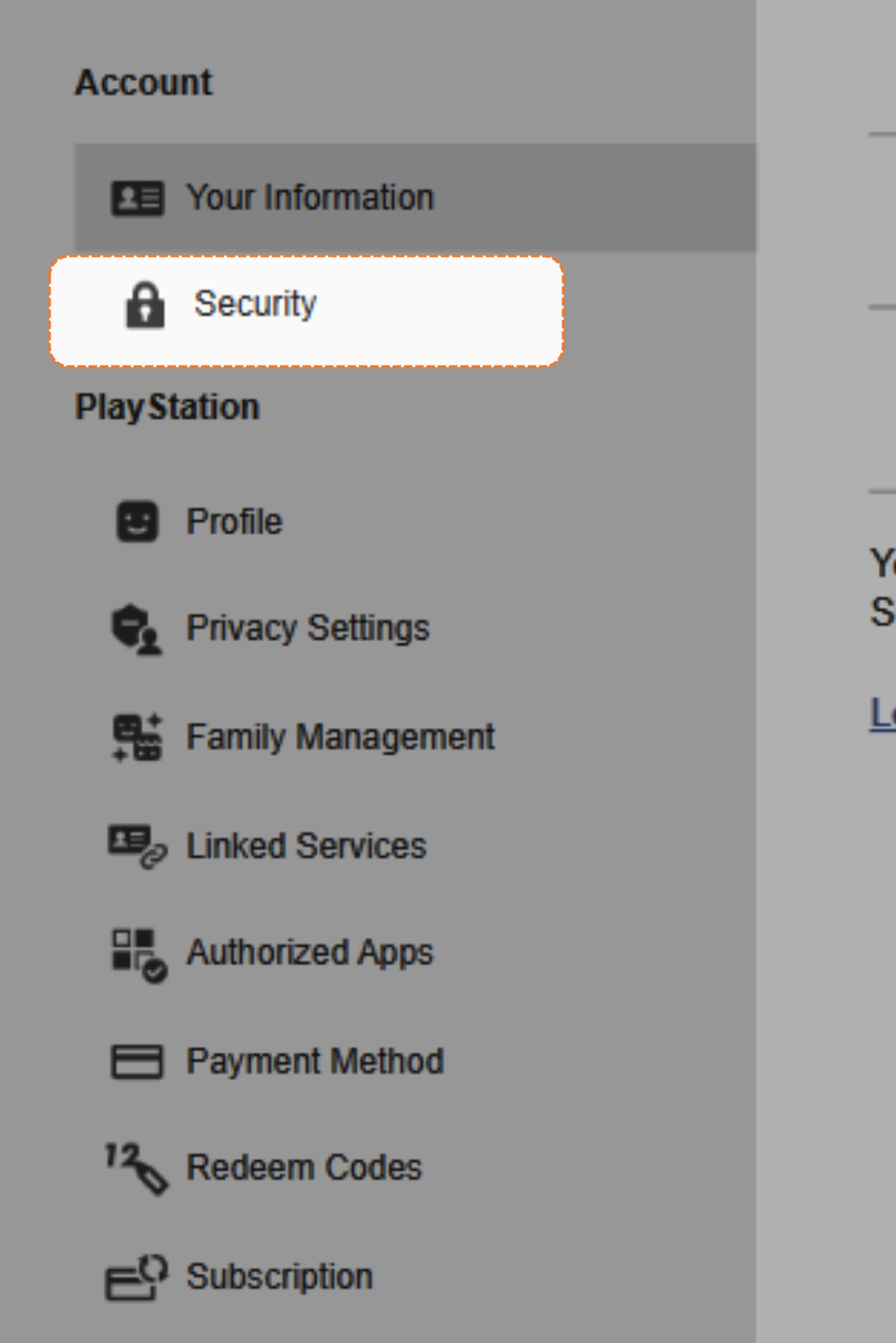
  <Step title="Open Security">
    Click **Security**.

    <Frame>
      <img src="https://mintcdn.com/psntools-f5c51a70/SLS6e--CzrFiVXYP/account-billing/email-access/images/change-account-details-20.png?fit=max&auto=format&n=SLS6e--CzrFiVXYP&q=85&s=b2135f7c79c37d3c75db04adfd53ed11" alt="Account settings, click Security" width="1273" height="1908" data-path="account-billing/email-access/images/change-account-details-20.png" />
    </Frame>
  </Step>

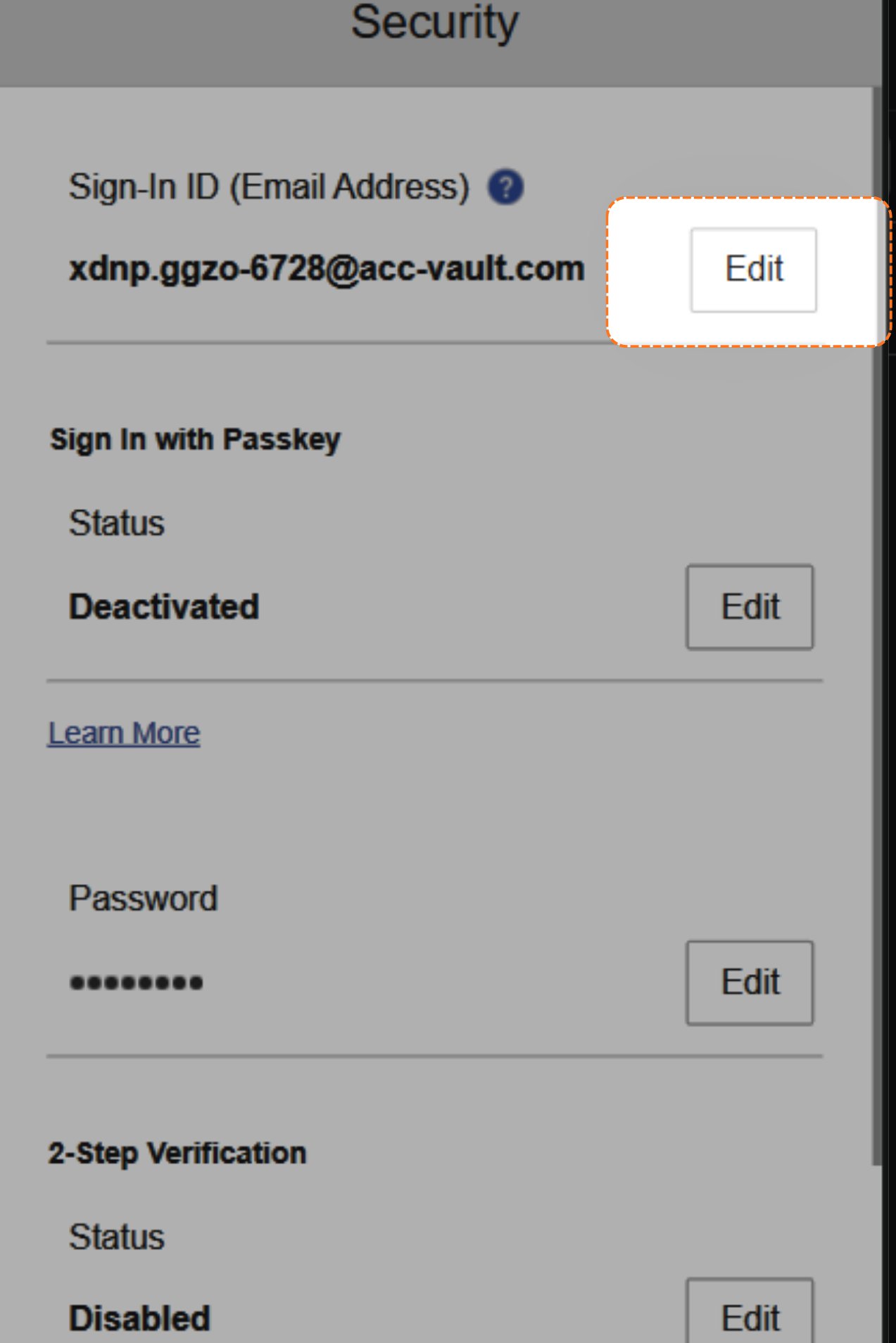
  <Step title="Edit the email">
    Click the **edit** button next to the email.
    <Frame>
      <img src="https://mintcdn.com/psntools-f5c51a70/SLS6e--CzrFiVXYP/account-billing/email-access/images/change-account-details-21.png?fit=max&auto=format&n=SLS6e--CzrFiVXYP&q=85&s=48ecc80085ac38d27f2e8379a3e0a4a8" alt="Security section, click edit next to the email" width="1273" height="1908" data-path="account-billing/email-access/images/change-account-details-21.png" />
    </Frame>
  </Step>

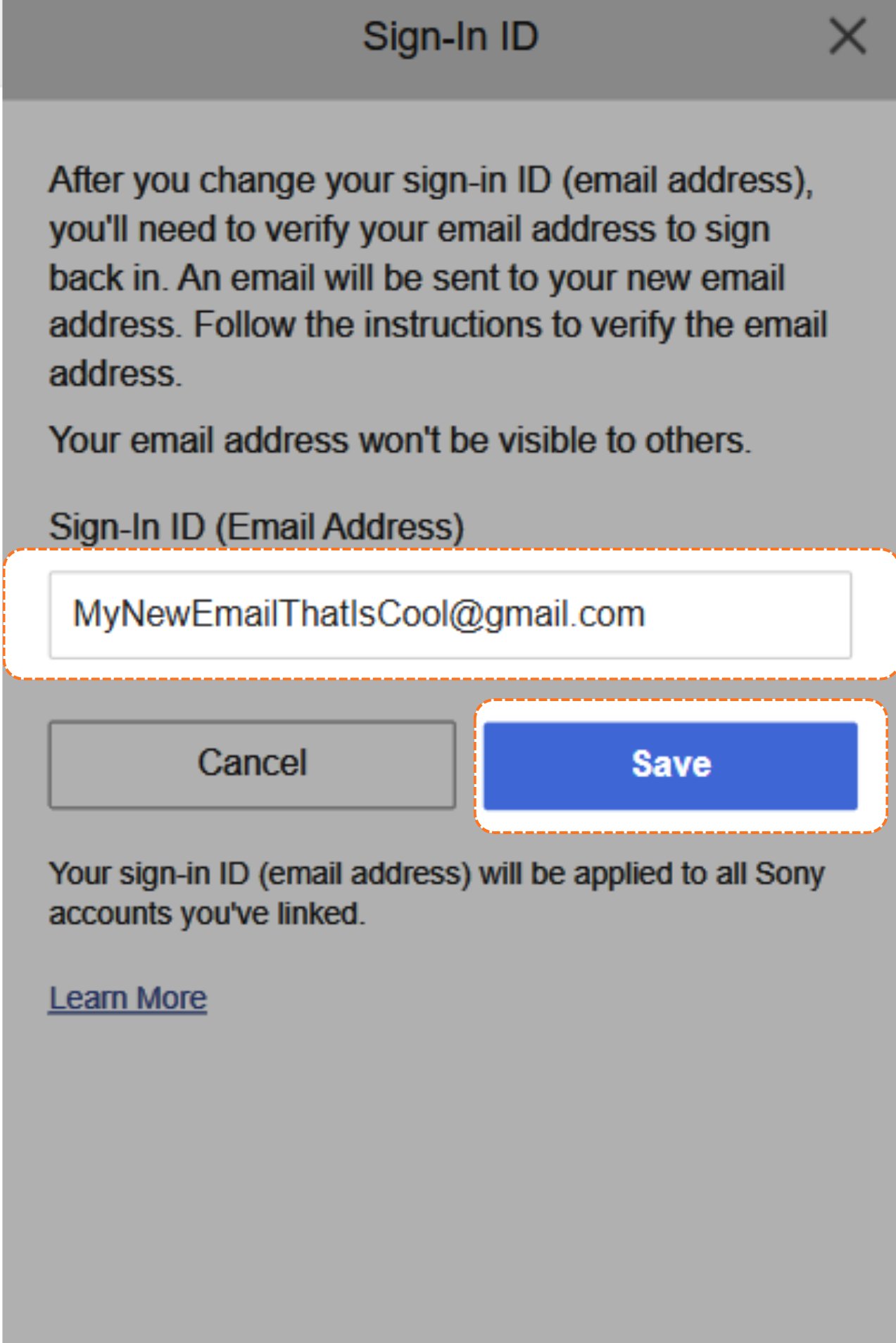
  <Step title="Save the new email">
    Type your **new email** in the box, then click **Save**.
    <Frame>
      <img src="https://mintcdn.com/psntools-f5c51a70/SLS6e--CzrFiVXYP/account-billing/email-access/images/change-account-details-22.png?fit=max&auto=format&n=SLS6e--CzrFiVXYP&q=85&s=c856bc62171dcd80e66f64caa333d5fd" alt="Sign-in ID page, enter the new email and click Save" width="1273" height="1908" data-path="account-billing/email-access/images/change-account-details-22.png" />
    </Frame>
  </Step>

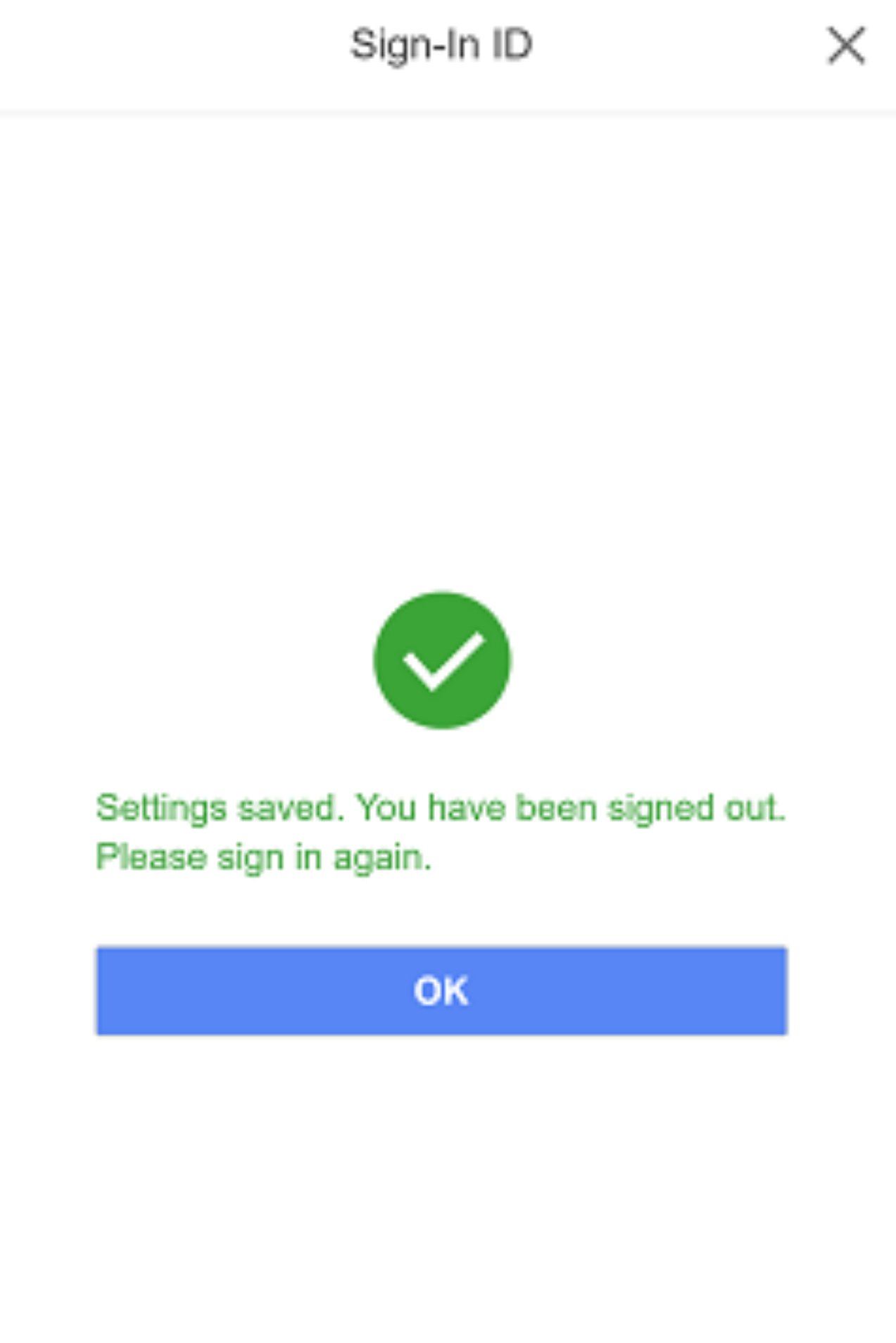
  <Step title="Sign back in">
    You'll see **Settings saved. You have been signed out. Please sign in again.** That means it worked. Sign back in with your new email and new password.
    <Frame>
      <img src="https://mintcdn.com/psntools-f5c51a70/SLS6e--CzrFiVXYP/account-billing/email-access/images/change-account-details-23.png?fit=max&auto=format&n=SLS6e--CzrFiVXYP&q=85&s=e32f6d18d528f7d6b0b1263f5542a620" alt="Settings saved, you have been signed out" width="1273" height="1908" data-path="account-billing/email-access/images/change-account-details-23.png" />
    </Frame>
  </Step>
</Steps>

Done.