> ## Documentation Index
> Fetch the complete documentation index at: https://docs.psntools.com/llms.txt
> Use this file to discover all available pages before exploring further.
# Managing Your Subscription
> A step-by-step guide to managing your PSNTools subscription and billing settings.
## Accessing Your Subscription Settings
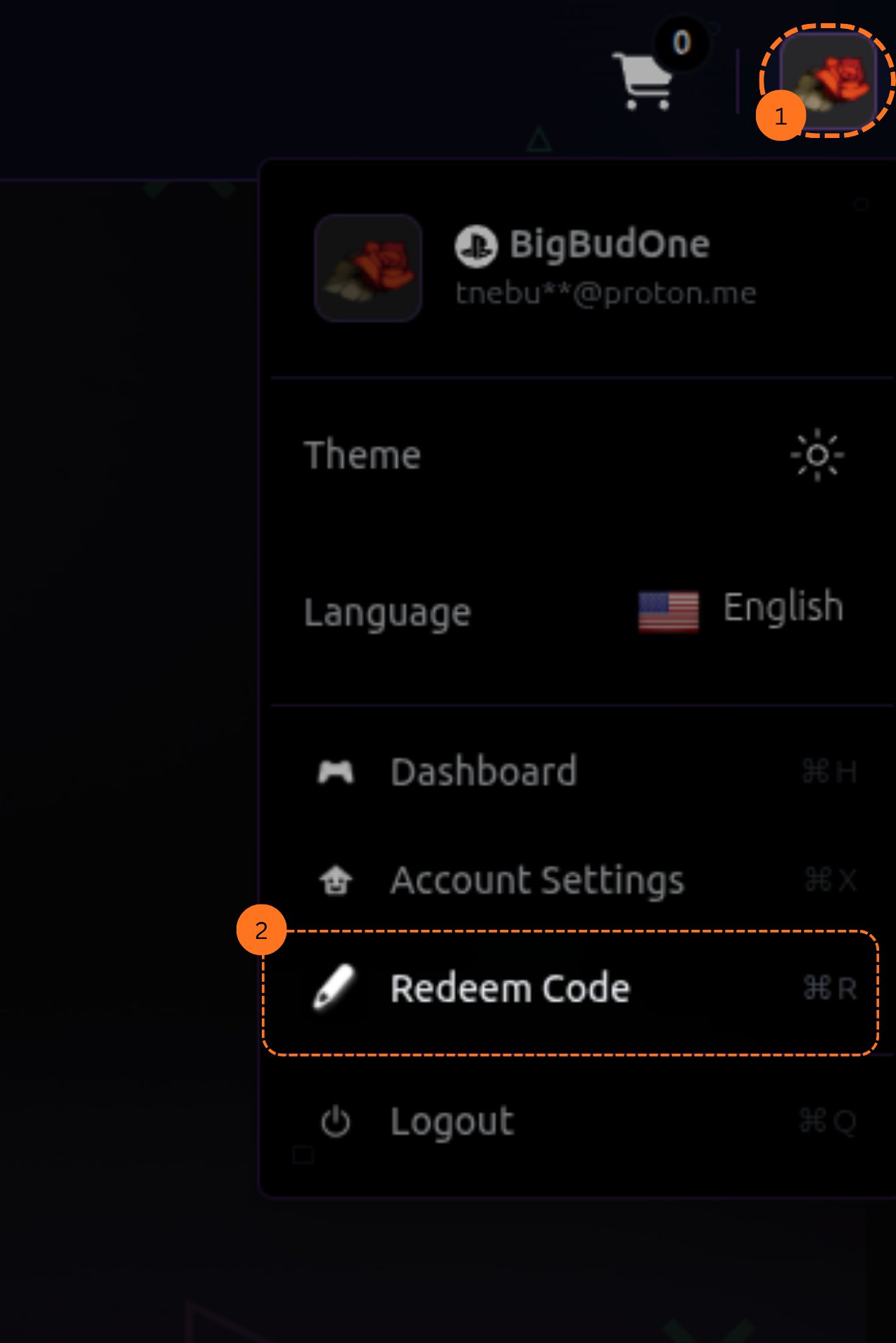
Go to the PSNTools website. On the main page, look at the top right corner and click on your profile picture. From the dropdown menu, click on **Redeem Code**.
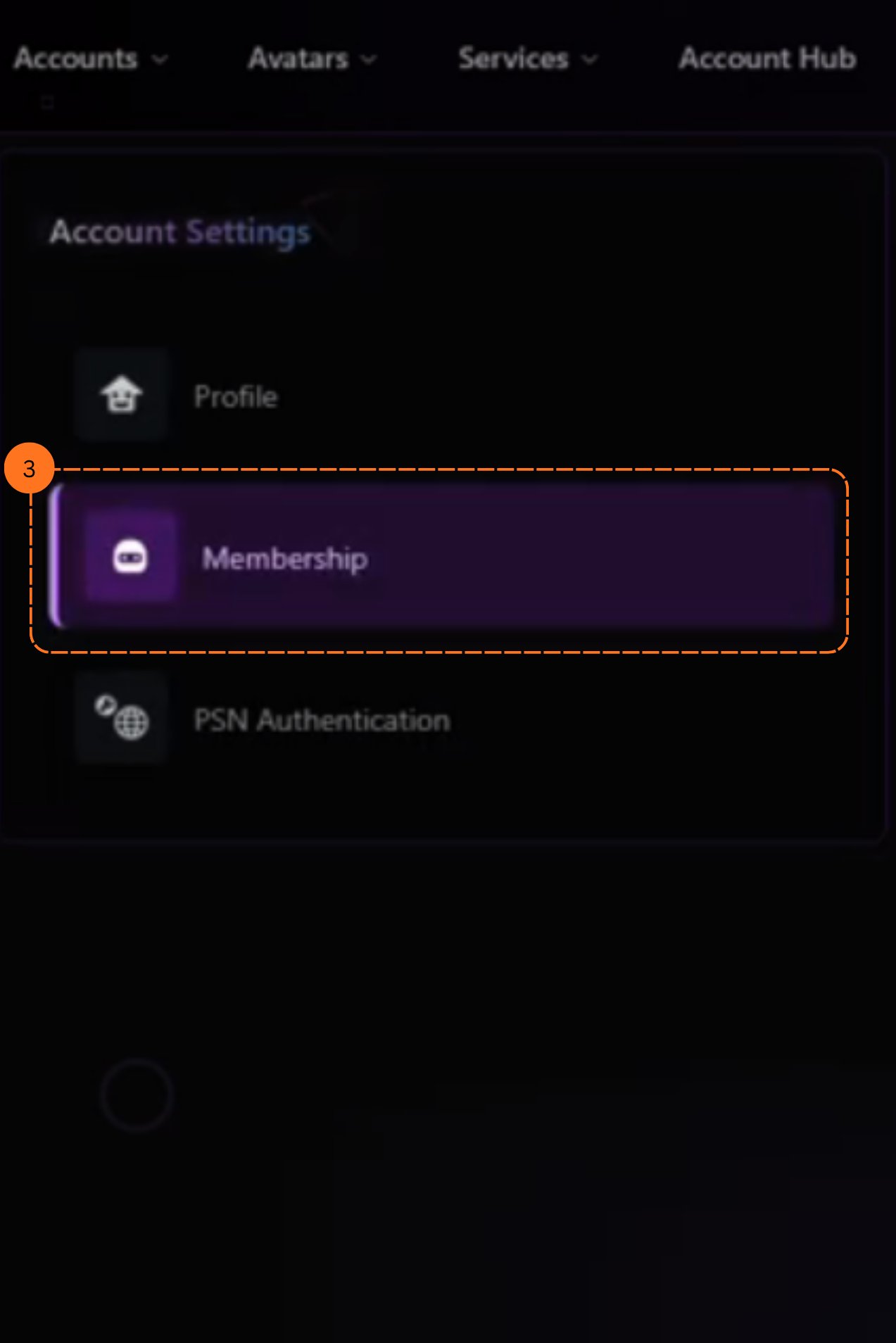
 Go to your account settings and click on the **Membership** tab.
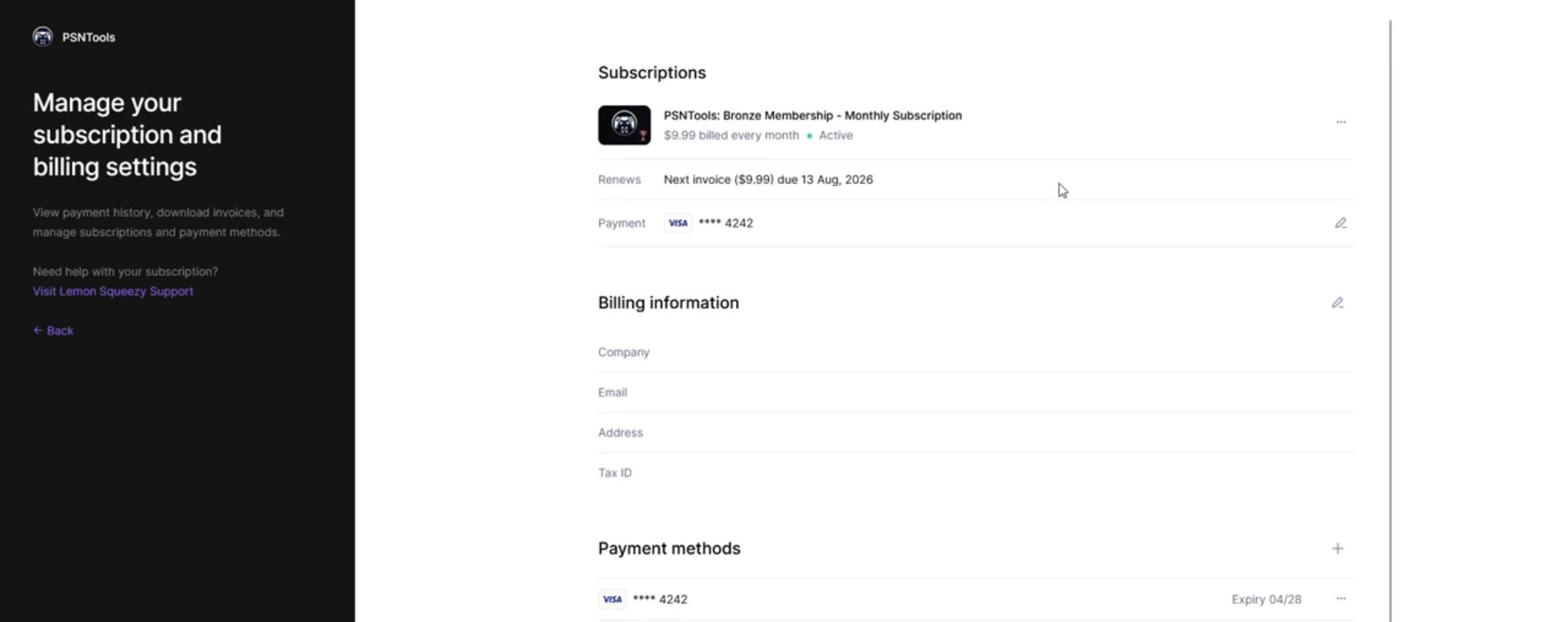
 Scroll down until you see **Manage Subscription**.
 Click on it. You will see a page where you can manage your subscription and billing settings.
 ## Canceling Your Subscription
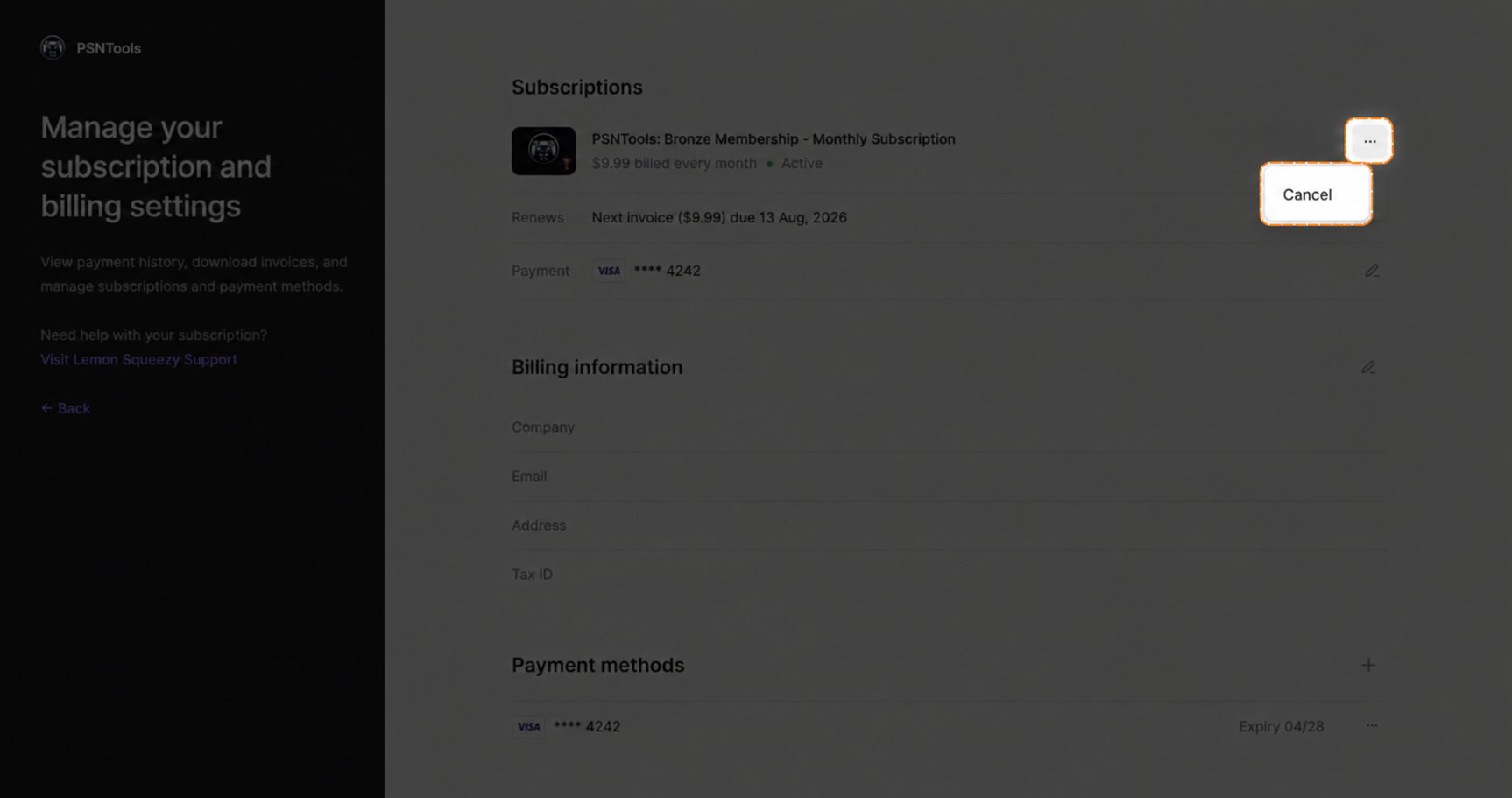
To cancel your subscription, click on the three dots and then click **Cancel**.
## Canceling Your Subscription
To cancel your subscription, click on the three dots and then click **Cancel**.
 ## Related topics
- [Account & Billing](/account-billing/overview.md)
- [Premium Services](/premium-services/overview.md)
- [Billing](/api/billing.md)
- [Account Checker](/platform-features/account/account-checker.md)
- [Change your password](/account-billing/your-account/change-password.md)
## Related topics
- [Account & Billing](/account-billing/overview.md)
- [Premium Services](/premium-services/overview.md)
- [Billing](/api/billing.md)
- [Account Checker](/platform-features/account/account-checker.md)
- [Change your password](/account-billing/your-account/change-password.md)