> ## Documentation Index
> Fetch the complete documentation index at: https://docs.psntools.com/llms.txt
> Use this file to discover all available pages before exploring further.

# Avatar Adder & Collection

> Add PlayStation avatars to your cart and check out through the Avatar Adder & Collection tool.

<Accordion title="Prefer to watch? Video tutorial" icon="youtube">
  <iframe className="w-full aspect-video rounded-xl" src="https://www.youtube.com/embed/AuLj21YMY8o" title="PSNTools Avatar Adder tutorial" frameborder="0" allow="accelerometer; autoplay; clipboard-write; encrypted-media; gyroscope; picture-in-picture" allowfullscreen />
</Accordion>

<Info>
  Make sure your NPSSO cookie is fresh before using PSNTools. Sign out of PSN and sign back in if needed. [NPSSO guide here](/security/npsso-token).
</Info>

## Before you start

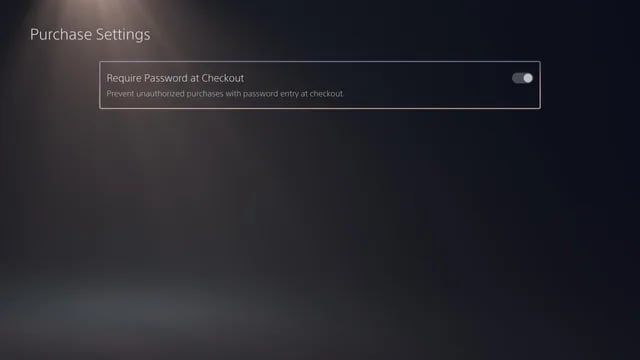
Make sure **password during checkout** is disabled in your PSN account settings. You can change this under your PlayStation account settings.

<Frame>
  <img src="https://mintcdn.com/psntools-f5c51a70/v-mSR7XyO3vYkr65/images/avatar-adder-disable-password-checkout.png?fit=max&auto=format&n=v-mSR7XyO3vYkr65&q=85&s=750ca60548c7aa06203c88175da0b262" alt="Avatar Adder Disable Password Checkout" width="640" height="360" data-path="images/avatar-adder-disable-password-checkout.png" />
</Frame>

<Warning>
  If you don't disable it, the checkout process will keep asking you to enter your password every time and will fail.
</Warning>

<Steps>
  <Step title="Go to Avatar Adder & Collection">
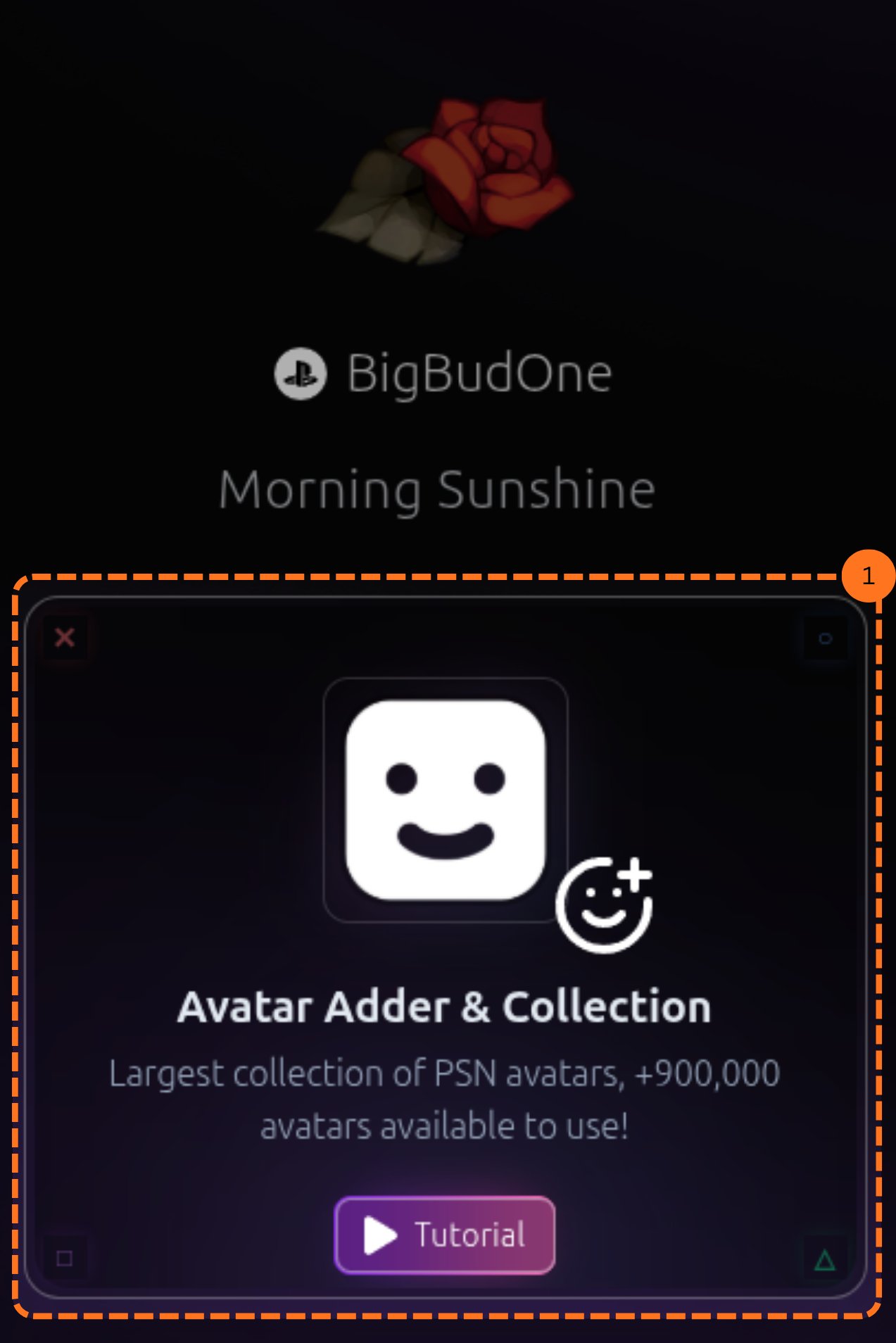
    On the PSNTools main page, look for the **Avatar Adder & Collection** section and click it.

    <Frame>
      <img src="https://mintcdn.com/psntools-f5c51a70/v-mSR7XyO3vYkr65/images/avatar-adder-main-page.png?fit=max&auto=format&n=v-mSR7XyO3vYkr65&q=85&s=23830ba1dd756e9fb24ad6ab5fcfda5d" alt="Avatar Adder Main Page" width="1273" height="1908" data-path="images/avatar-adder-main-page.png" />
    </Frame>
  </Step>

  <Step title="Add an Item to Your Cart">
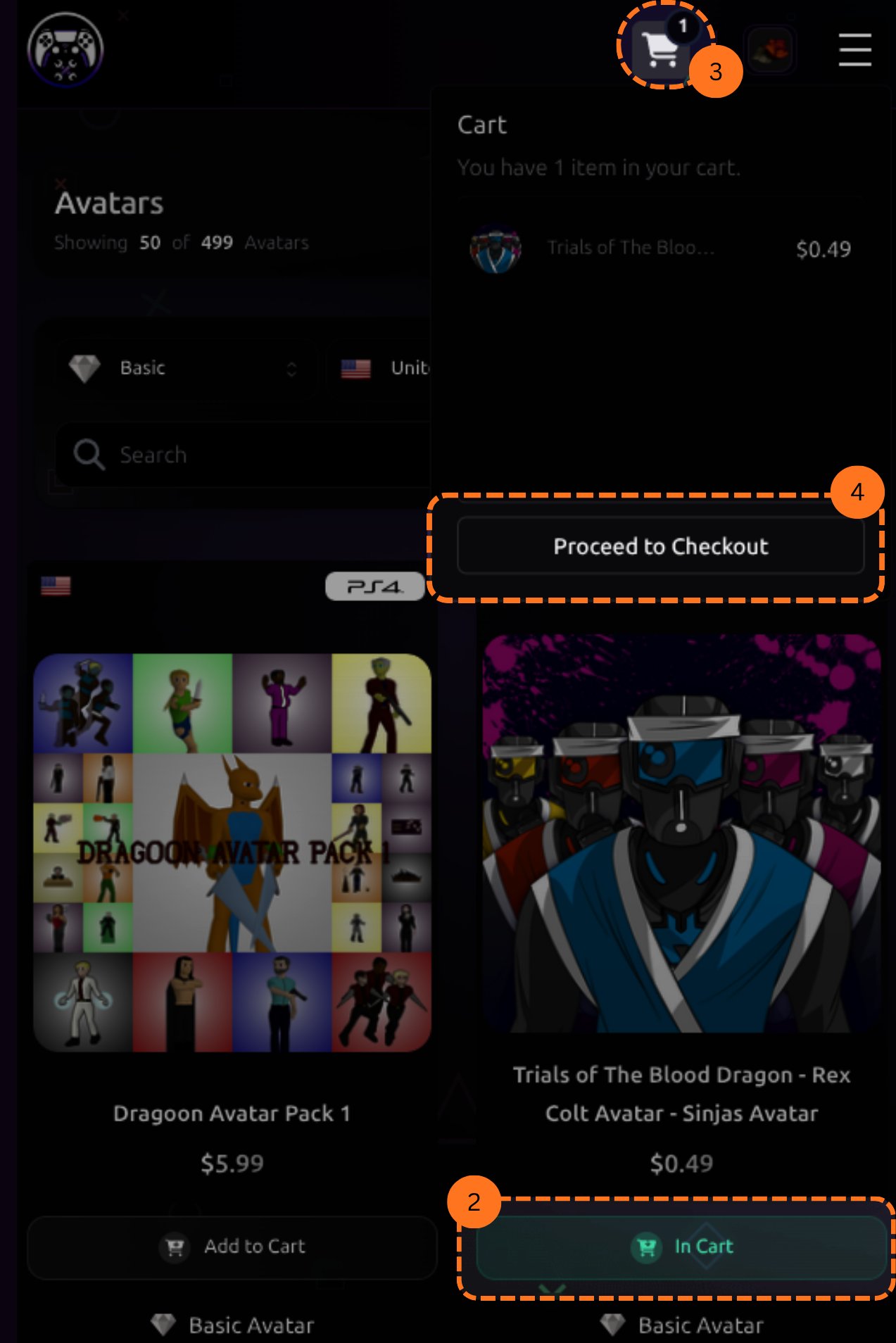
    Choose an avatar or item and click **Add to Cart**. After adding items, click the cart icon in the top right corner to review your selection.

    A pop-up will appear showing your cart. Click **Proceed to Checkout** to move forward.

    <Frame>
      <img src="https://mintcdn.com/psntools-f5c51a70/v-mSR7XyO3vYkr65/images/avatar-adder-add-to-cart.png?fit=max&auto=format&n=v-mSR7XyO3vYkr65&q=85&s=0fc264d4a2d2d23973b8c3e8be61b991" alt="Avatar Adder Add To Cart" width="1273" height="1908" data-path="images/avatar-adder-add-to-cart.png" />
    </Frame>
  </Step>

  <Step title="Checkout Your Cart">
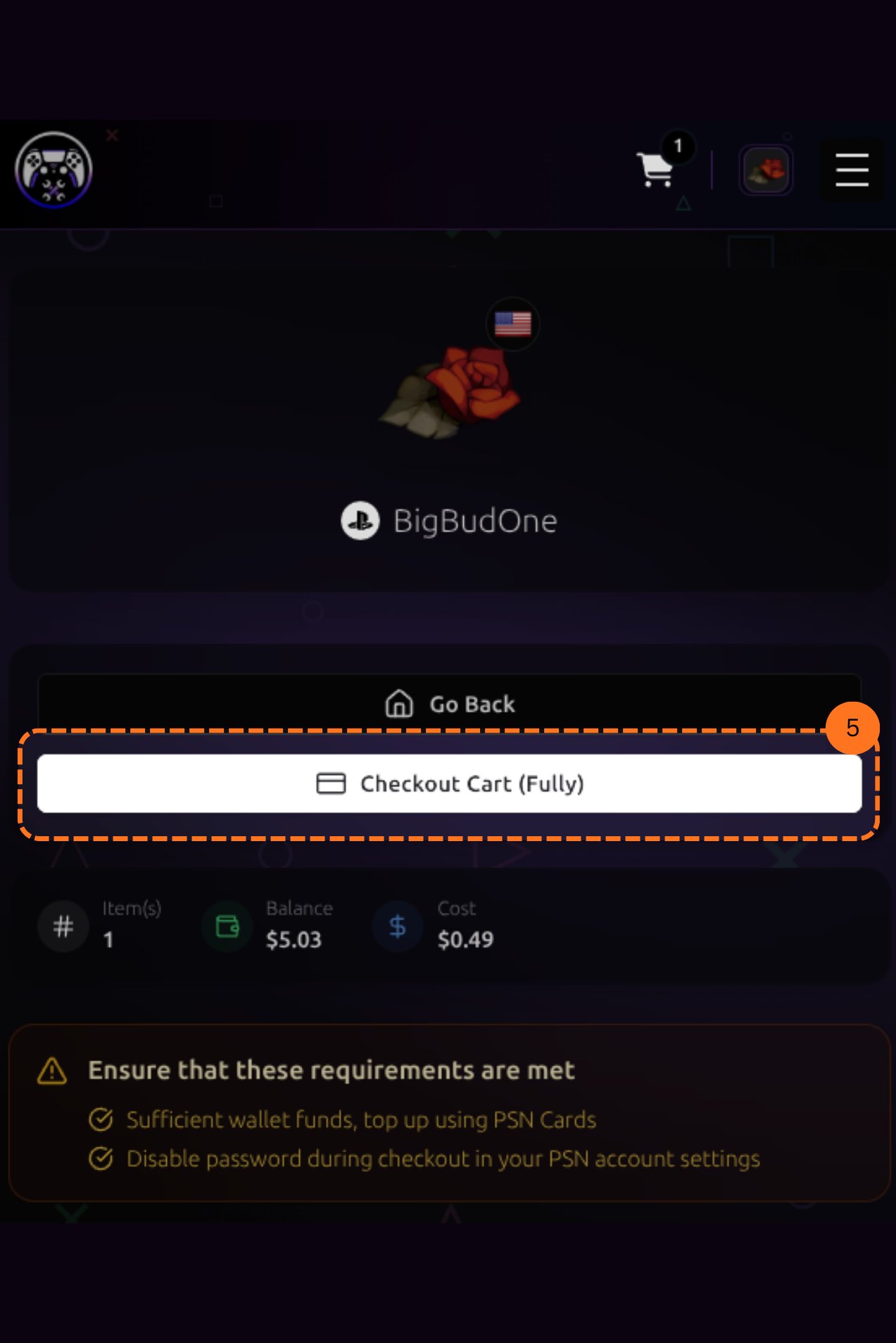
    On the next page, click **Checkout Cart** to complete the purchase. Make sure you have sufficient wallet funds in your PSN account.

    <Frame>
      <img src="https://mintcdn.com/psntools-f5c51a70/v-mSR7XyO3vYkr65/images/avatar-adder-proceed-checkout.png?fit=max&auto=format&n=v-mSR7XyO3vYkr65&q=85&s=f145a055a4514dd69b80bd6a0863fb10" alt="Avatar Adder Proceed Checkout" width="1273" height="1908" data-path="images/avatar-adder-proceed-checkout.png" />
    </Frame>

    <Warning>
      Confirm **password during checkout** is disabled in your PSN settings before doing this, or the checkout will fail.
    </Warning>
  </Step>
</Steps>

If you don't have a PSNTools account yet, check out the guide on [how to create one](/getting-started/create-account).


## Related topics

- [Avatar Finder](/avatar-tools/avatar-finder.md)
- [Avatar Activator](/avatar-tools/avatar-activator.md)
- [Membership tiers](/billing/memberships.md)
- [PSNTools Documentation](/index.md)
- [Profile Cloner](/profile-tools/profile-cloner.md)