> ## Documentation Index
> Fetch the complete documentation index at: https://docs.psntools.com/llms.txt
> Use this file to discover all available pages before exploring further.

# Avatar Finder

> Search for PlayStation avatars by name and view details like publisher, platforms, regions, and resolutions.

<Accordion title="Prefer to watch? Video tutorial" icon="youtube">
  <iframe className="w-full aspect-video rounded-xl" src="https://www.youtube.com/embed/xcxGhda_9Dc" title="PSNTools Avatar Finder tutorial" frameborder="0" allow="accelerometer; autoplay; clipboard-write; encrypted-media; gyroscope; picture-in-picture" allowfullscreen />
</Accordion>

<Info>
  Make sure your NPSSO cookie is fresh before using PSNTools. Sign out of PSN and sign back in if needed. [NPSSO guide here](/security/npsso-token).
</Info>

<Steps>
  <Step title="Go to the Avatar Finder">
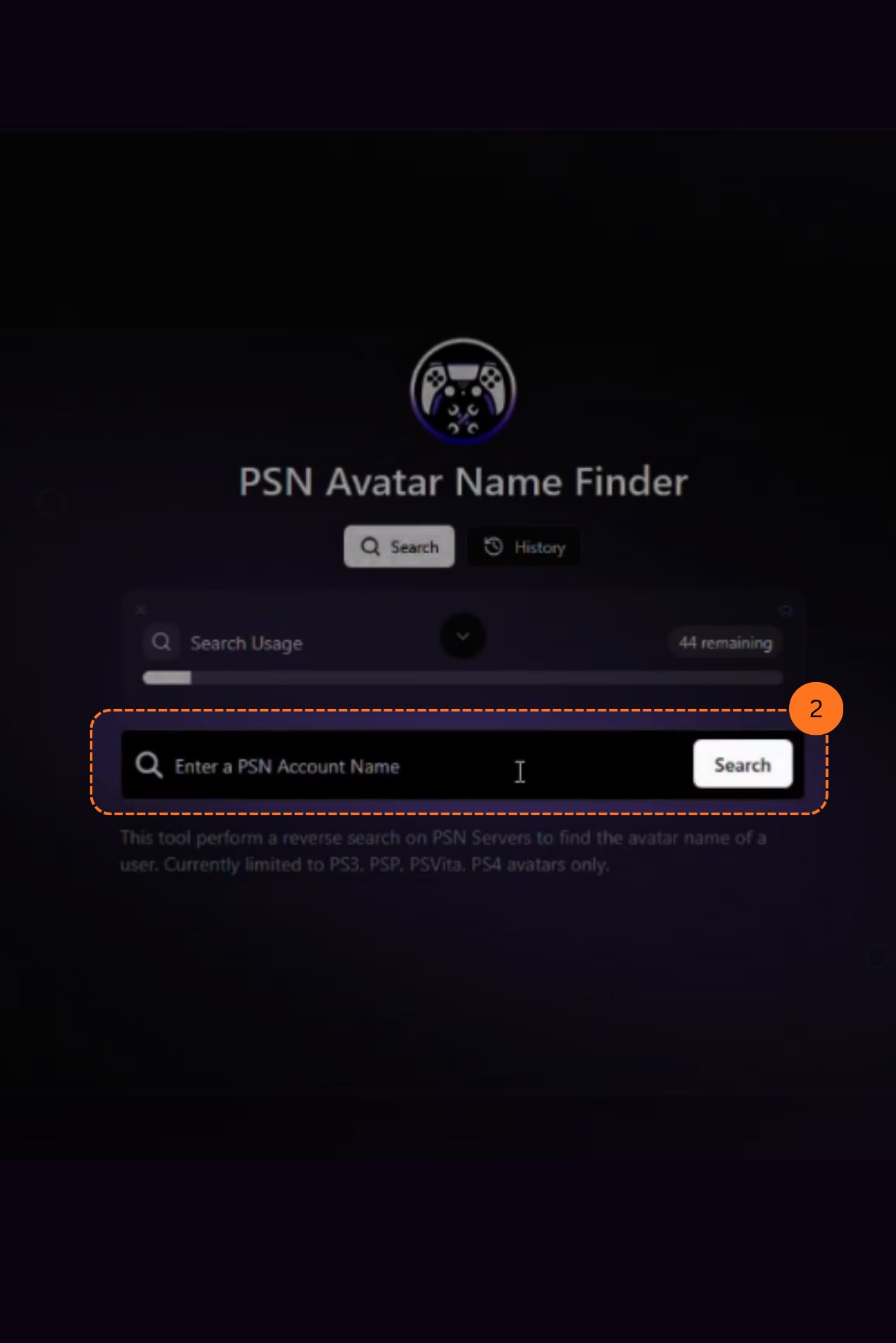
    Head over to the [Avatar Finder page](https://www.psntools.com/psn/avatar/finder). Enter your PSN account name in the search bar.

    <Frame>
      <img src="https://mintcdn.com/psntools-f5c51a70/v-mSR7XyO3vYkr65/images/avatar-finder-page.png?fit=max&auto=format&n=v-mSR7XyO3vYkr65&q=85&s=ecd38f8c05e76bfc53a14124de6a1114" alt="Avatar Finder Page" width="1273" height="1908" data-path="images/avatar-finder-page.png" />
    </Frame>
  </Step>

  <Step title="Search for an Avatar Name">
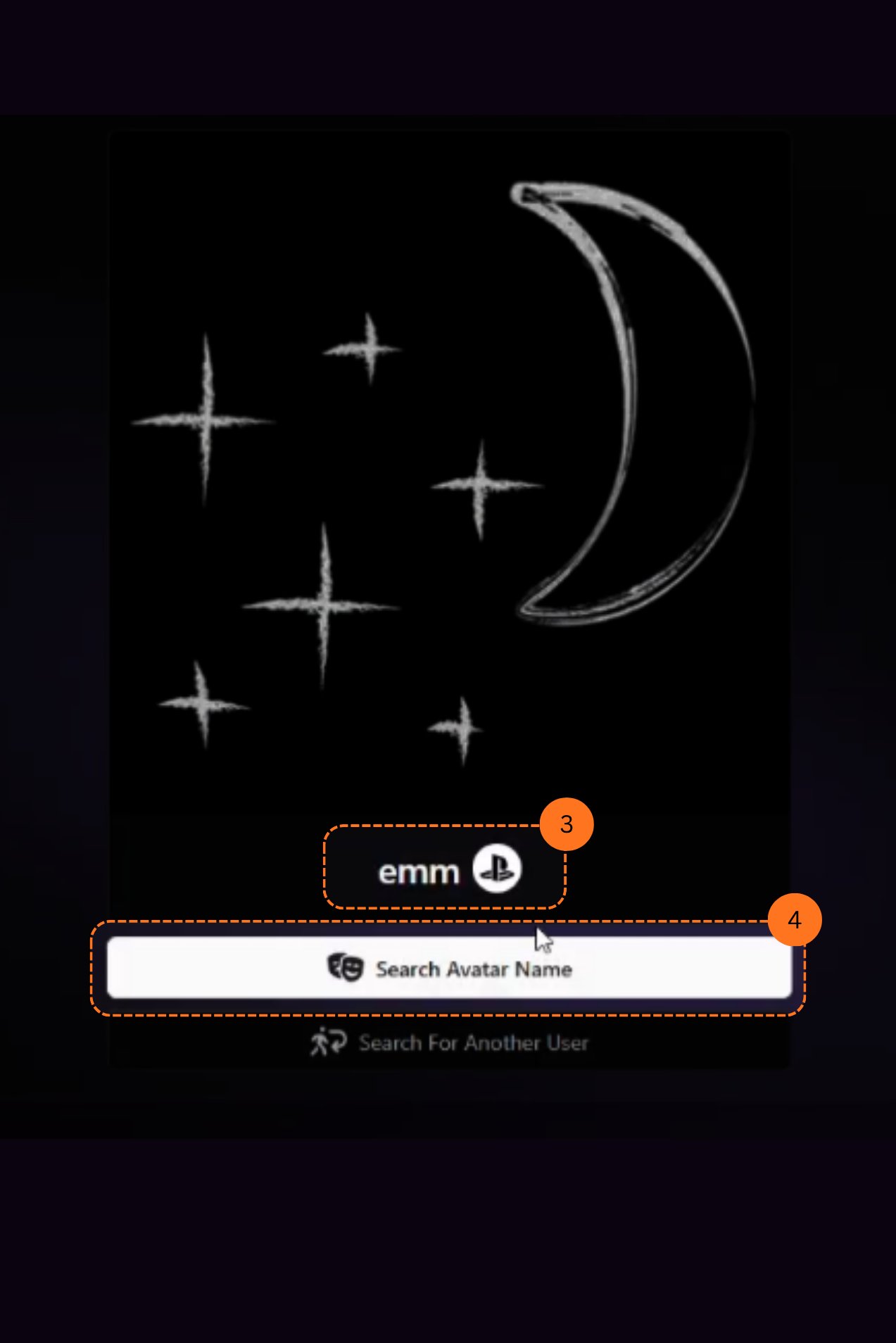
    After the results load, you will see the avatar of the PSN ID. Click the **Search Avatar Name** bar.

    <Frame>
      <img src="https://mintcdn.com/psntools-f5c51a70/v-mSR7XyO3vYkr65/images/avatar-finder-results.png?fit=max&auto=format&n=v-mSR7XyO3vYkr65&q=85&s=f85701ef1f9a4bd8357f1de9b825f8ca" alt="Avatar Finder Results" width="1273" height="1908" data-path="images/avatar-finder-results.png" />
    </Frame>
  </Step>

  <Step title="View Avatar Details">
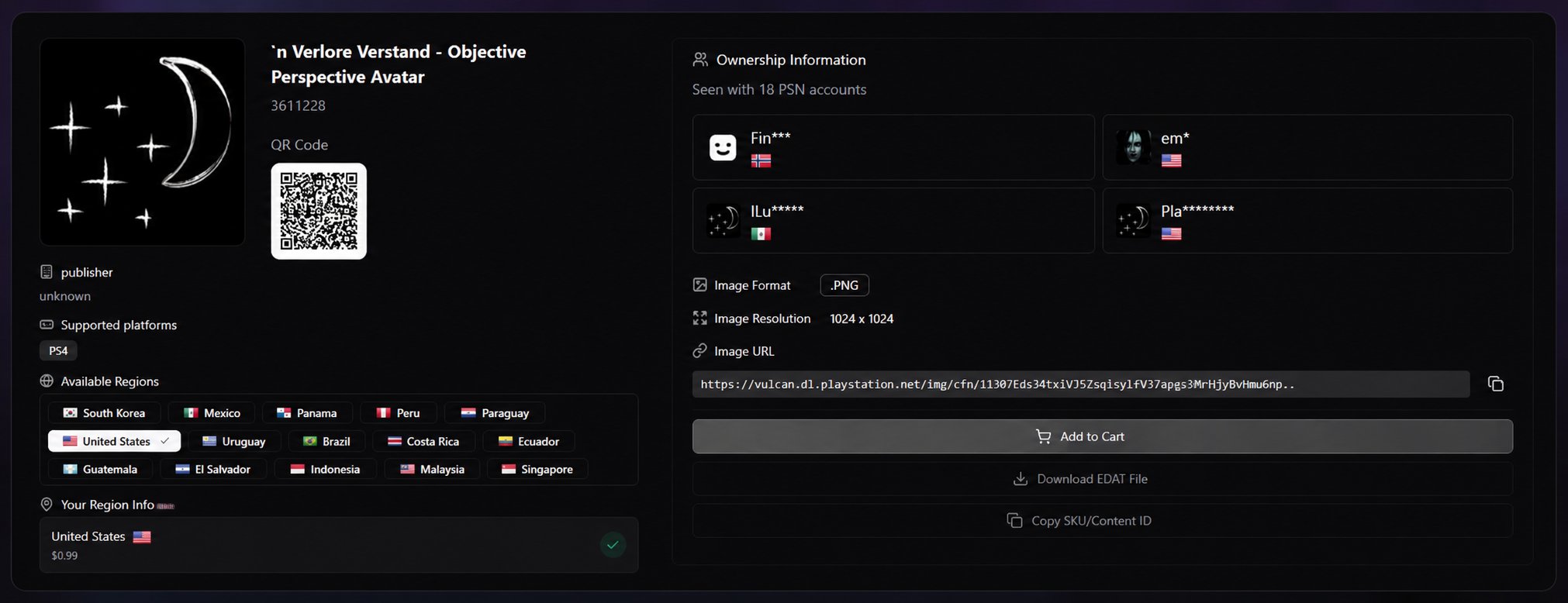
    After clicking search, you can see all the avatar information, including:

    * Avatar publisher
    * Supported platforms
    * Regions
    * Image resolution & formats
    * Which users can see which avatars on their PSN

    <Frame>
      <img src="https://mintcdn.com/psntools-f5c51a70/v-mSR7XyO3vYkr65/images/avatar-finder-details.png?fit=max&auto=format&n=v-mSR7XyO3vYkr65&q=85&s=c287add4e972878de539e159ddb84c81" alt="Avatar Finder Details" width="2022" height="778" data-path="images/avatar-finder-details.png" />
    </Frame>
  </Step>
</Steps>

If you don't have a PSNTools account yet, check out the guide on [how to create one](/getting-started/create-account).


## Related topics

- [Membership tiers](/billing/memberships.md)
- [Avatar Activator](/avatar-tools/avatar-activator.md)
- [Avatar Adder & Collection](/avatar-tools/avatar-adder.md)
- [PSNTools Documentation](/index.md)
- [Profile Cloner](/profile-tools/profile-cloner.md)