> ## Documentation Index
> Fetch the complete documentation index at: https://docs.psntools.com/llms.txt
> Use this file to discover all available pages before exploring further.

# Change your account details

> Recover a purchased PSN account and change the email address on it, step by step.

This guide shows how to get back into a purchased PSN account and change the email address on it. It comes in two parts:

1. **Recover the account.** Reset the password using the inbox.
2. **Change the email.** Swap the sign-in email (Sign-In ID) to one you control.

<Info>
  Open the account's inbox before you start. See [Access your account inbox](/premium-services/new-accounts/landing-page), or use the [magic link](/premium-services/new-accounts/magic-link) instead.
</Info>

## Before you start

You need three things off the account details page, plus a couple of tabs open:

* The **Login email**, the **Password**, and the **Date of birth (DOB)**. All three are on the account details page.
* The **inbox** open in another tab, so you can read the emails PlayStation sends.
* A **new email address** ready. This is the one you want the account to use from now on.

Keep the account details tab open the whole time. You'll jump back to it a few times to copy things.

## Steps

<Steps>
  <Step title="Go to PlayStation.com">
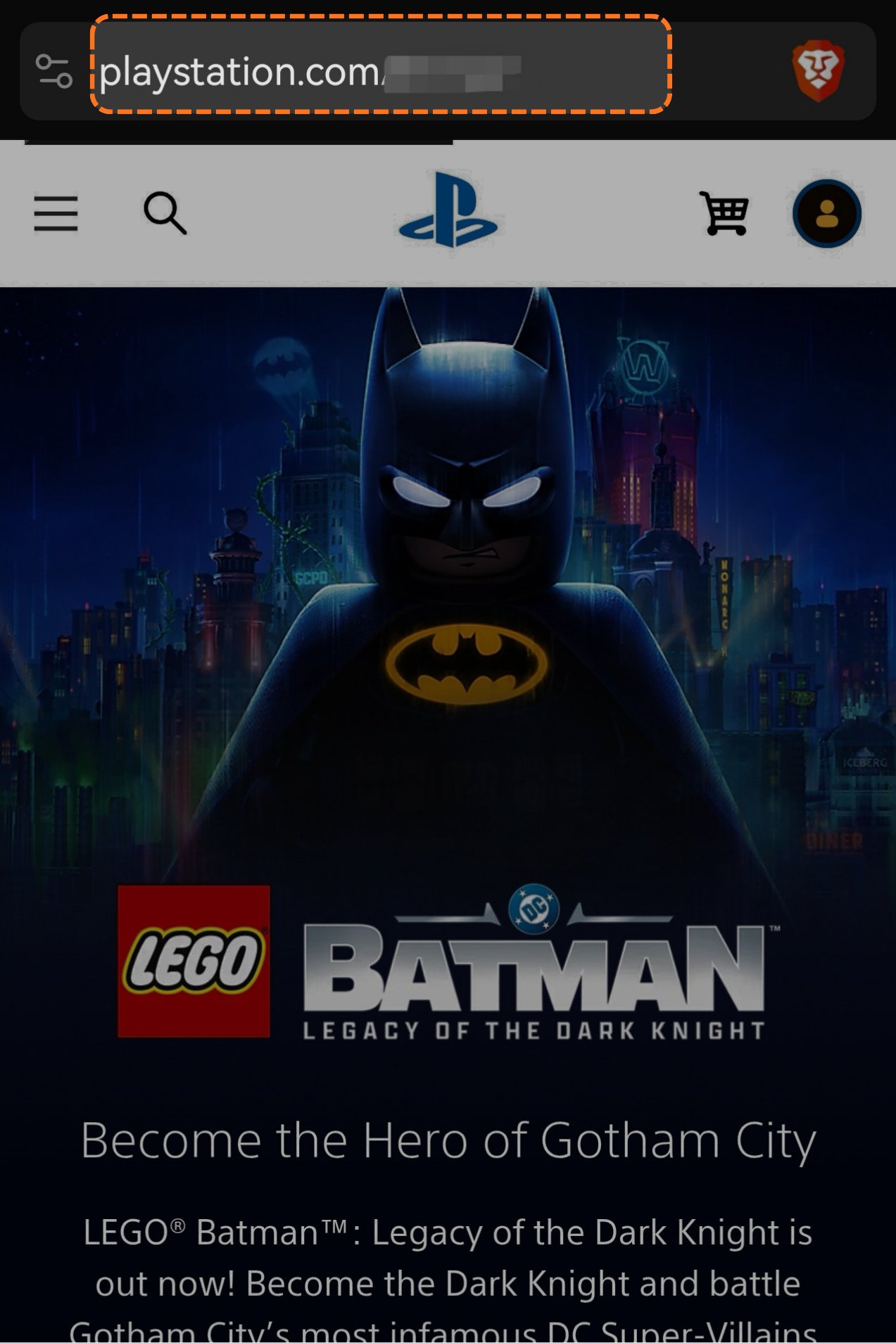
    Go to [playstation.com](https://www.playstation.com). Type it in yourself, don't trust a link from somewhere else. Make sure the address bar says playstation.com.
    <Frame>
      <img src="https://mintcdn.com/psntools-f5c51a70/L0rjPKkz6ZpL3RTC/premium-services/new-accounts/images/change-account-details-01.png?fit=max&auto=format&n=L0rjPKkz6ZpL3RTC&q=85&s=25df3a5ba3bdfb24e3a3826f5c35f14e" alt="PlayStation.com in the address bar" width="1273" height="1908" data-path="premium-services/new-accounts/images/change-account-details-01.png" />
    </Frame>
  </Step>

  <Step title="Sign out">
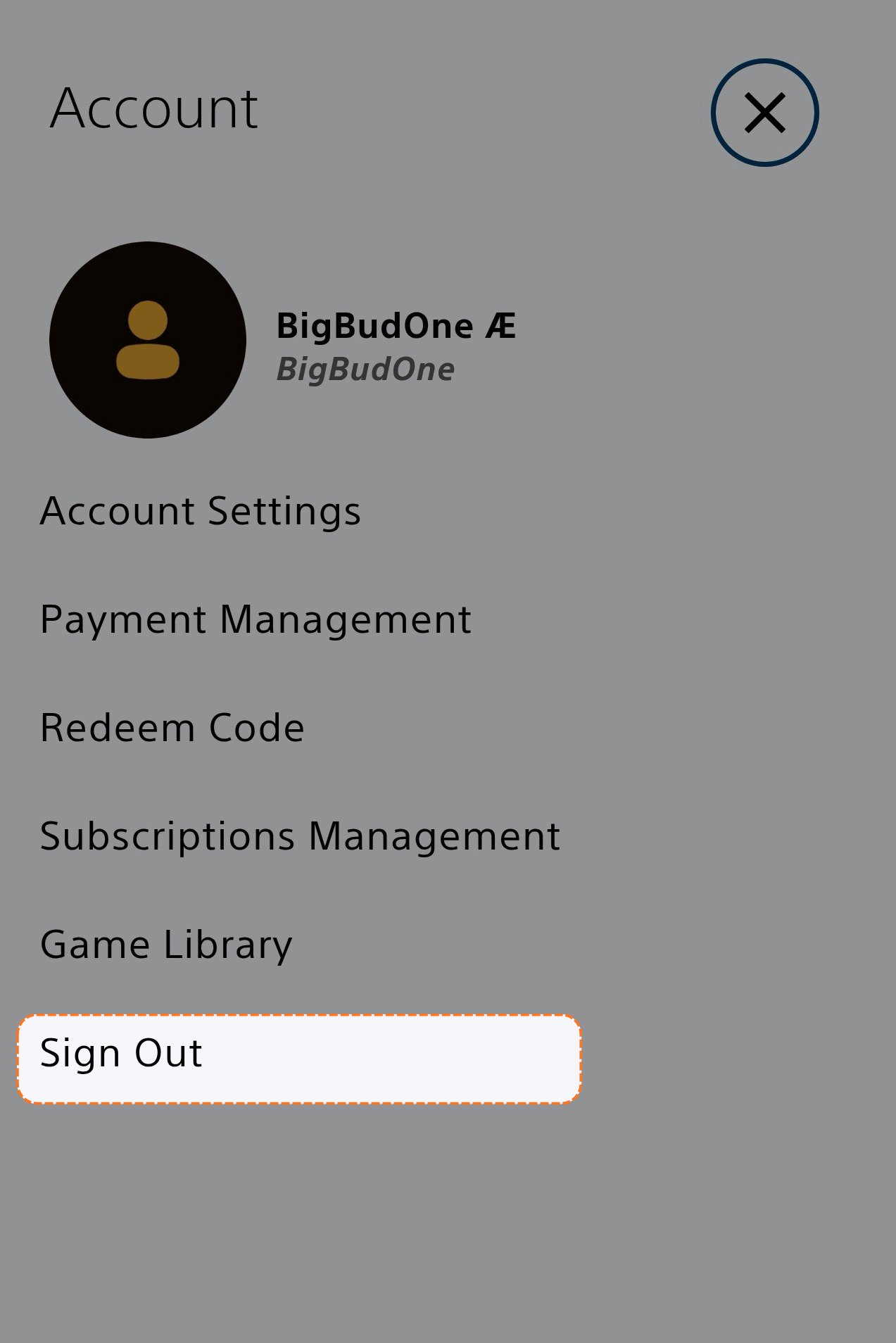
    Click your **profile picture** in the top right corner, then click **Sign Out**. If you're already signed out, skip this.
    <Frame>
      <img src="https://mintcdn.com/psntools-f5c51a70/L0rjPKkz6ZpL3RTC/premium-services/new-accounts/images/change-account-details-02.png?fit=max&auto=format&n=L0rjPKkz6ZpL3RTC&q=85&s=cc0fb5701caa068fdcceb658ba69147a" alt="PlayStation account menu, click Sign Out" width="1273" height="1908" data-path="premium-services/new-accounts/images/change-account-details-02.png" />
    </Frame>
  </Step>

  <Step title="Click Sign In">
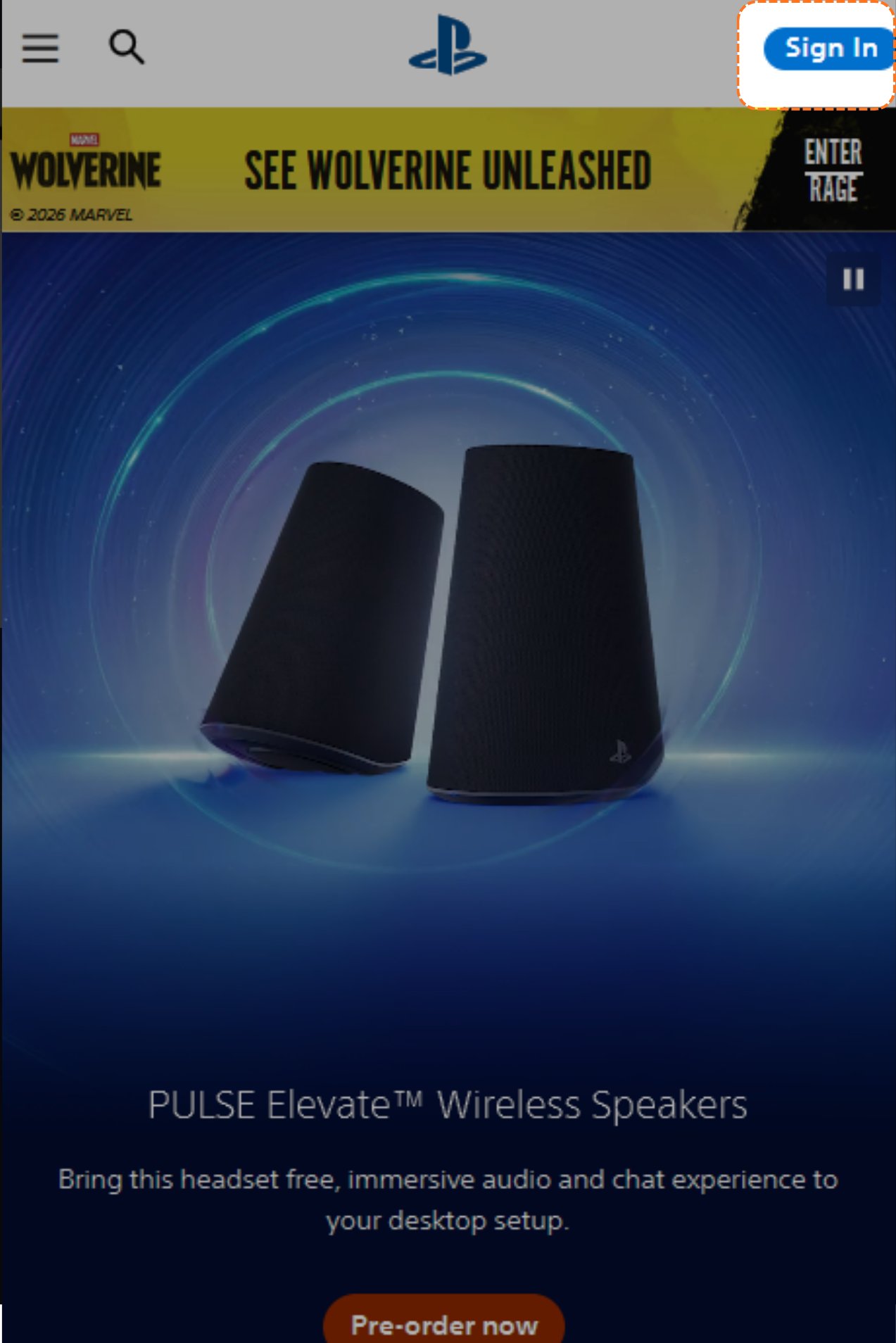
    On the main page, click **Sign In**.

    <Frame>
      <img src="https://mintcdn.com/psntools-f5c51a70/L0rjPKkz6ZpL3RTC/premium-services/new-accounts/images/change-account-details-03.png?fit=max&auto=format&n=L0rjPKkz6ZpL3RTC&q=85&s=dd049d916a9dcd2595463c5f9947cfba" alt="PlayStation home page, click Sign In" width="1273" height="1908" data-path="premium-services/new-accounts/images/change-account-details-03.png" />
    </Frame>
  </Step>

  <Step title="Click Trouble Signing In">
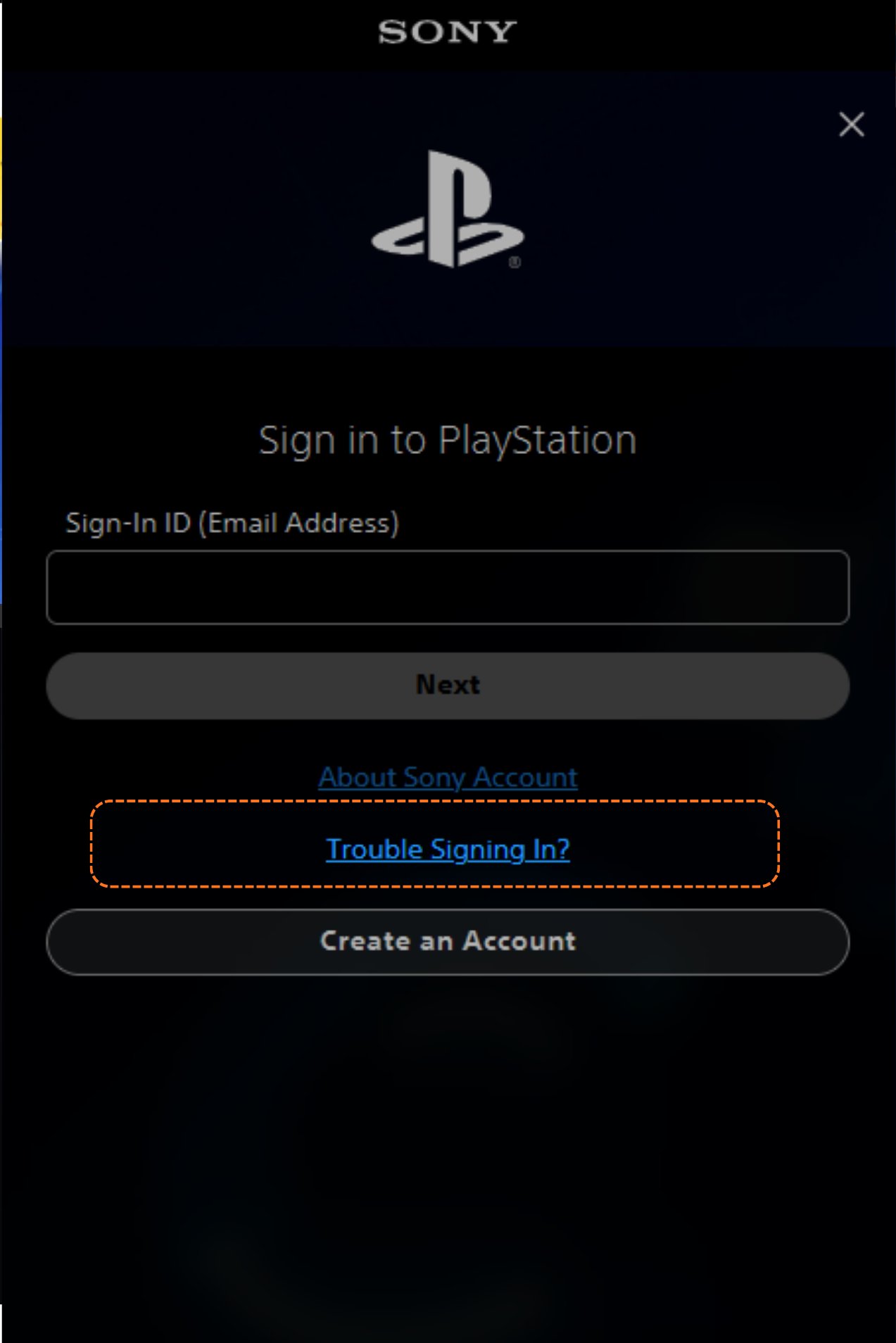
    On the sign-in page, click **Trouble Signing In**.
    <Frame>
      <img src="https://mintcdn.com/psntools-f5c51a70/L0rjPKkz6ZpL3RTC/premium-services/new-accounts/images/change-account-details-04.png?fit=max&auto=format&n=L0rjPKkz6ZpL3RTC&q=85&s=900d52bf3c51f1db1eebbe4e60eed28c" alt="Sign-in page, click Trouble Signing In" width="1273" height="1908" data-path="premium-services/new-accounts/images/change-account-details-04.png" />
    </Frame>
  </Step>

  <Step title="Click Recover Your Account">
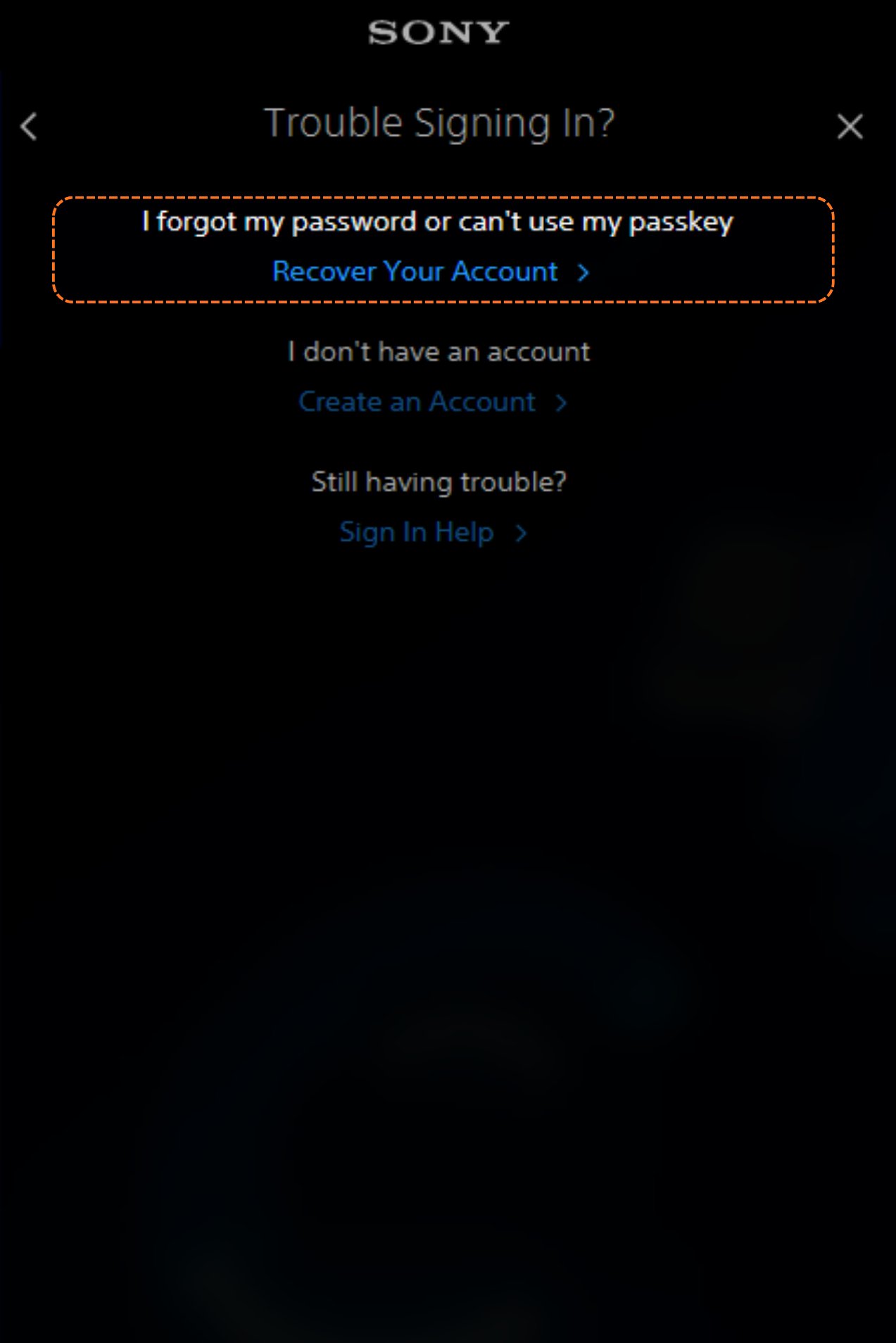
    Click **Recover Your Account**.

    <Frame>
      <img src="https://mintcdn.com/psntools-f5c51a70/L0rjPKkz6ZpL3RTC/premium-services/new-accounts/images/change-account-details-05.png?fit=max&auto=format&n=L0rjPKkz6ZpL3RTC&q=85&s=c9f3bc9e379d60bdfe2f67496fcd966d" alt="Trouble signing in, click Recover Your Account" width="1273" height="1908" data-path="premium-services/new-accounts/images/change-account-details-05.png" />
    </Frame>
  </Step>

  <Step title="Copy the login email">
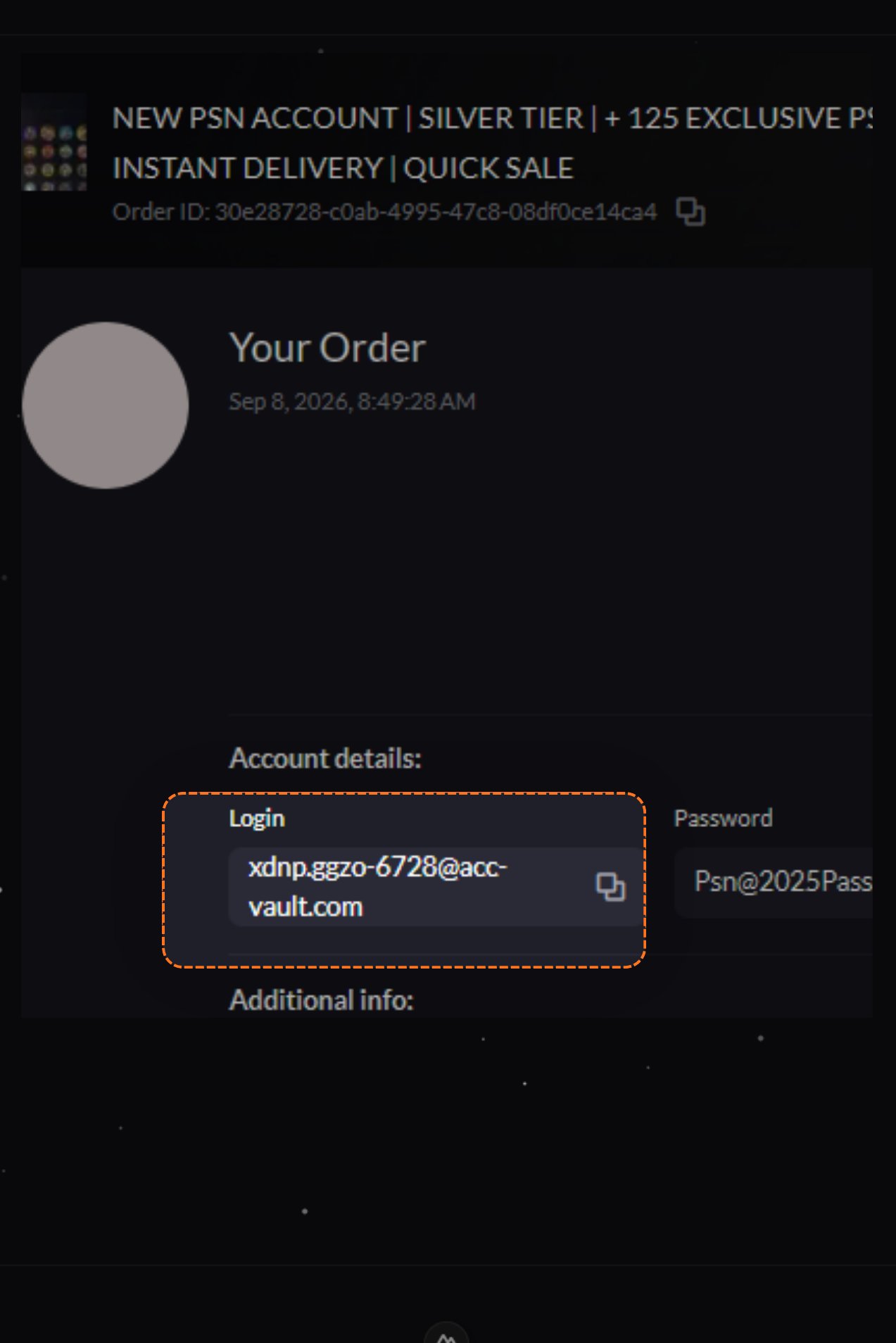
    Go back to your **account details** and copy the **Login email**.
    <Frame>
      <img src="https://mintcdn.com/psntools-f5c51a70/L0rjPKkz6ZpL3RTC/premium-services/new-accounts/images/change-account-details-06.png?fit=max&auto=format&n=L0rjPKkz6ZpL3RTC&q=85&s=edea2f455d982c52cb86d861e62890be" alt="Account details, copy the login email" width="1273" height="1908" data-path="premium-services/new-accounts/images/change-account-details-06.png" />
    </Frame>
  </Step>

  <Step title="Send the link">
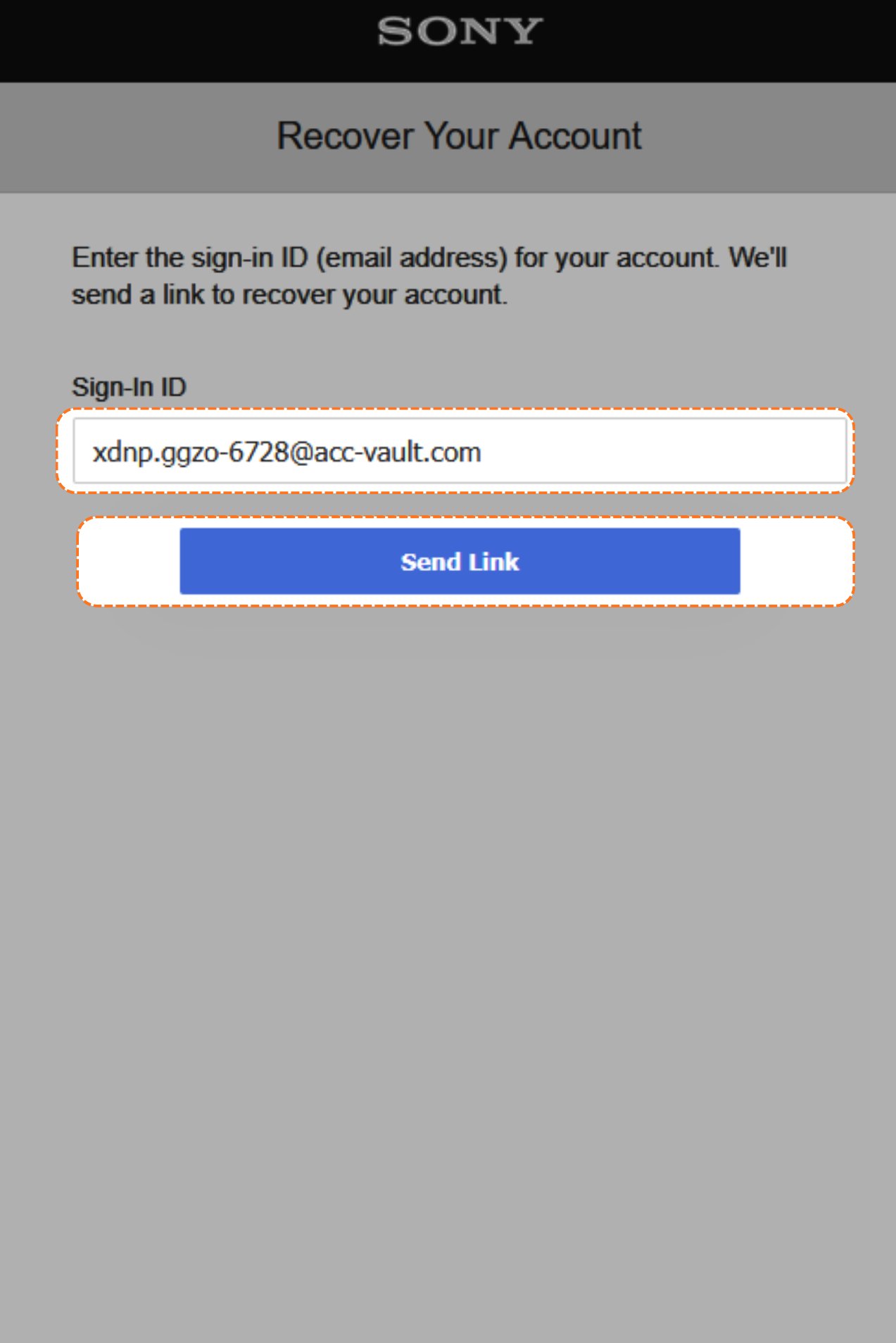
    Paste that email into the **Sign-In ID** box on the Recover Your Account page, then click **Send Link**.
    <Frame>
      <img src="https://mintcdn.com/psntools-f5c51a70/L0rjPKkz6ZpL3RTC/premium-services/new-accounts/images/change-account-details-07.png?fit=max&auto=format&n=L0rjPKkz6ZpL3RTC&q=85&s=ea2fa4150a5d4802942ec96489af21e9" alt="Recover your account, enter the sign-in ID and click Send Link" width="1273" height="1908" data-path="premium-services/new-accounts/images/change-account-details-07.png" />
    </Frame>
  </Step>

  <Step title="Refresh the inbox">
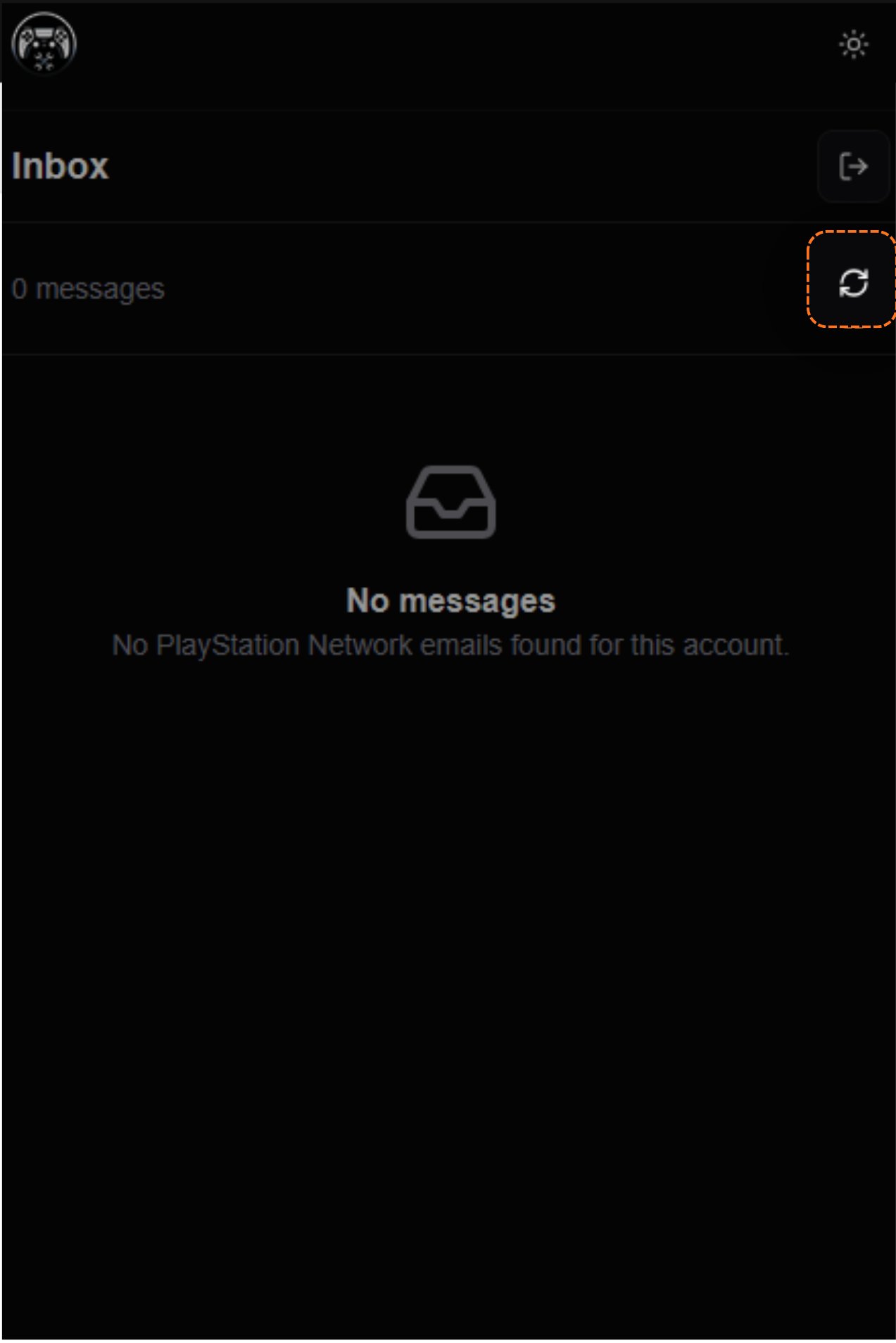
    Switch to **PSNTools** and open your email access link (it looks something like `modding.psntools.com/i/0blahblahblahxxx`). Not sure where that link is? See [Access your inbox with a magic link](/premium-services/new-accounts/magic-link). Then click the **refresh** button on the inbox.
    <Frame>
      <img src="https://mintcdn.com/psntools-f5c51a70/L0rjPKkz6ZpL3RTC/premium-services/new-accounts/images/change-account-details-08.png?fit=max&auto=format&n=L0rjPKkz6ZpL3RTC&q=85&s=3631f7933ea6f28b579f9e9714cfd7a0" alt="PSNTools inbox, click the refresh button" width="1273" height="1908" data-path="premium-services/new-accounts/images/change-account-details-08.png" />
    </Frame>
  </Step>

  <Step title="Open the PlayStation email">
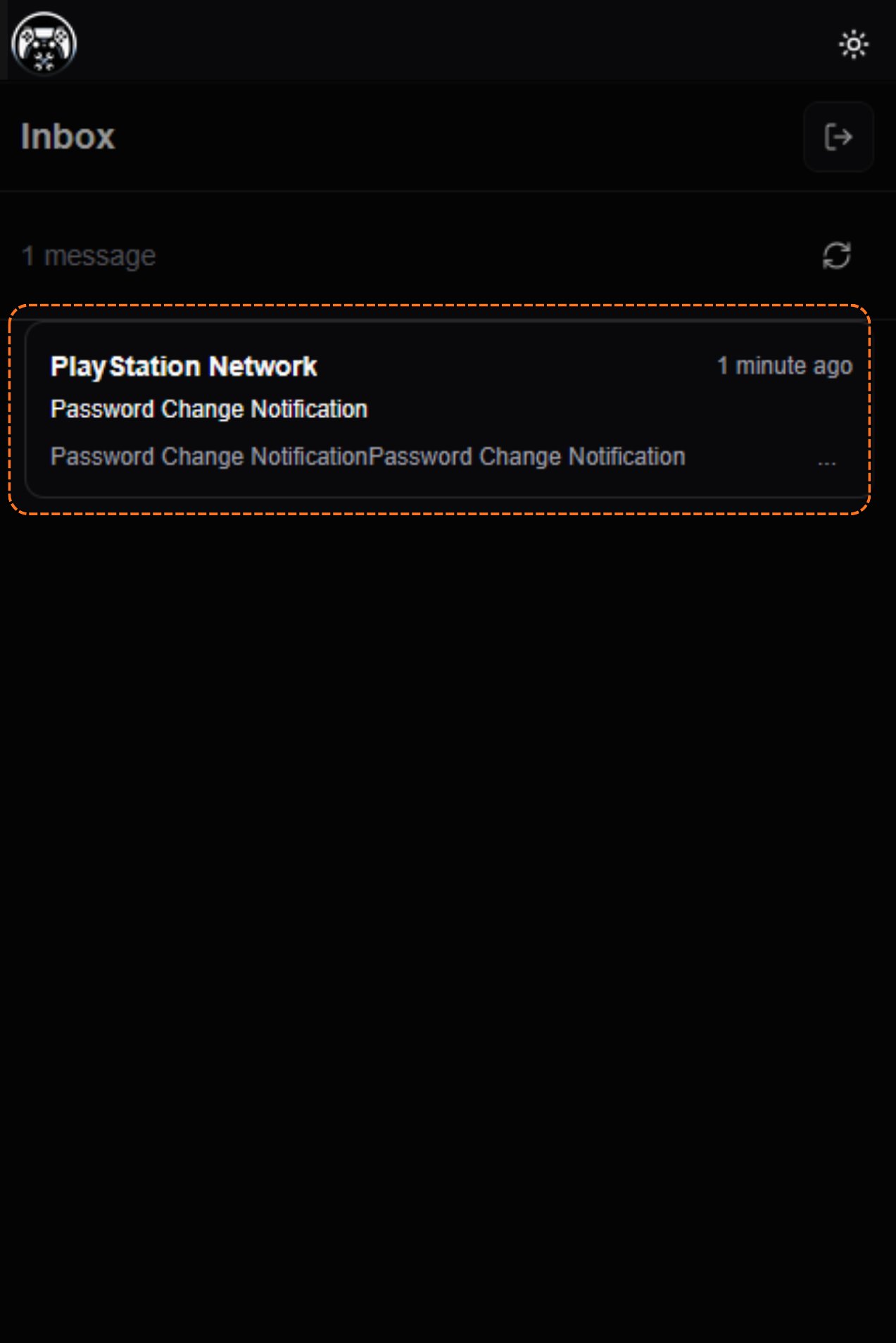
    A new email shows up from **PlayStation Network**, titled **Password Change Notification**. That's the one you want.
    <Frame>
      <img src="https://mintcdn.com/psntools-f5c51a70/L0rjPKkz6ZpL3RTC/premium-services/new-accounts/images/change-account-details-09.png?fit=max&auto=format&n=L0rjPKkz6ZpL3RTC&q=85&s=ac42ec16c7706da0027c1d96b526fb01" alt="PlayStation Network password change email in the inbox" width="1273" height="1908" data-path="premium-services/new-accounts/images/change-account-details-09.png" />
    </Frame>
  </Step>

  <Step title="Click Recover Your Account">
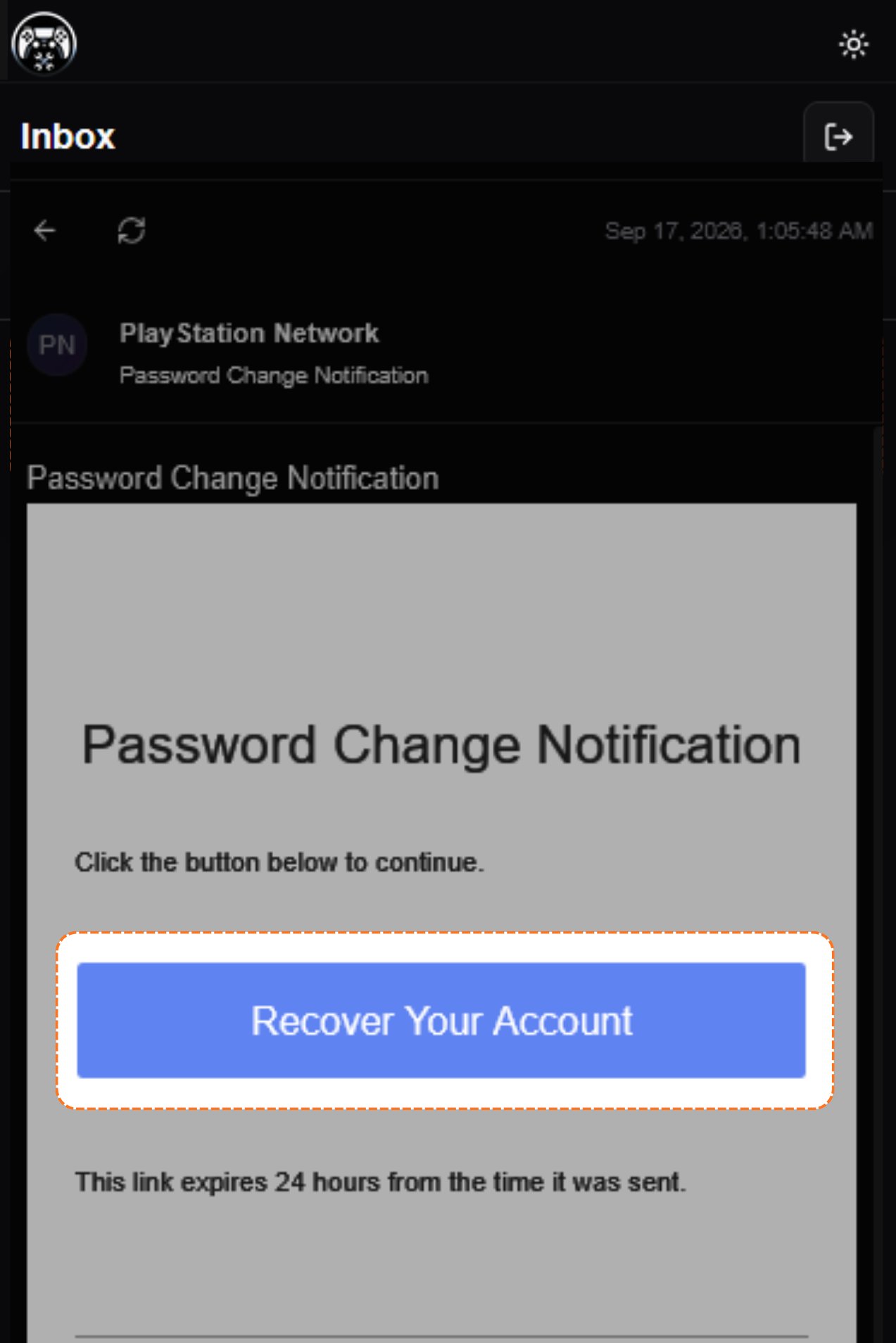
    Open that email and click **Recover Your Account**.
    <Frame>
      <img src="https://mintcdn.com/psntools-f5c51a70/L0rjPKkz6ZpL3RTC/premium-services/new-accounts/images/change-account-details-10.png?fit=max&auto=format&n=L0rjPKkz6ZpL3RTC&q=85&s=e6f1c7265951d51527f2f9bc4d089895" alt="Password change email, click Recover Your Account" width="1273" height="1908" data-path="premium-services/new-accounts/images/change-account-details-10.png" />
    </Frame>
  </Step>

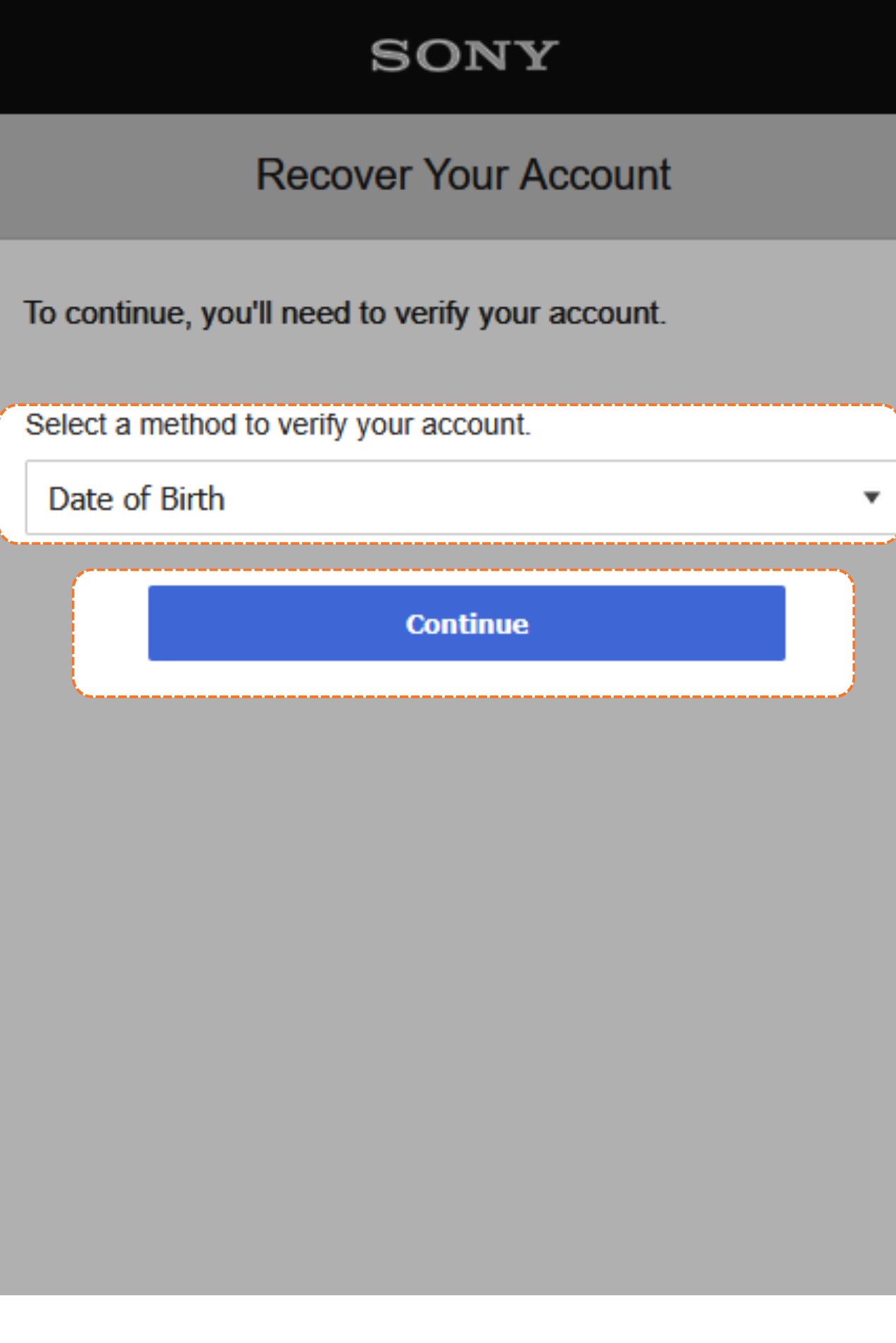
  <Step title="Choose how to verify">
    PlayStation asks how you want to verify the account. Pick **date of birth**, then click **Continue**.
    <Frame>
      <img src="https://mintcdn.com/psntools-f5c51a70/L0rjPKkz6ZpL3RTC/premium-services/new-accounts/images/change-account-details-11.png?fit=max&auto=format&n=L0rjPKkz6ZpL3RTC&q=85&s=f3b3f16bfc14e91bb6ad848fa7a335d9" alt="Recover your account, choose a verification method" width="1273" height="1908" data-path="premium-services/new-accounts/images/change-account-details-11.png" />
    </Frame>
  </Step>

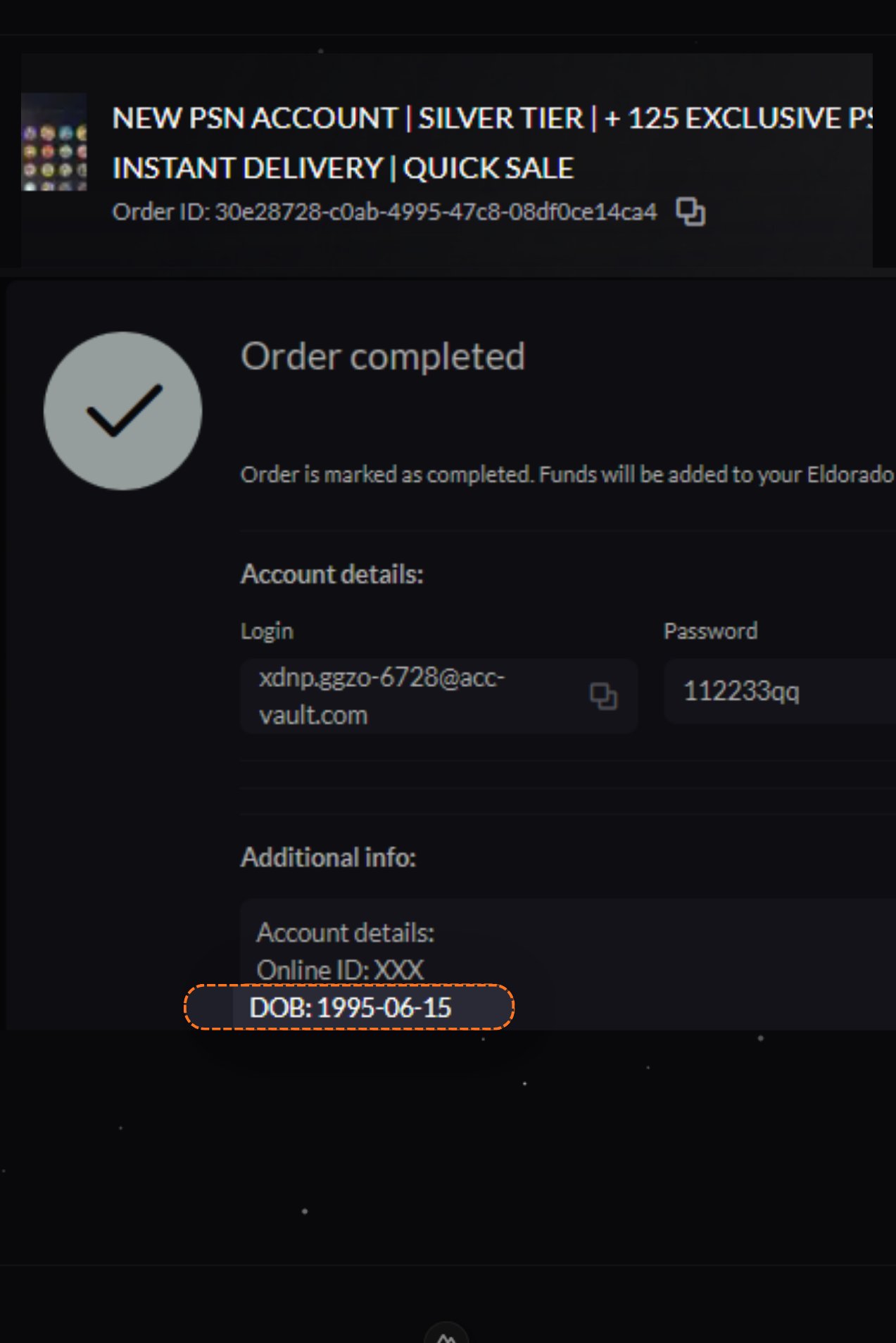
  <Step title="Copy the date of birth">
    Back to the **account details** page. Find the **DOB** and copy it.
    <Frame>
      <img src="https://mintcdn.com/psntools-f5c51a70/L0rjPKkz6ZpL3RTC/premium-services/new-accounts/images/change-account-details-12.png?fit=max&auto=format&n=L0rjPKkz6ZpL3RTC&q=85&s=42c23f29a19dc997db27fd651093112d" alt="Account details, copy the DOB" width="1273" height="1908" data-path="premium-services/new-accounts/images/change-account-details-12.png" />
    </Frame>
  </Step>

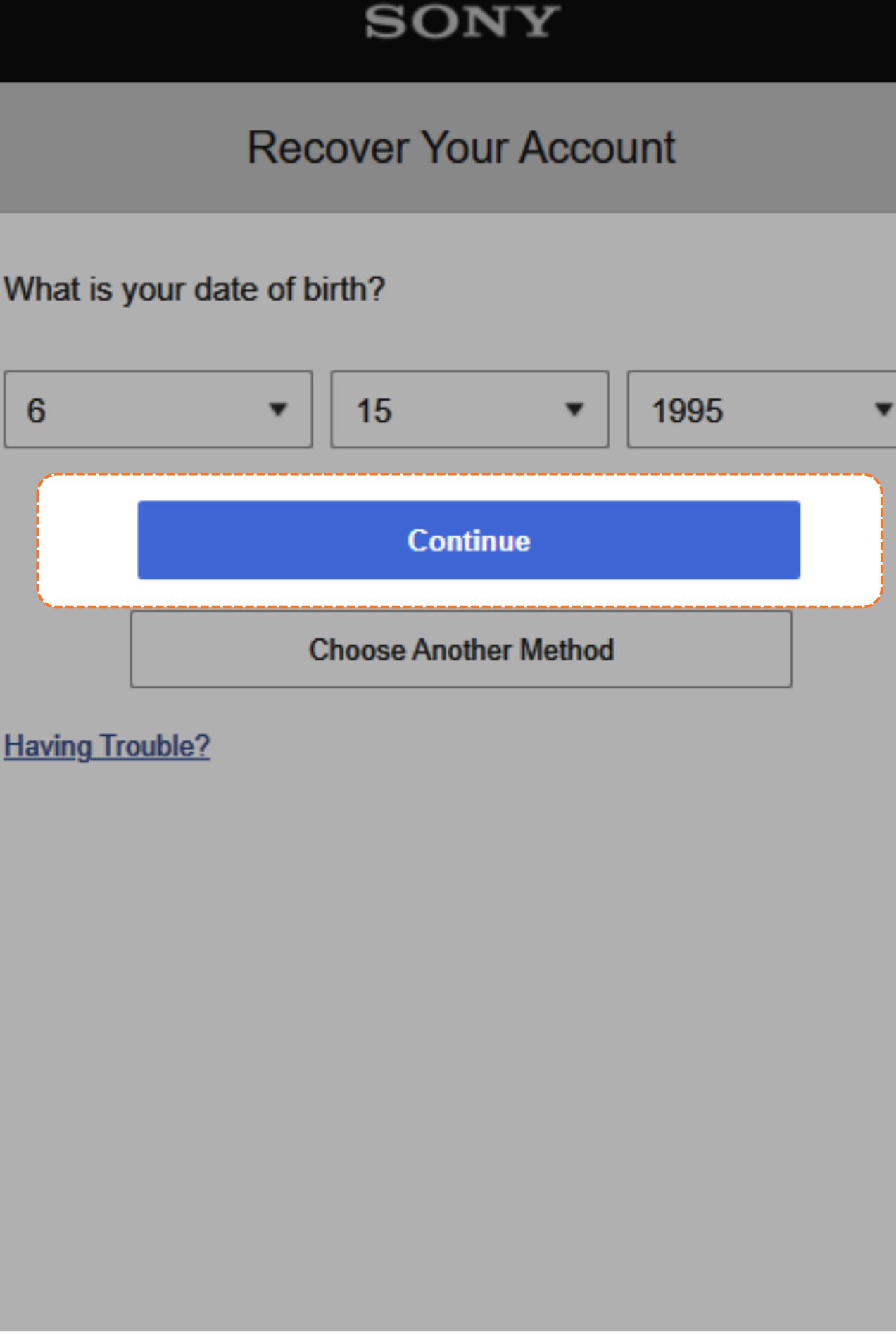
  <Step title="Enter the date of birth">
    Type that date of birth in, then click **Continue**.
    <Frame>
      <img src="https://mintcdn.com/psntools-f5c51a70/L0rjPKkz6ZpL3RTC/premium-services/new-accounts/images/change-account-details-13.png?fit=max&auto=format&n=L0rjPKkz6ZpL3RTC&q=85&s=0051bd49efe44034667f5d5bcb3626c6" alt="Enter your date of birth, click Continue" width="1273" height="1908" data-path="premium-services/new-accounts/images/change-account-details-13.png" />
    </Frame>
  </Step>

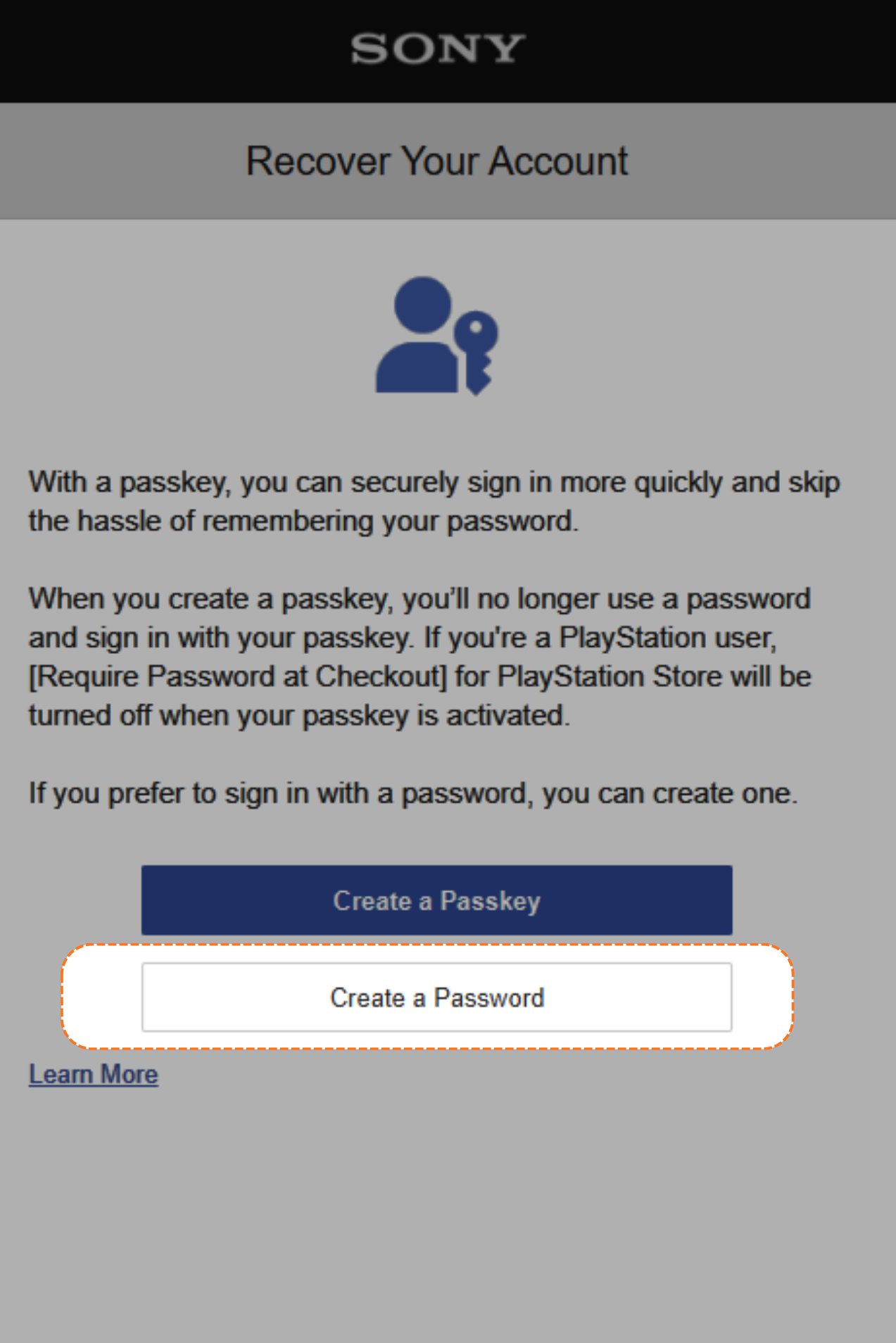
  <Step title="Create a new password">
    Now it's time to make a new password. Click the **password** box.
    <Frame>
      <img src="https://mintcdn.com/psntools-f5c51a70/L0rjPKkz6ZpL3RTC/premium-services/new-accounts/images/change-account-details-14.png?fit=max&auto=format&n=L0rjPKkz6ZpL3RTC&q=85&s=c724f19afe9767abe678ba370e762d62" alt="Create a password, click the password box" width="1273" height="1908" data-path="premium-services/new-accounts/images/change-account-details-14.png" />
    </Frame>
  </Step>

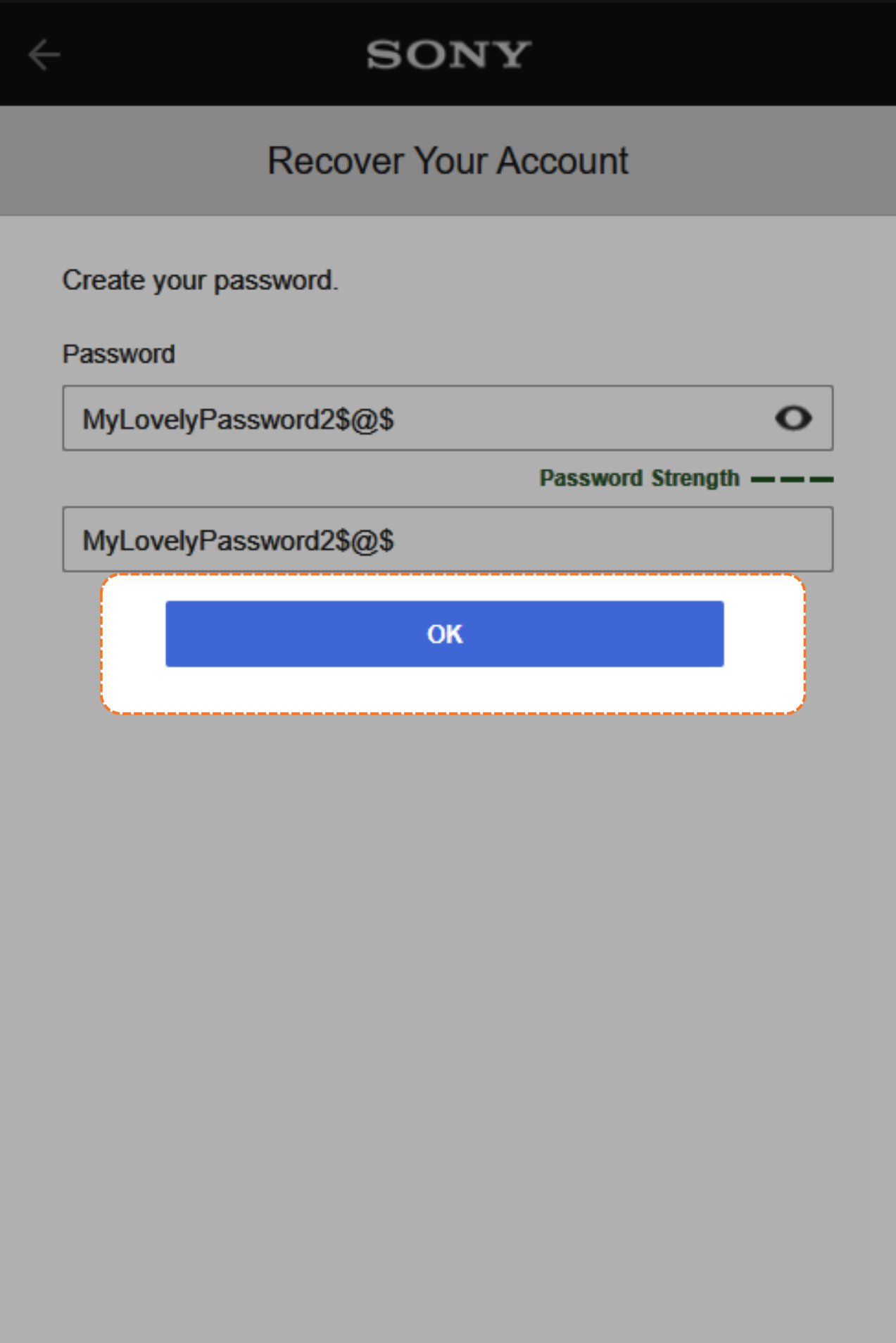
  <Step title="Confirm the new password">
    Type your new password, then click **OK**.
    <Frame>
      <img src="https://mintcdn.com/psntools-f5c51a70/L0rjPKkz6ZpL3RTC/premium-services/new-accounts/images/change-account-details-15.png?fit=max&auto=format&n=L0rjPKkz6ZpL3RTC&q=85&s=9cb040fe8a1a57b8c8803bf3865f9cc1" alt="Confirm the new password, click OK" width="1273" height="1908" data-path="premium-services/new-accounts/images/change-account-details-15.png" />
    </Frame>
  </Step>

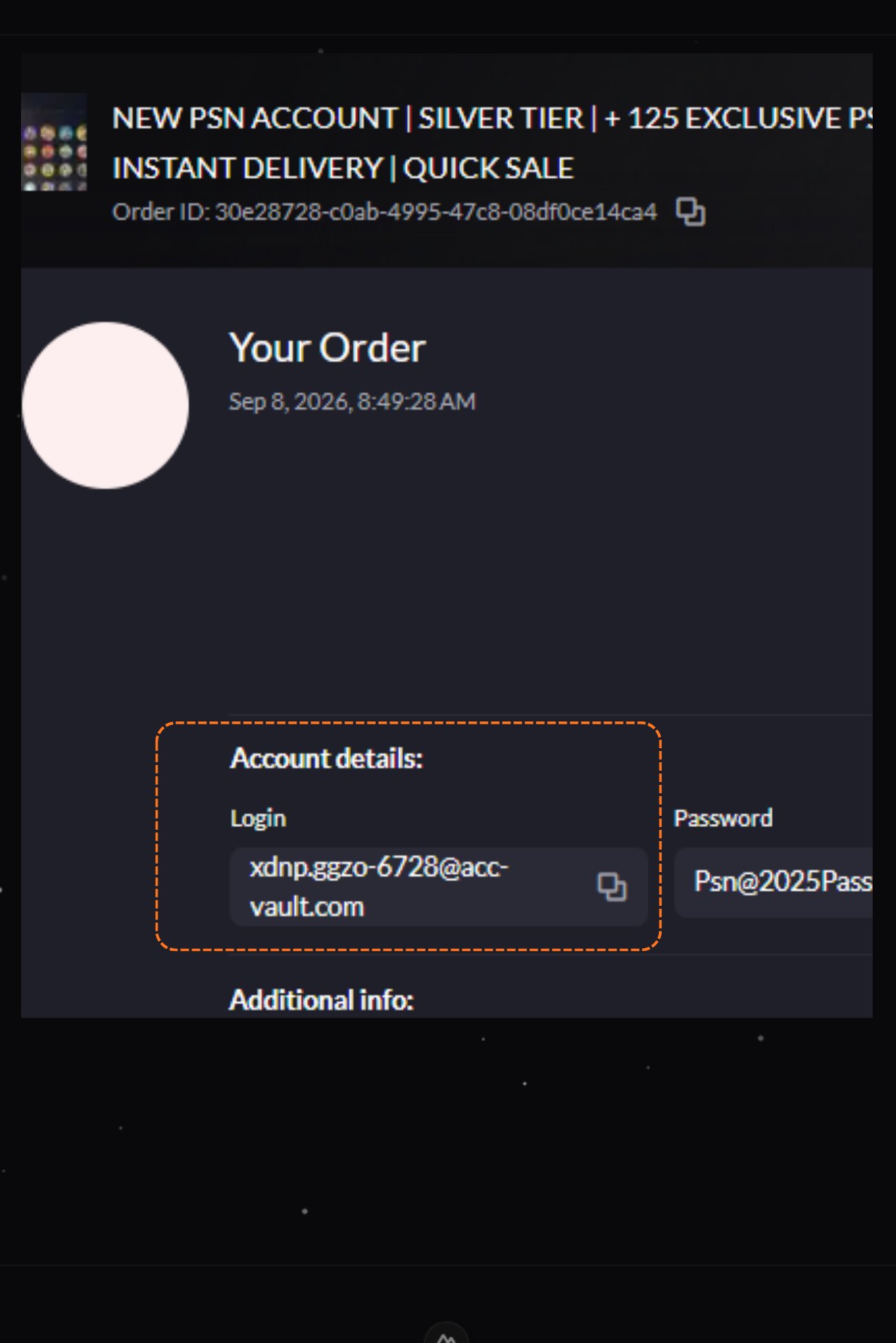
  <Step title="Copy the login email again">
    Go back to the **account details** page and copy the **Login email** again.
    <Frame>
      <img src="https://mintcdn.com/psntools-f5c51a70/L0rjPKkz6ZpL3RTC/premium-services/new-accounts/images/change-account-details-16.png?fit=max&auto=format&n=L0rjPKkz6ZpL3RTC&q=85&s=ae4e6c55f591c3702cfdd3aaf5588e22" alt="Account details, copy the login email" width="1273" height="1908" data-path="premium-services/new-accounts/images/change-account-details-16.png" />
    </Frame>
  </Step>

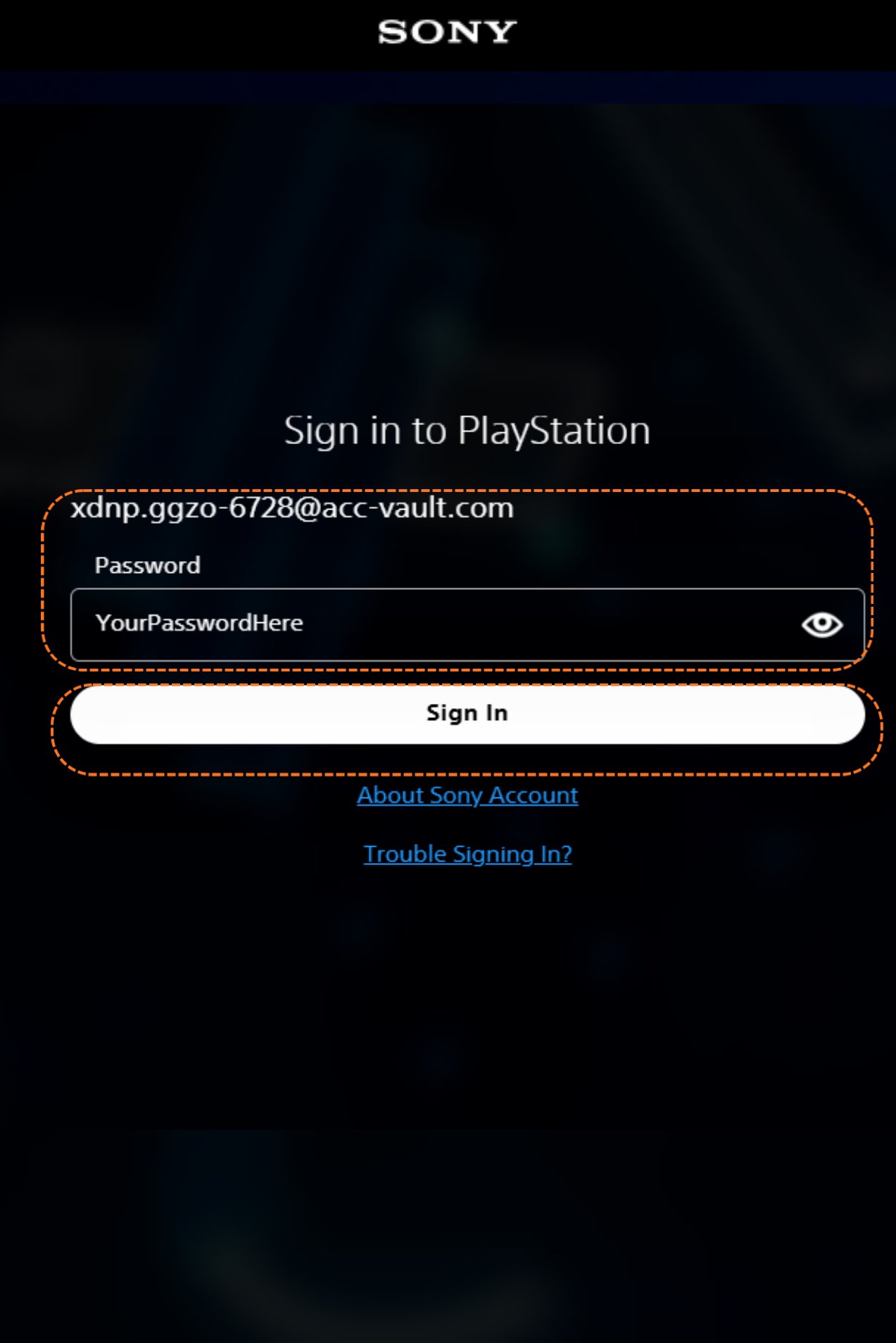
  <Step title="Sign in">
    On the PlayStation sign-in page, enter that **email** and your **new password**, then click **Sign In**.
    <Frame>
      <img src="https://mintcdn.com/psntools-f5c51a70/L0rjPKkz6ZpL3RTC/premium-services/new-accounts/images/change-account-details-17.png?fit=max&auto=format&n=L0rjPKkz6ZpL3RTC&q=85&s=c5d5b26363eafa5129d3870565a9f415" alt="PlayStation sign-in page, enter your email and password" width="1273" height="1908" data-path="premium-services/new-accounts/images/change-account-details-17.png" />
    </Frame>
  </Step>

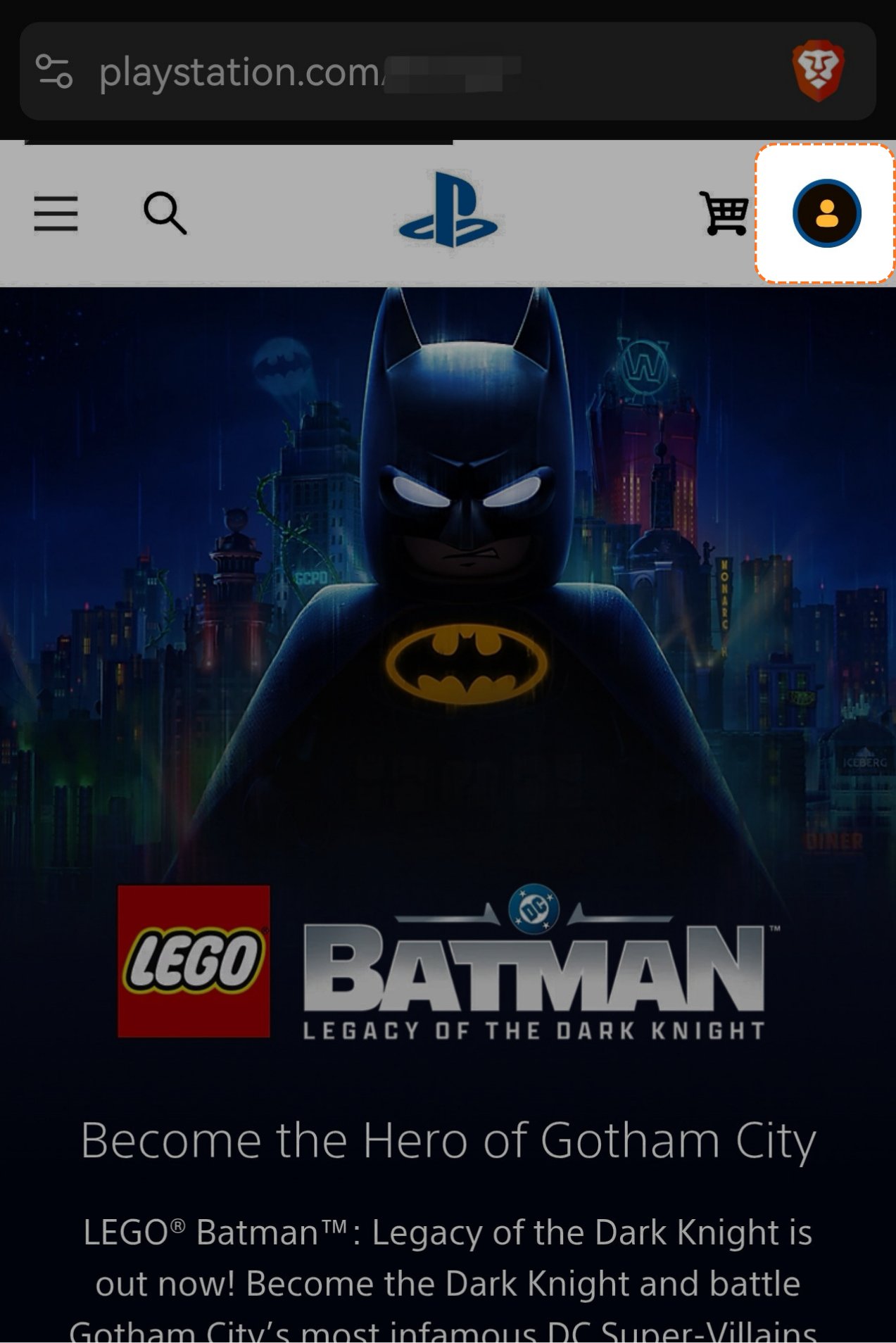
  <Step title="Open your profile">
    You're in. Click your **profile picture** in the top right corner.
    <Frame>
      <img src="https://mintcdn.com/psntools-f5c51a70/L0rjPKkz6ZpL3RTC/premium-services/new-accounts/images/change-account-details-18.png?fit=max&auto=format&n=L0rjPKkz6ZpL3RTC&q=85&s=9fd210b1d82414f2bd6f361f1170c328" alt="PlayStation home page, click the profile picture" width="1273" height="1908" data-path="premium-services/new-accounts/images/change-account-details-18.png" />
    </Frame>
  </Step>

  <Step title="Open Account Settings">
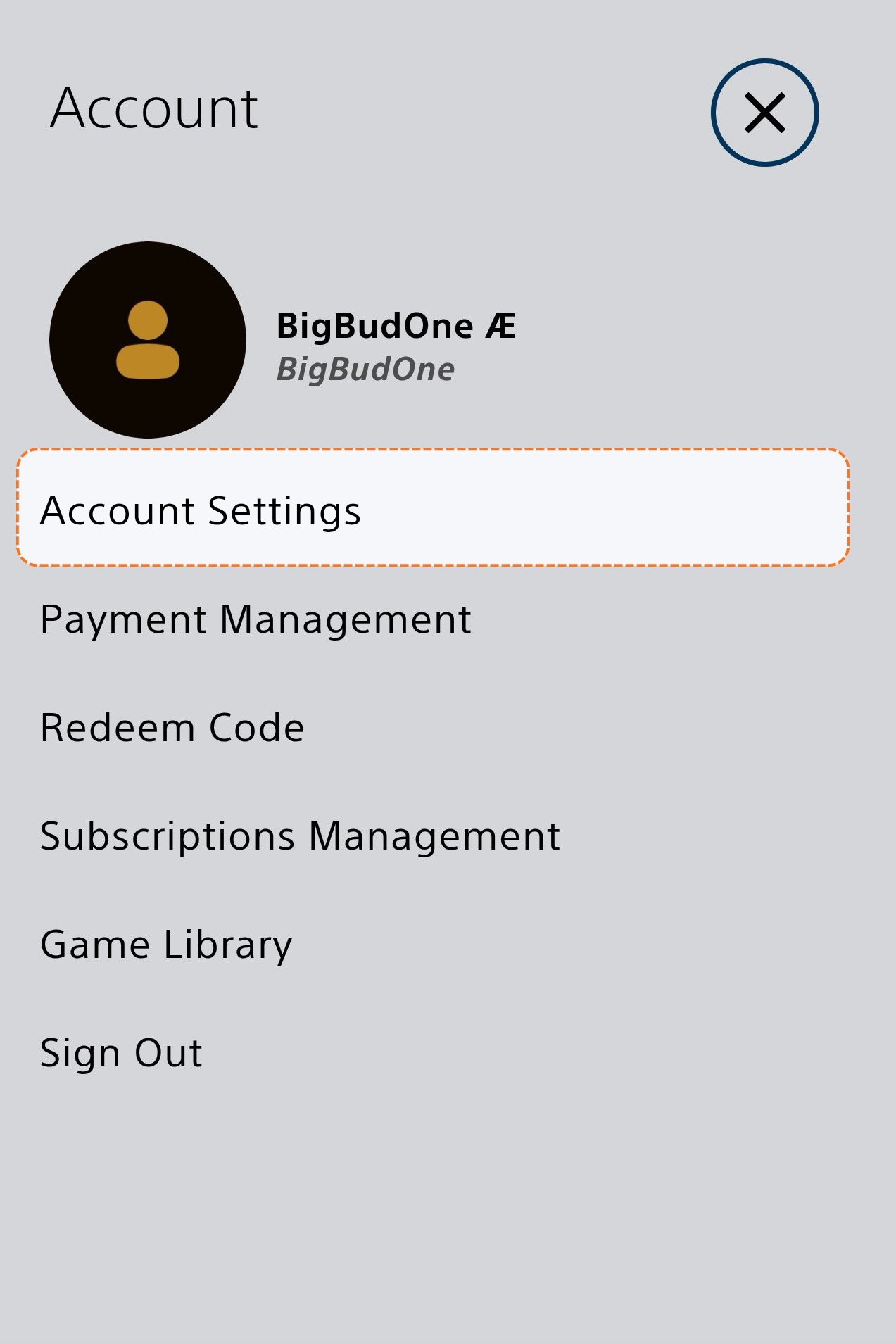
    Click **Account Settings**.

    <Frame>
      <img src="https://mintcdn.com/psntools-f5c51a70/L0rjPKkz6ZpL3RTC/premium-services/new-accounts/images/change-account-details-19.png?fit=max&auto=format&n=L0rjPKkz6ZpL3RTC&q=85&s=dea917e2b3f3c936b7f9557bb26c4aa0" alt="Profile menu, click Account Settings" width="1273" height="1908" data-path="premium-services/new-accounts/images/change-account-details-19.png" />
    </Frame>
  </Step>

  <Step title="Open Security">
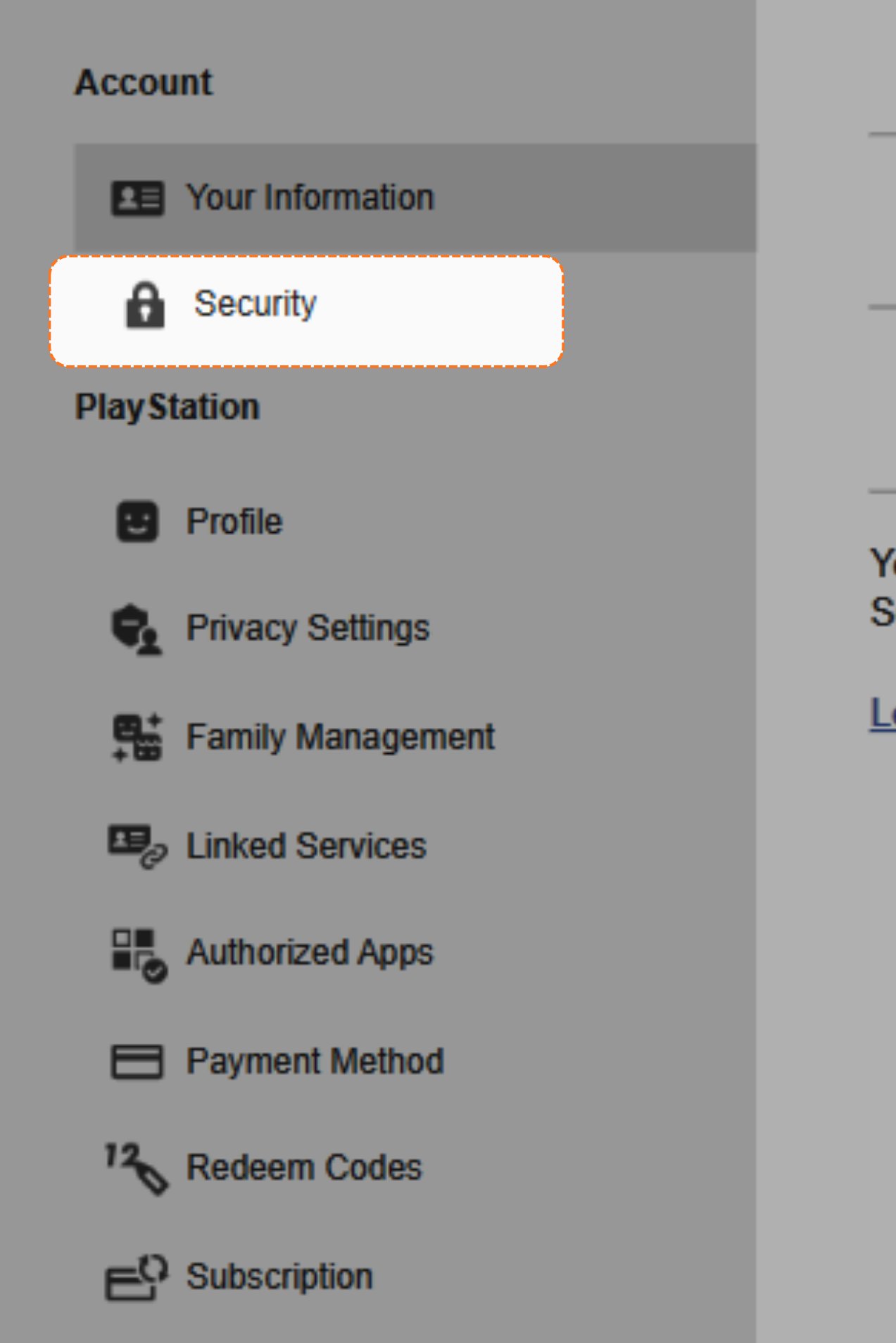
    Click **Security**.

    <Frame>
      <img src="https://mintcdn.com/psntools-f5c51a70/L0rjPKkz6ZpL3RTC/premium-services/new-accounts/images/change-account-details-20.png?fit=max&auto=format&n=L0rjPKkz6ZpL3RTC&q=85&s=23a498b7302afabfc48ce00de4094d35" alt="Account settings, click Security" width="1273" height="1908" data-path="premium-services/new-accounts/images/change-account-details-20.png" />
    </Frame>
  </Step>

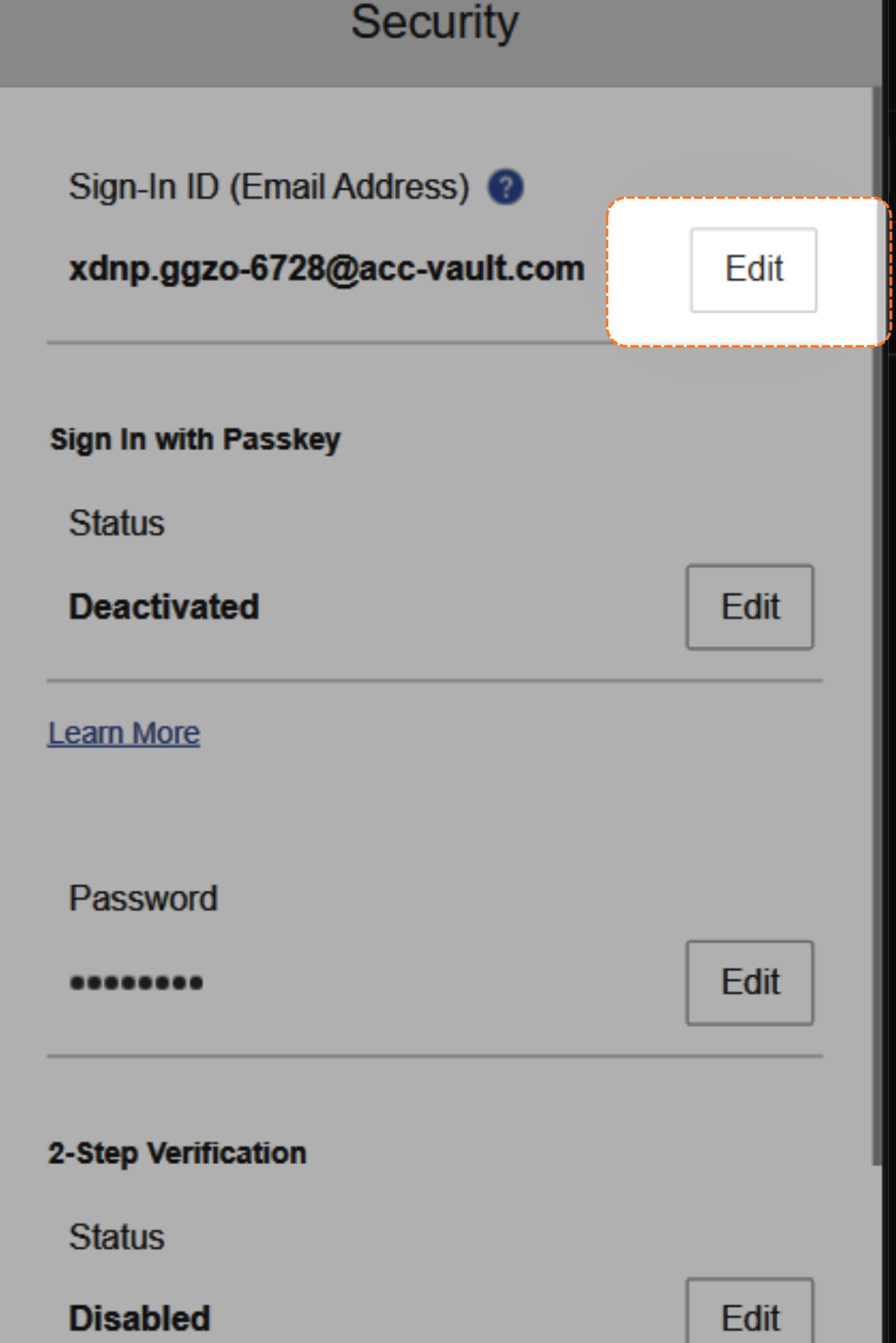
  <Step title="Edit the email">
    Click the **edit** button next to the email.
    <Frame>
      <img src="https://mintcdn.com/psntools-f5c51a70/L0rjPKkz6ZpL3RTC/premium-services/new-accounts/images/change-account-details-21.png?fit=max&auto=format&n=L0rjPKkz6ZpL3RTC&q=85&s=f0d1d613fd38a989a9890f498e692a4b" alt="Security section, click edit next to the email" width="1273" height="1908" data-path="premium-services/new-accounts/images/change-account-details-21.png" />
    </Frame>
  </Step>

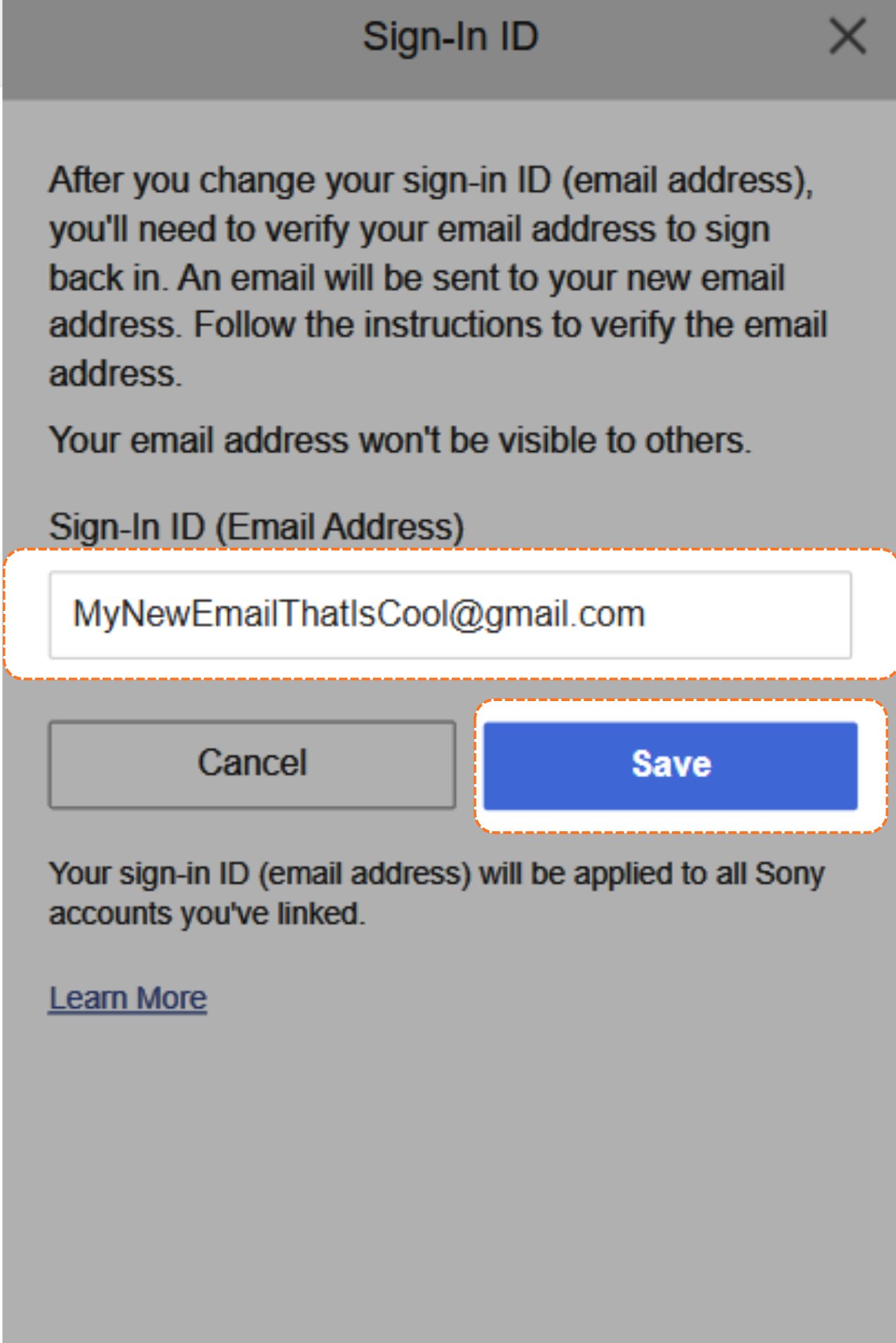
  <Step title="Save the new email">
    Type your **new email** in the box, then click **Save**.
    <Frame>
      <img src="https://mintcdn.com/psntools-f5c51a70/L0rjPKkz6ZpL3RTC/premium-services/new-accounts/images/change-account-details-22.png?fit=max&auto=format&n=L0rjPKkz6ZpL3RTC&q=85&s=a73ba8f13035c9582e4ae8202b3e9656" alt="Sign-in ID page, enter the new email and click Save" width="1273" height="1908" data-path="premium-services/new-accounts/images/change-account-details-22.png" />
    </Frame>
  </Step>

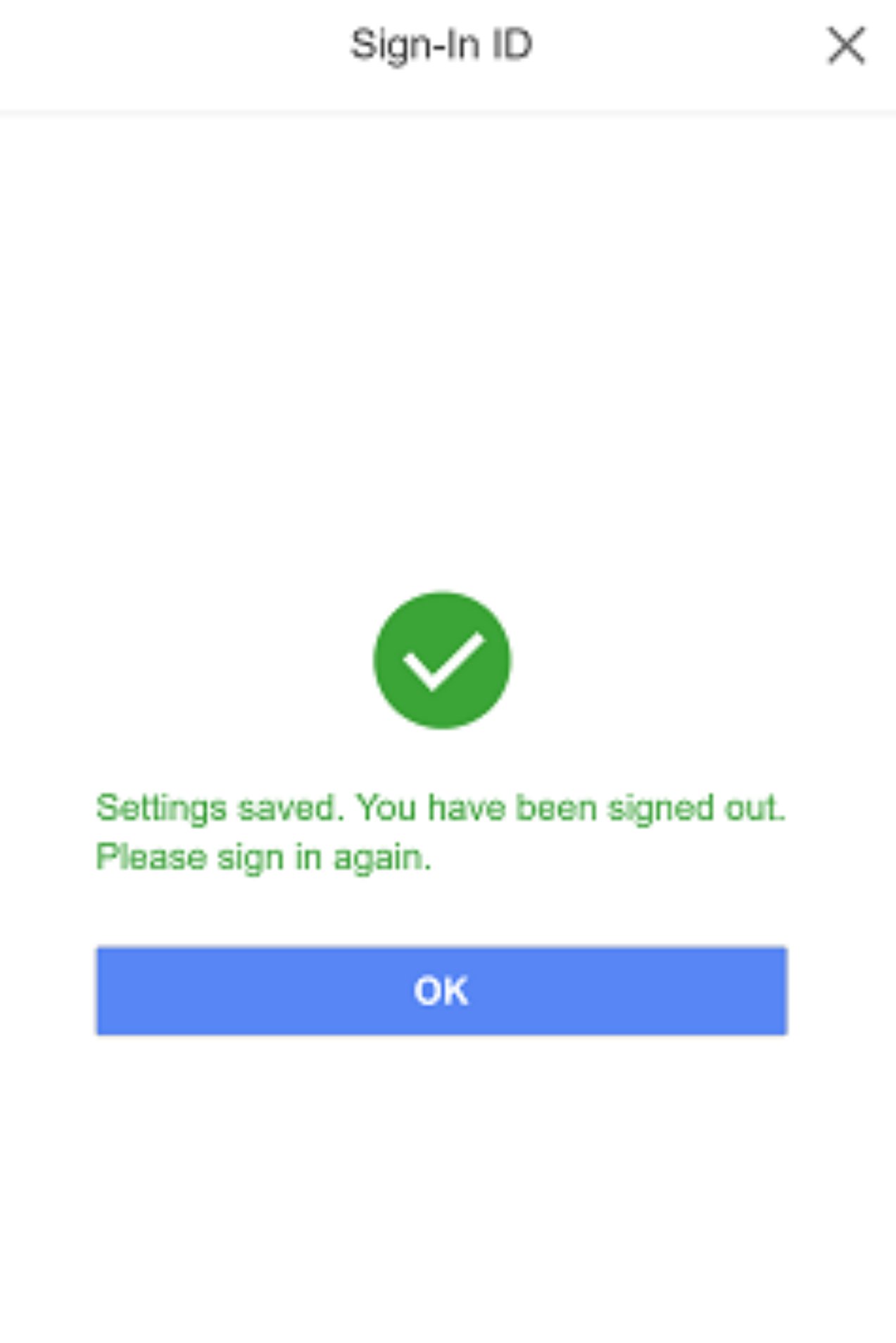
  <Step title="Sign back in">
    You'll see **Settings saved. You have been signed out. Please sign in again.** That means it worked. Sign back in with your new email and new password.
    <Frame>
      <img src="https://mintcdn.com/psntools-f5c51a70/L0rjPKkz6ZpL3RTC/premium-services/new-accounts/images/change-account-details-23.png?fit=max&auto=format&n=L0rjPKkz6ZpL3RTC&q=85&s=b750a7fd28f72f00b93213376e1a5e0f" alt="Settings saved, you have been signed out" width="1273" height="1908" data-path="premium-services/new-accounts/images/change-account-details-23.png" />
    </Frame>
  </Step>
</Steps>

Done.