- Recover the account. Reset the password using the inbox.
- Change the email. Swap the sign-in email (Sign-In ID) to one you control.
Open the account’s inbox before you start. See Access your account inbox, or use the magic link instead.
Before you start
You need three things off the account details page, plus a couple of tabs open:- The Login email, the Password, and the Date of birth (DOB). All three are on the account details page.
- The inbox open in another tab, so you can read the emails PlayStation sends.
- A new email address ready. This is the one you want the account to use from now on.
Steps
1
Go to PlayStation.com
Go to playstation.com. Type it in yourself, don’t trust a link from somewhere else. Make sure the address bar says playstation.com.
2
Sign out
Click your profile picture in the top right corner, then click Sign Out. If you’re already signed out, skip this.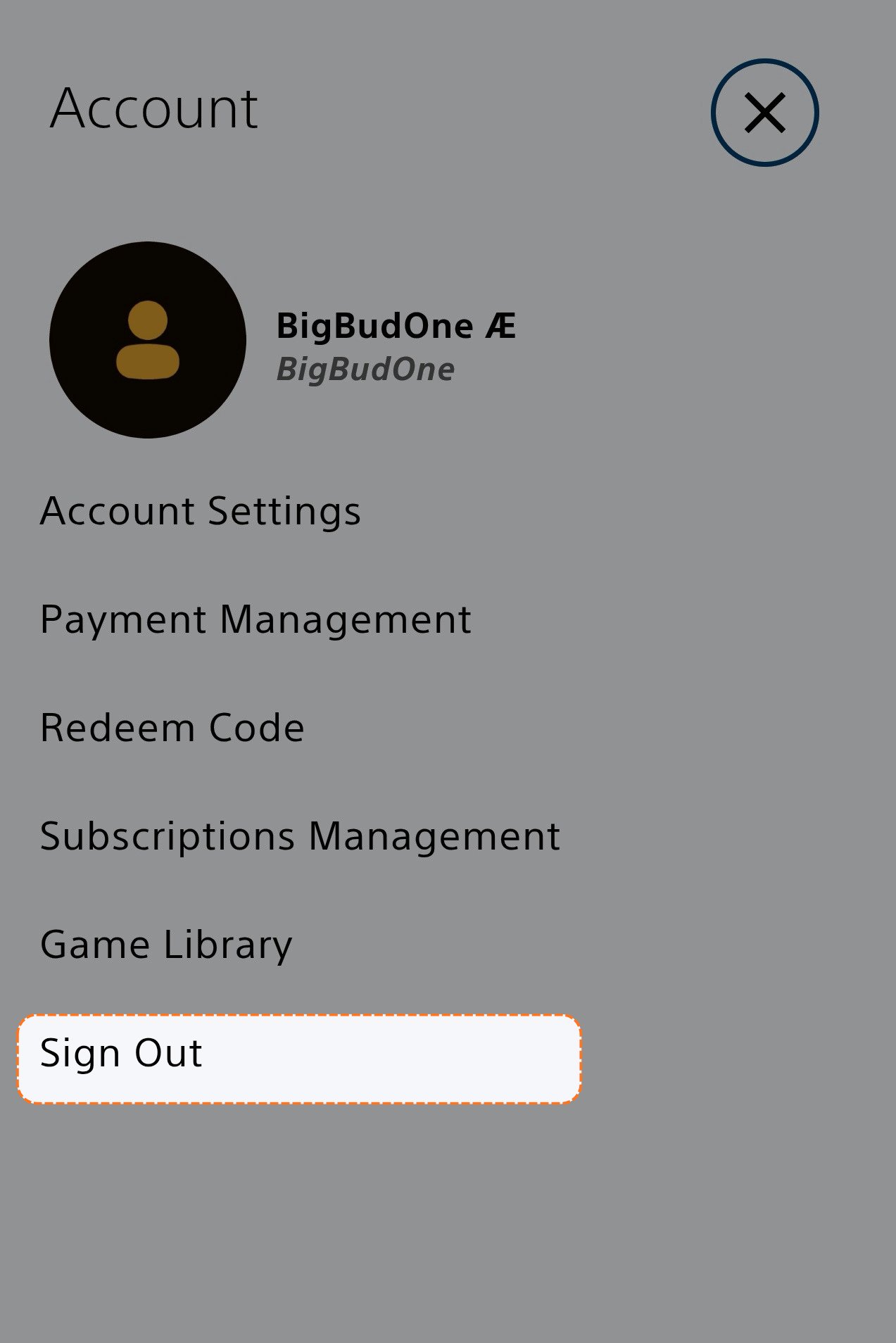
3
Click Sign In
On the main page, click Sign In.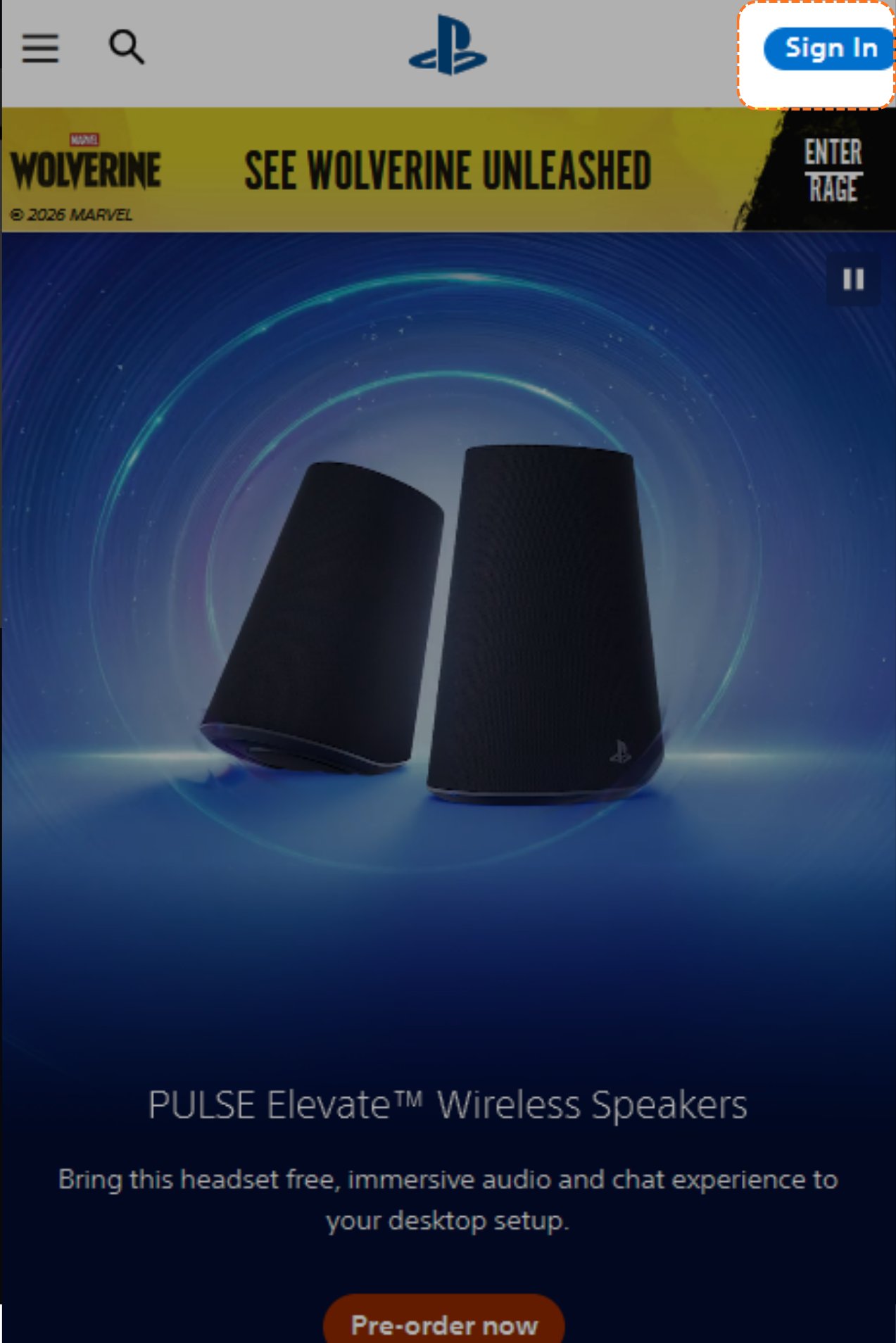
4
Click Trouble Signing In
On the sign-in page, click Trouble Signing In.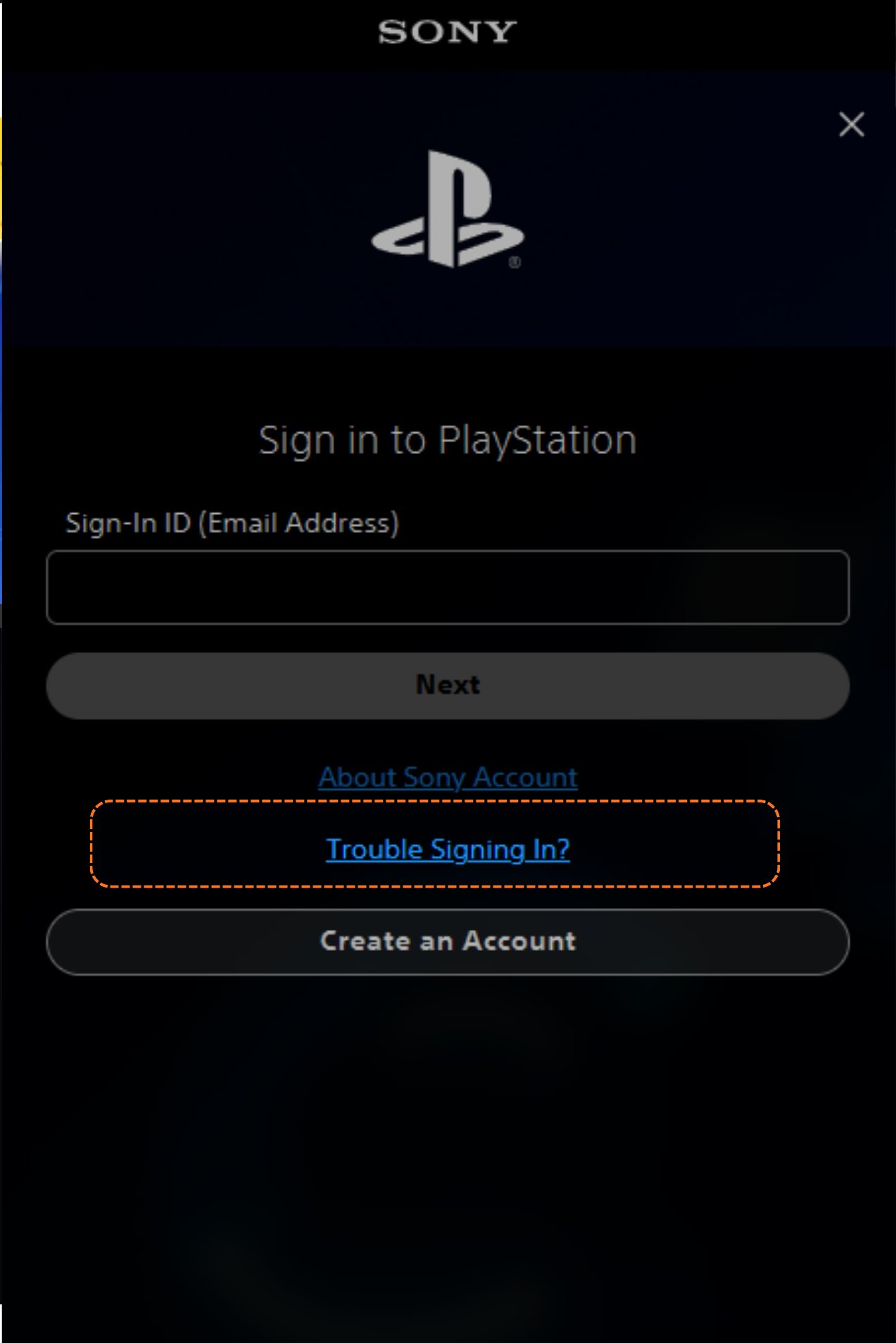
5
Click Recover Your Account
Click Recover Your Account.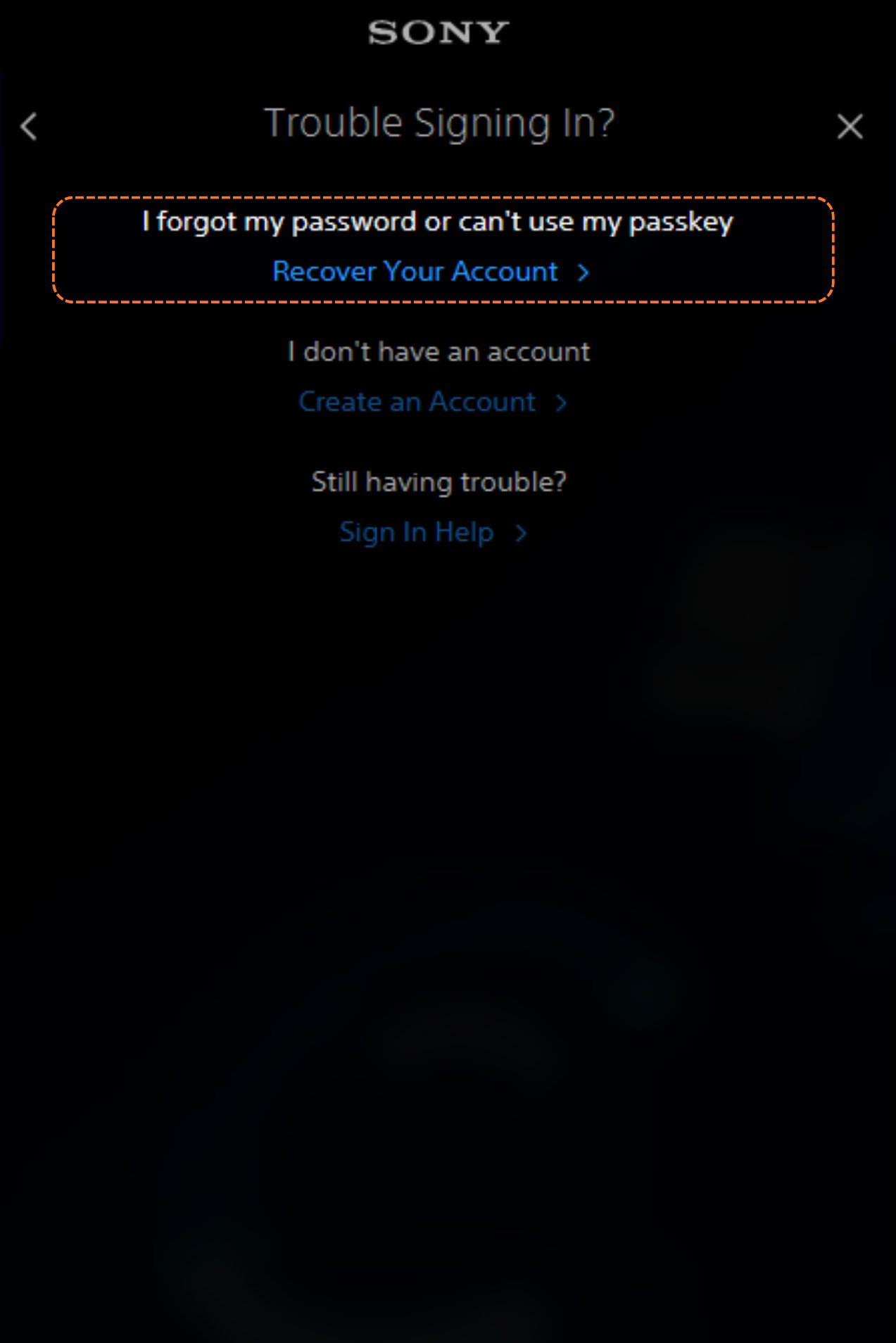
6
Copy the login email
Go back to your account details and copy the Login email.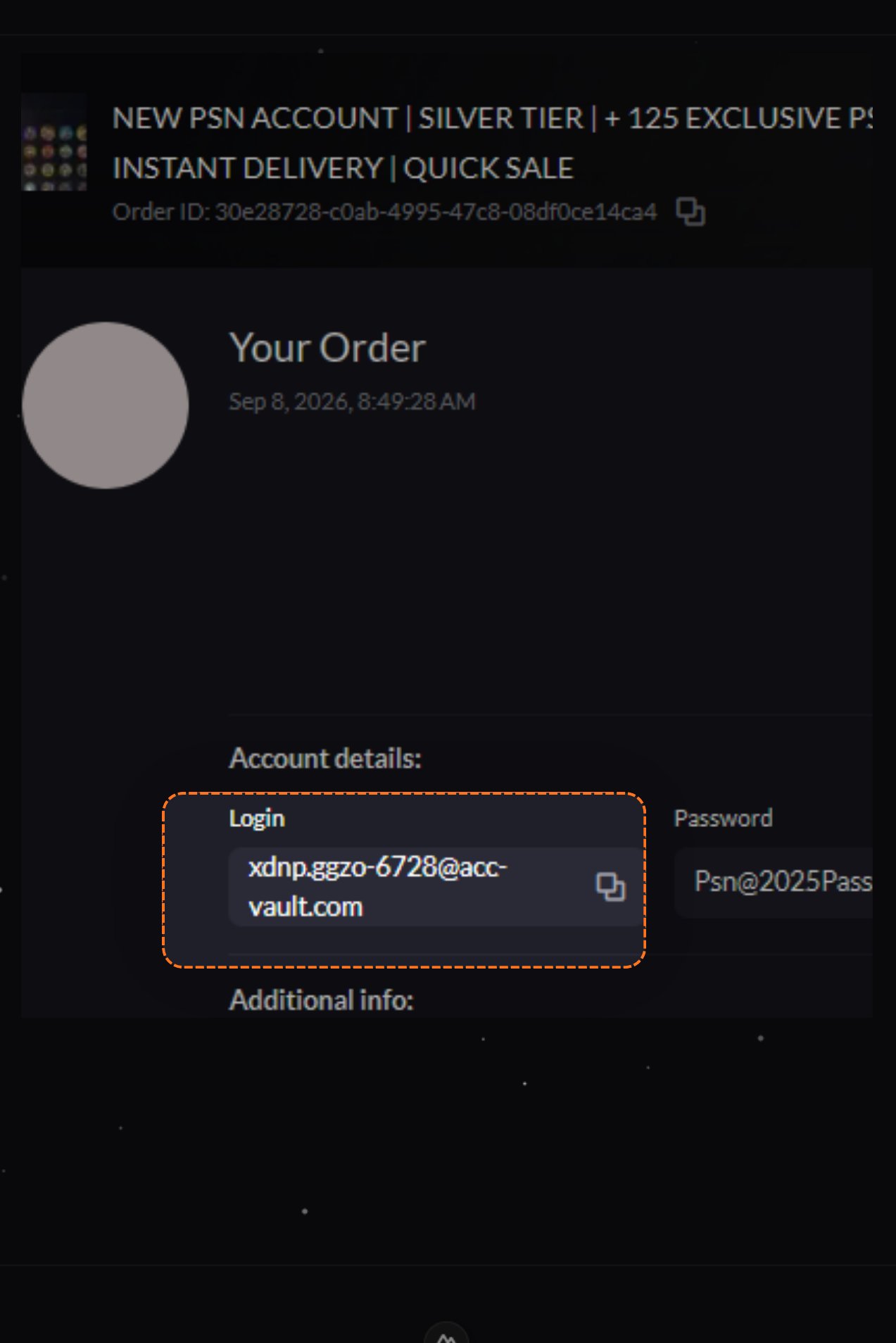
7
Send the link
Paste that email into the Sign-In ID box on the Recover Your Account page, then click Send Link.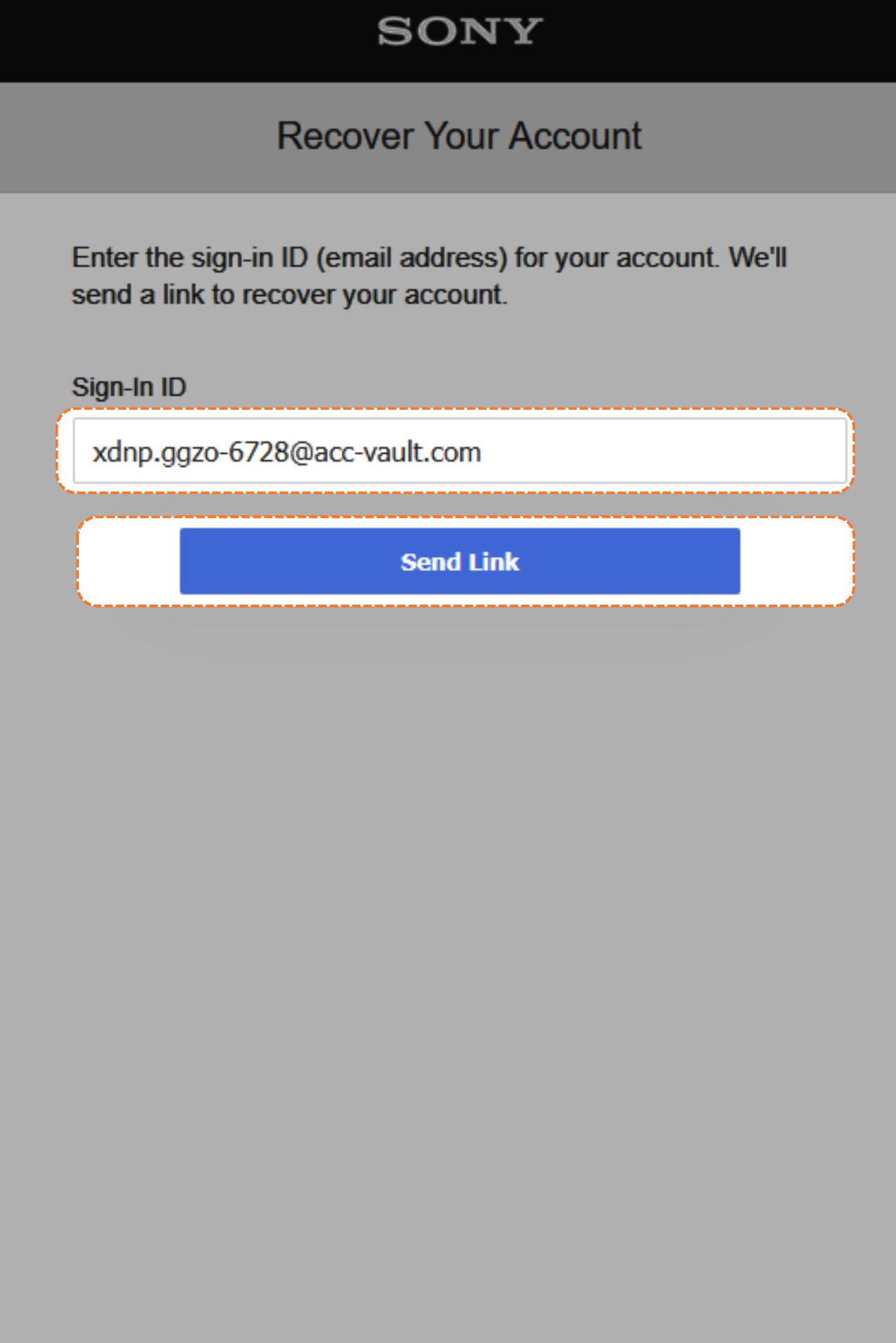
8
Refresh the inbox
Switch to PSNTools and open your email access link (it looks something like 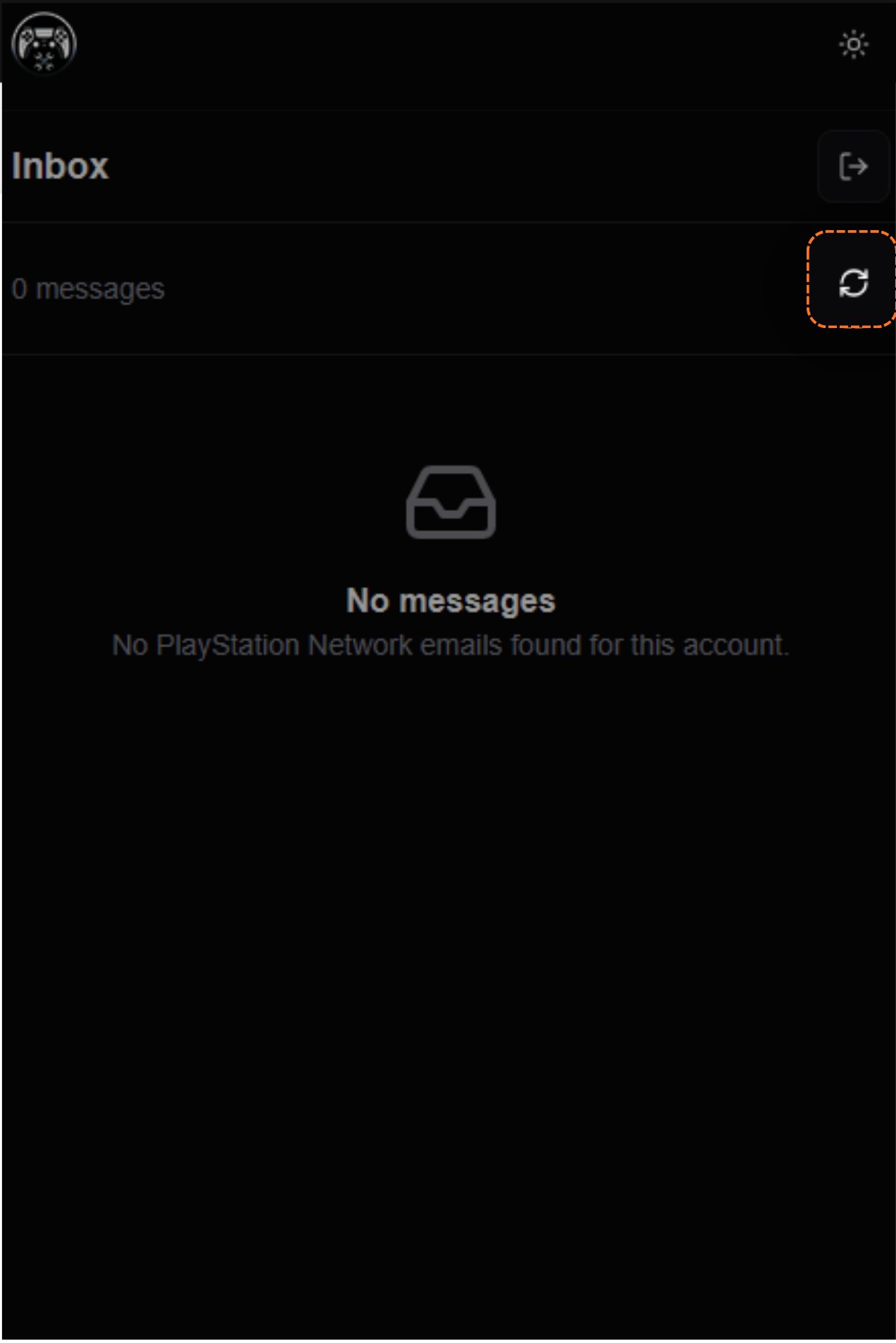
modding.psntools.com/i/0blahblahblahxxx). Not sure where that link is? See Access your inbox with a magic link. Then click the refresh button on the inbox.9
Open the PlayStation email
A new email shows up from PlayStation Network, titled Password Change Notification. That’s the one you want.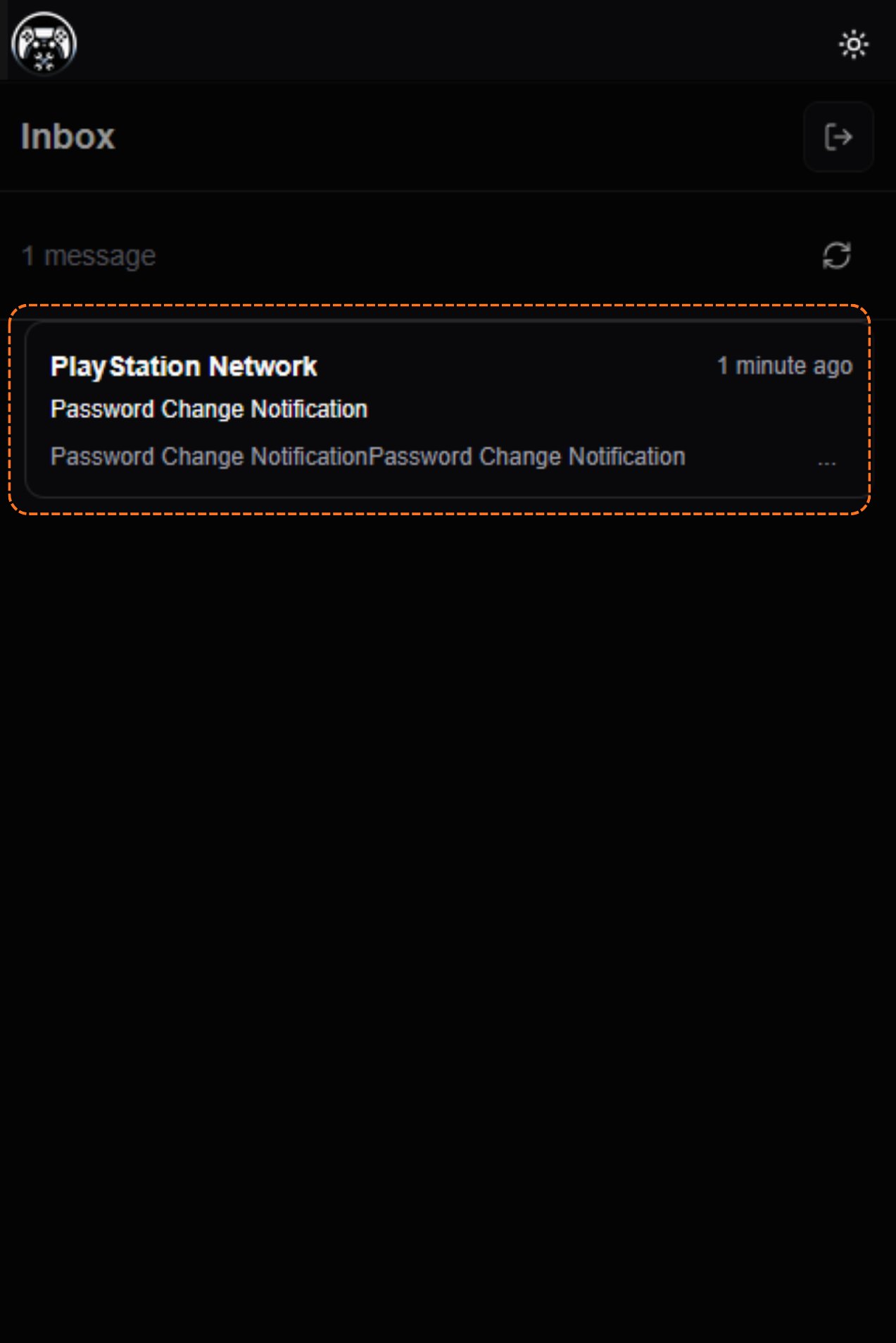
10
Click Recover Your Account
Open that email and click Recover Your Account.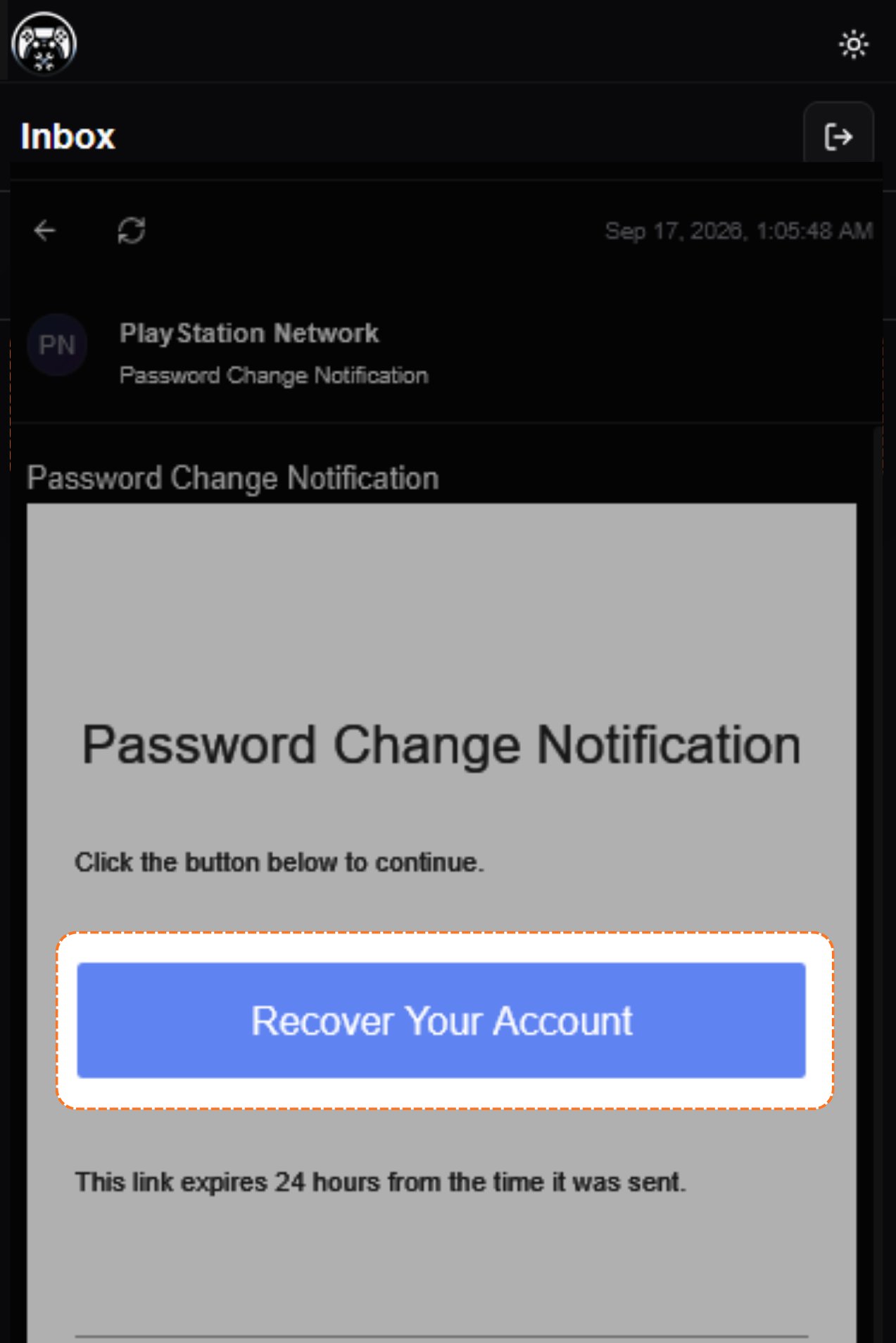
11
Choose how to verify
PlayStation asks how you want to verify the account. Pick date of birth, then click Continue.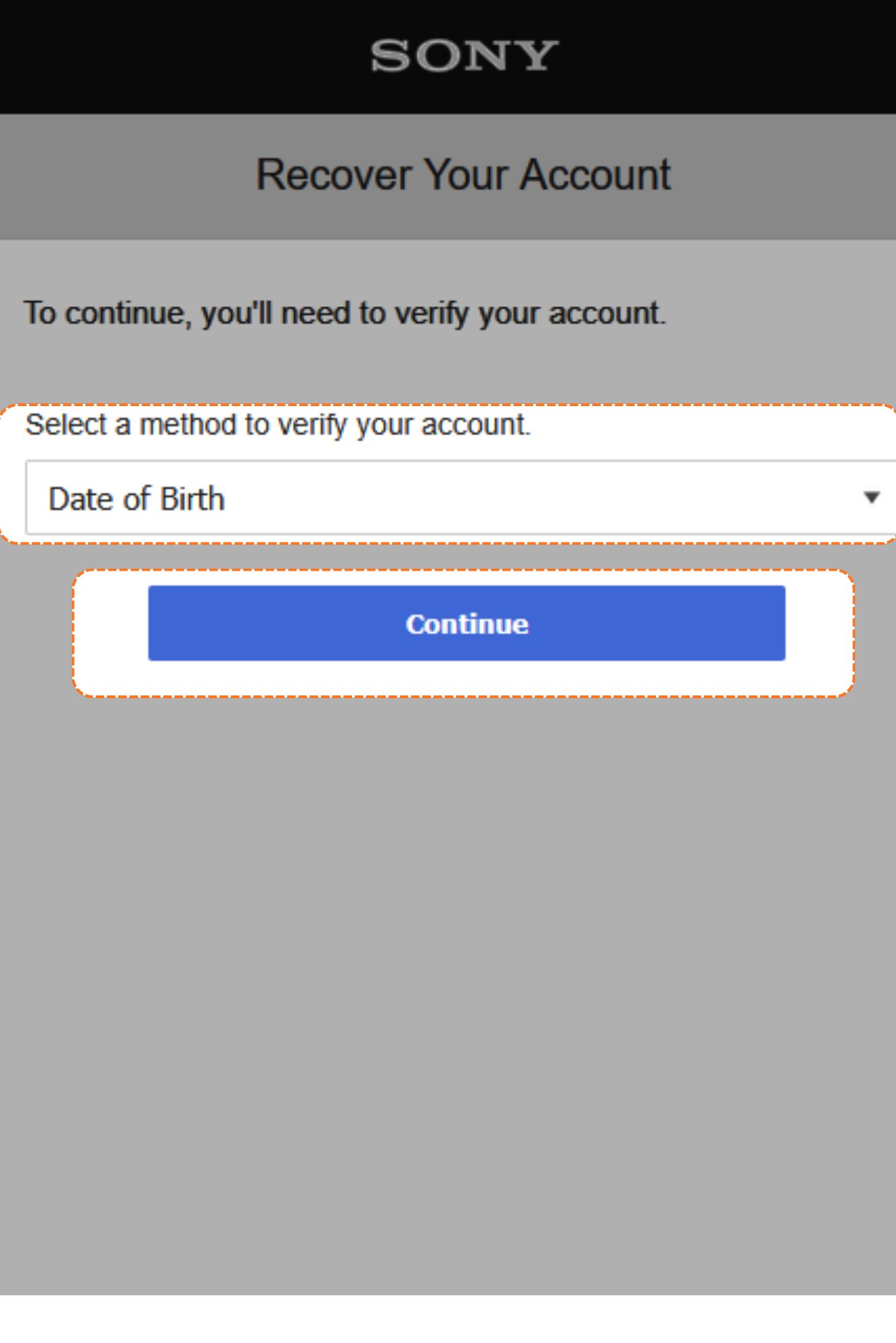
12
Copy the date of birth
Back to the account details page. Find the DOB and copy it.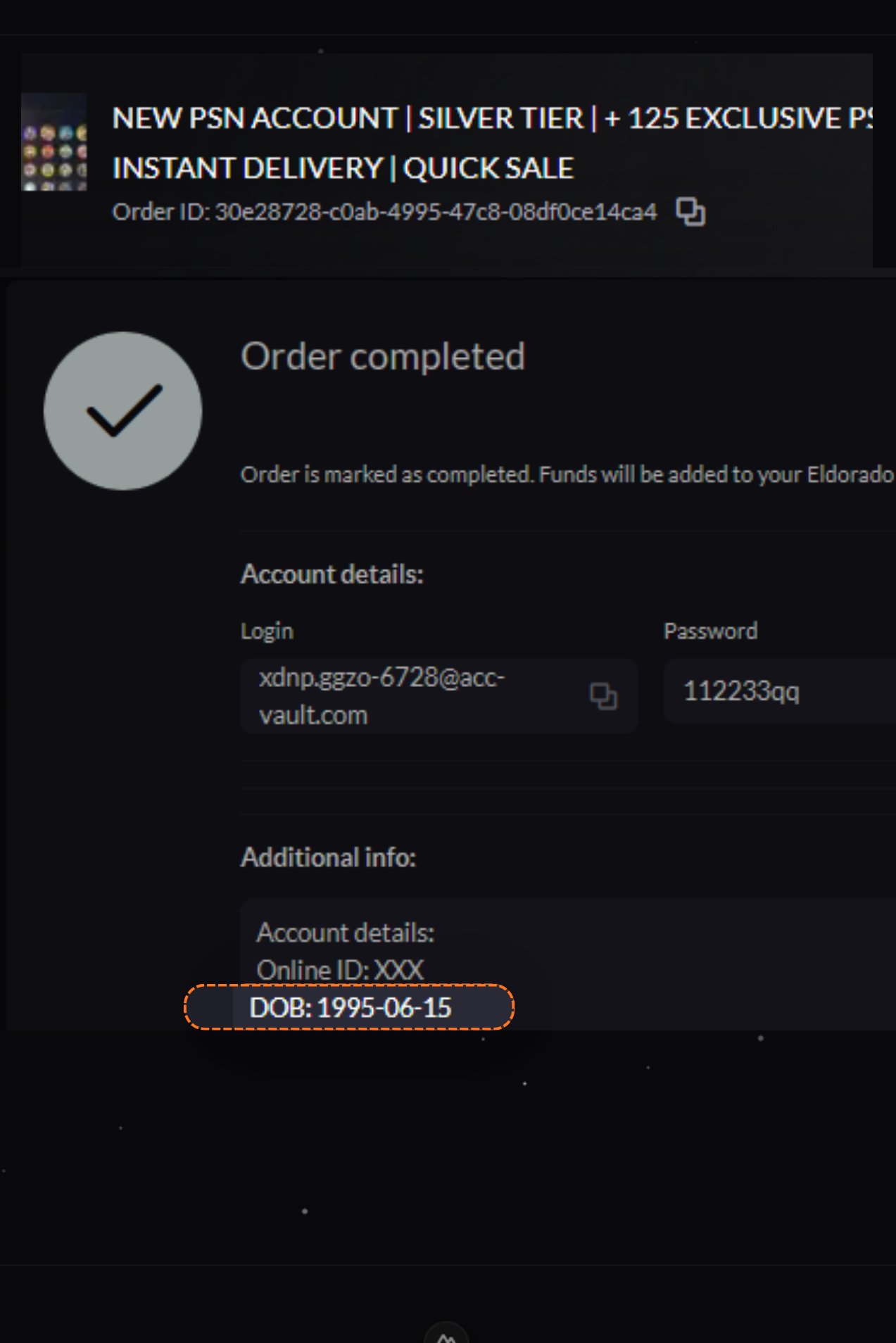
13
Enter the date of birth
Type that date of birth in, then click Continue.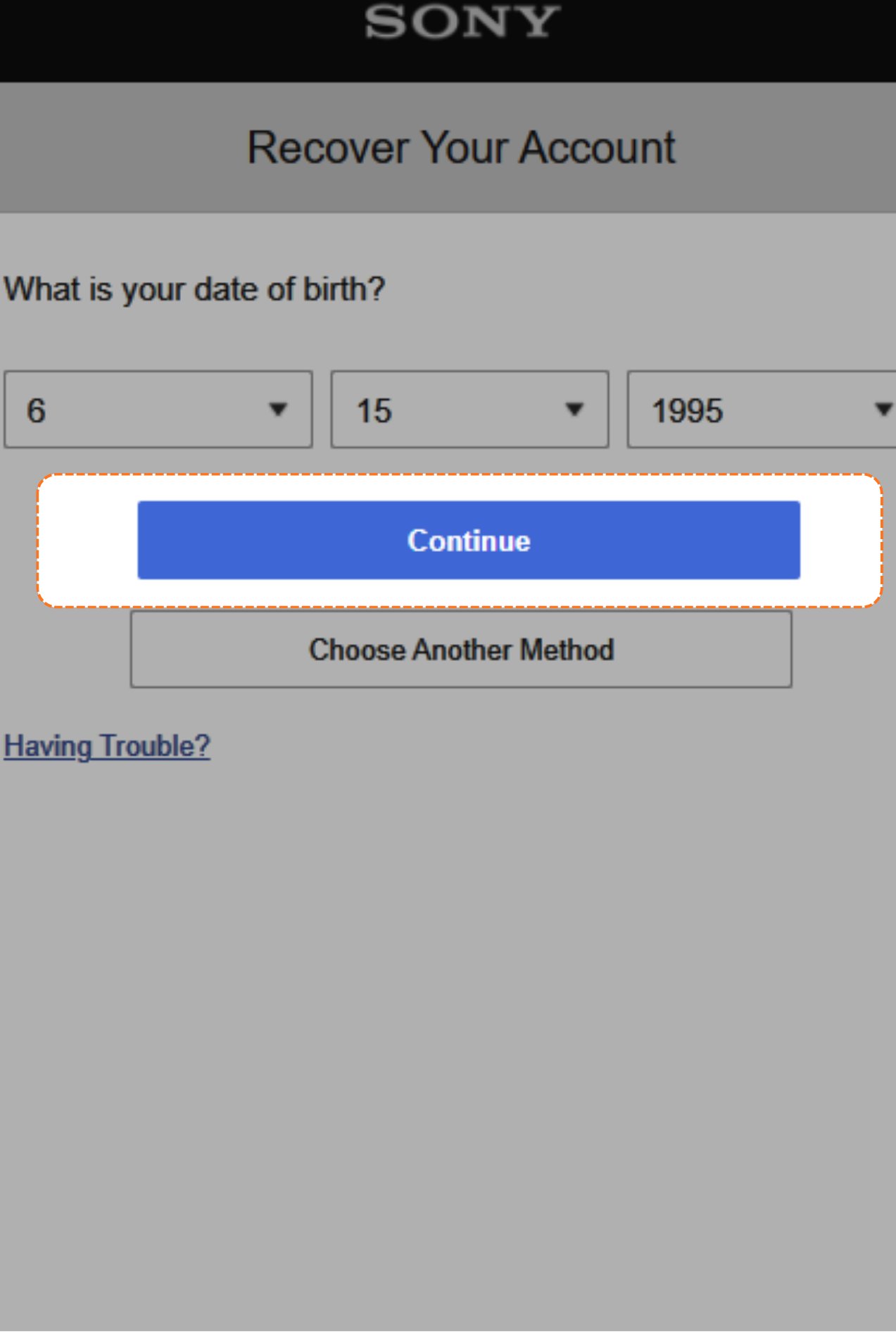
14
Create a new password
Now it’s time to make a new password. Click the password box.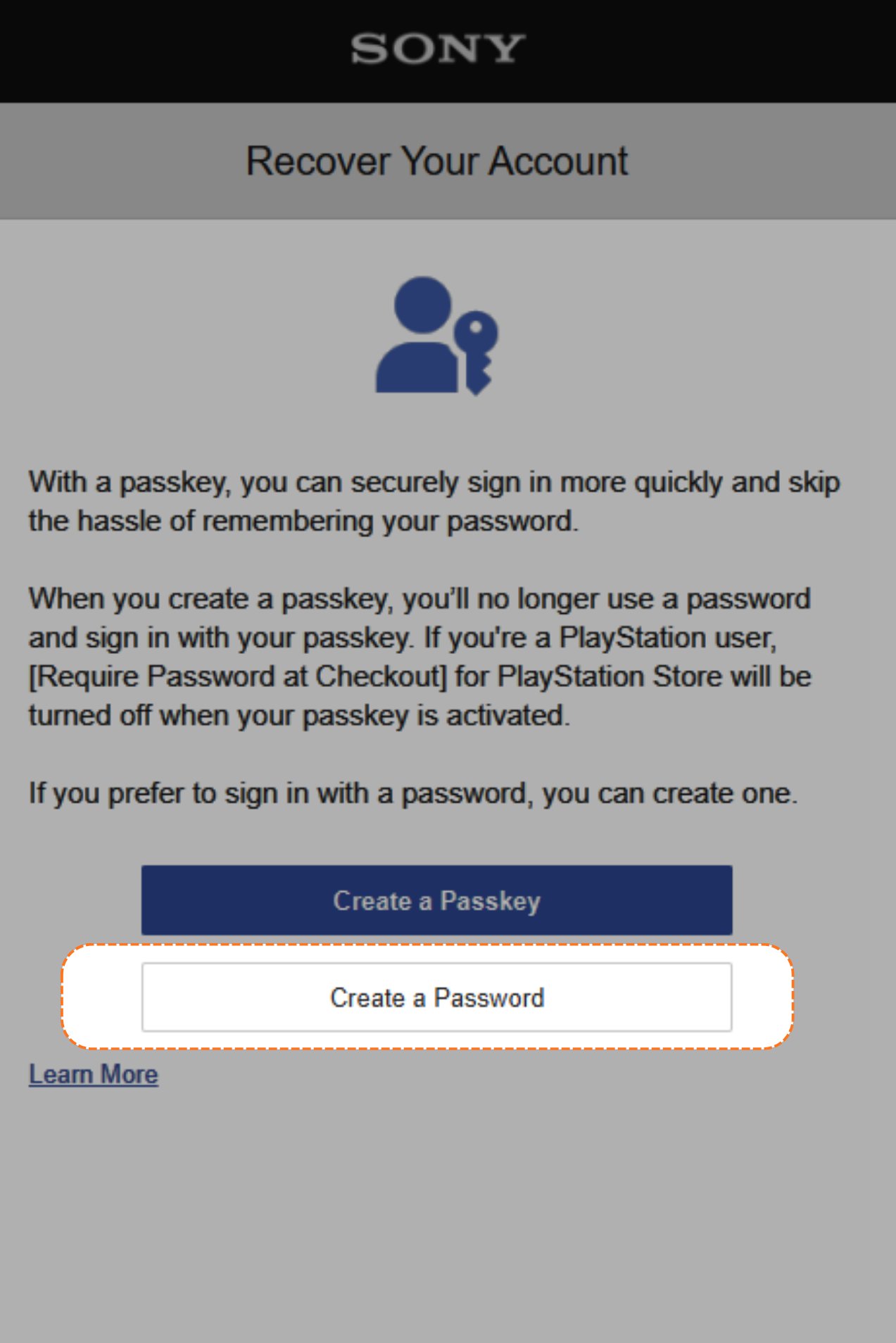
15
Confirm the new password
Type your new password, then click OK.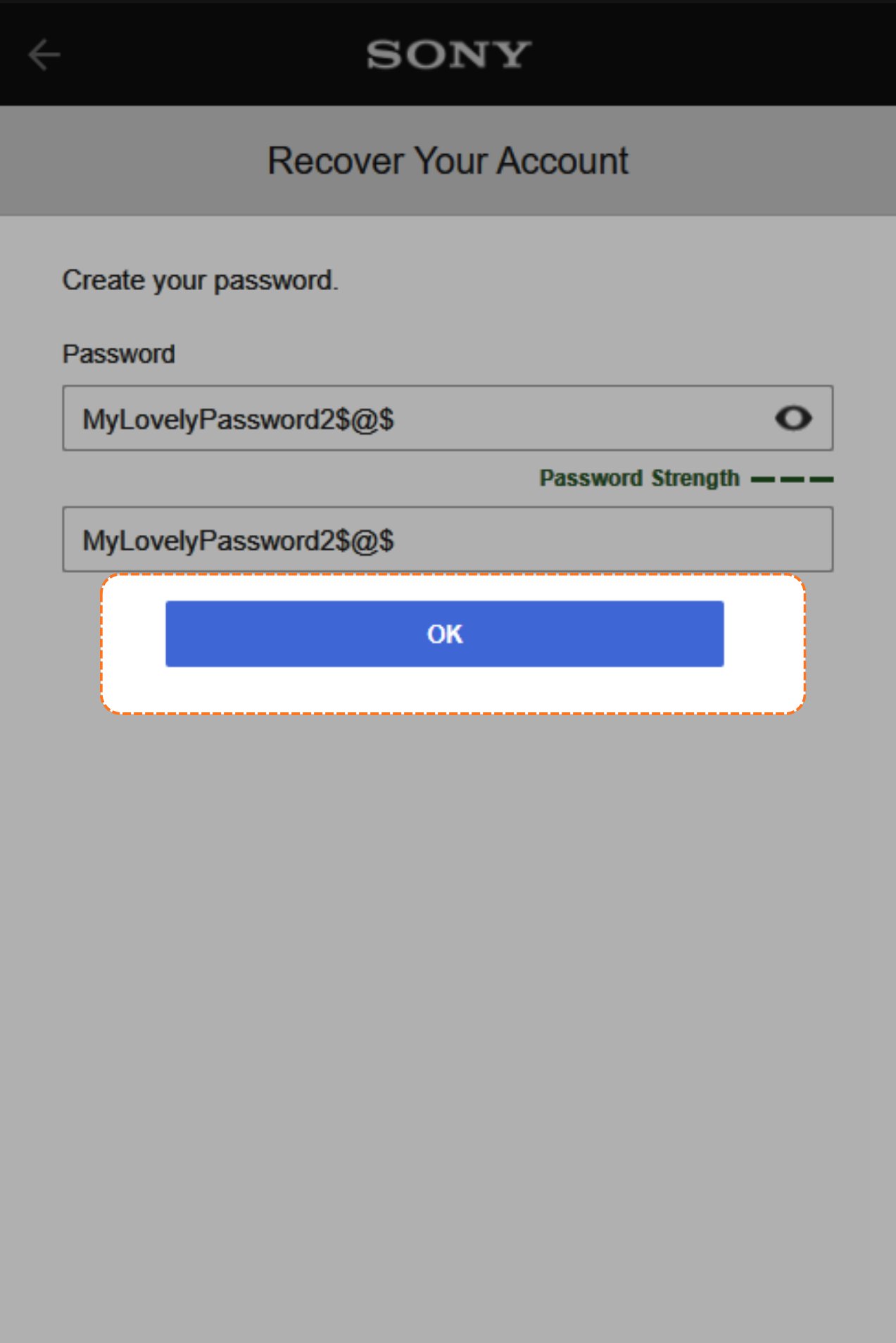
16
Copy the login email again
Go back to the account details page and copy the Login email again.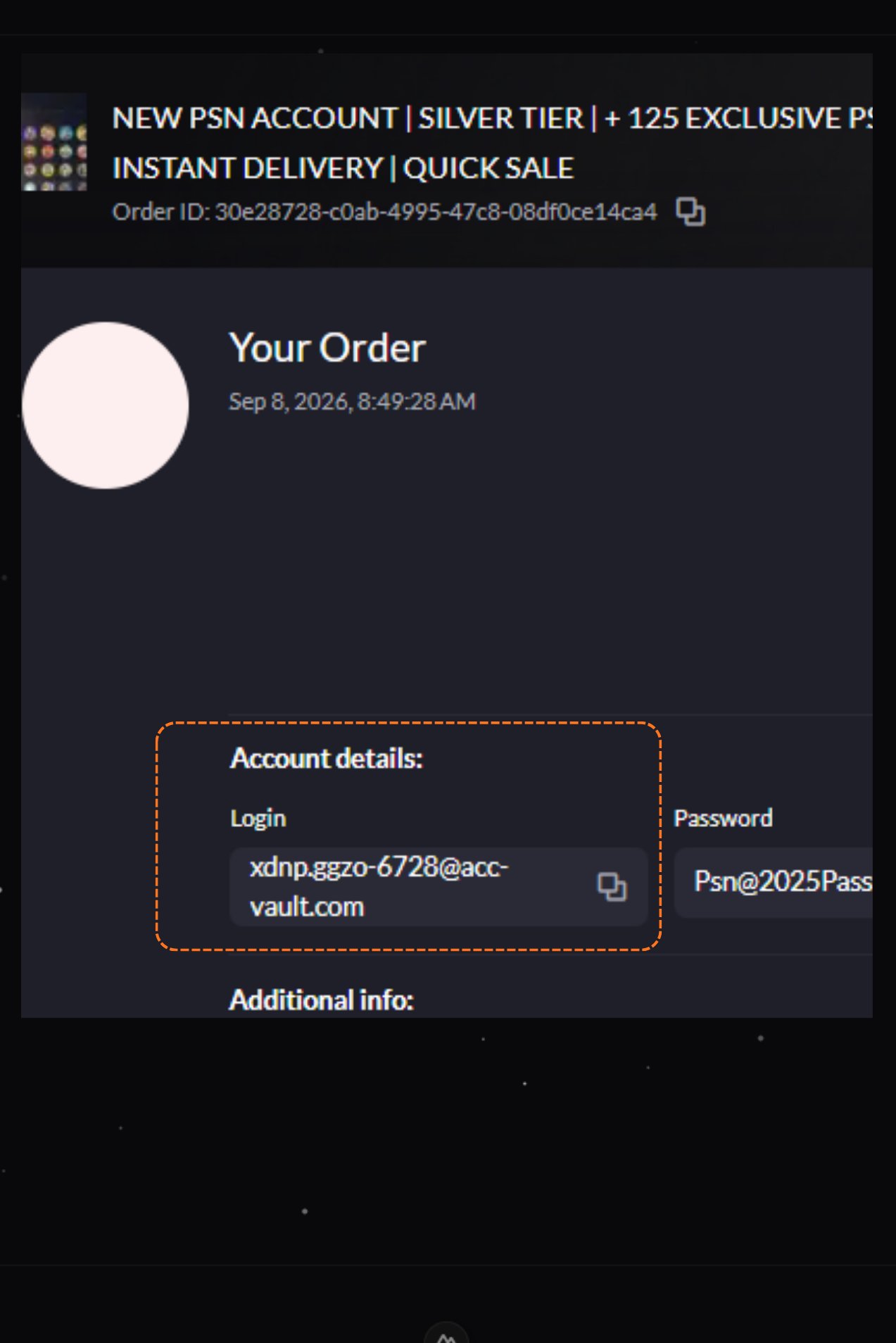
17
Sign in
On the PlayStation sign-in page, enter that email and your new password, then click Sign In.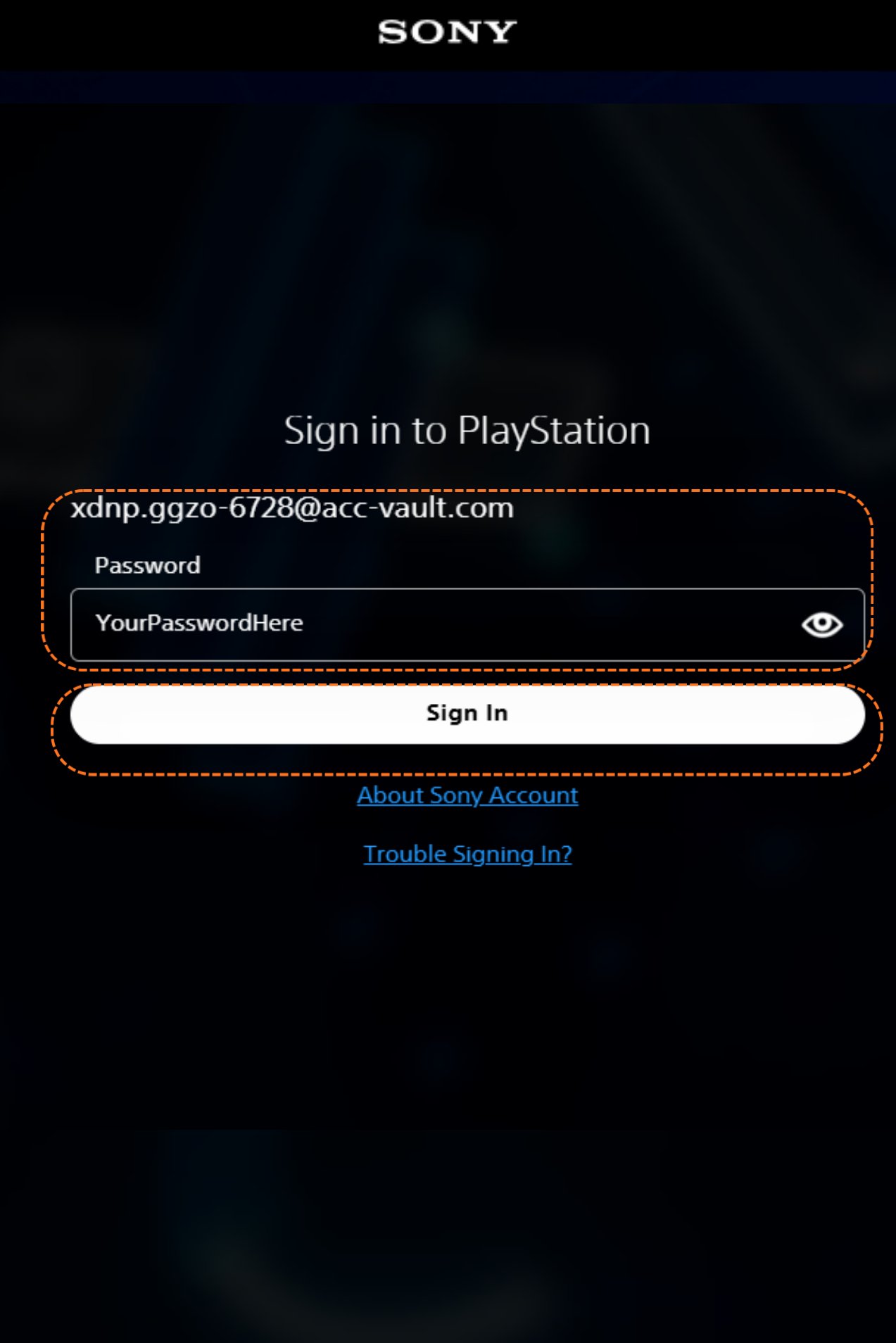
18
Open your profile
You’re in. Click your profile picture in the top right corner.
19
Open Account Settings
Click Account Settings.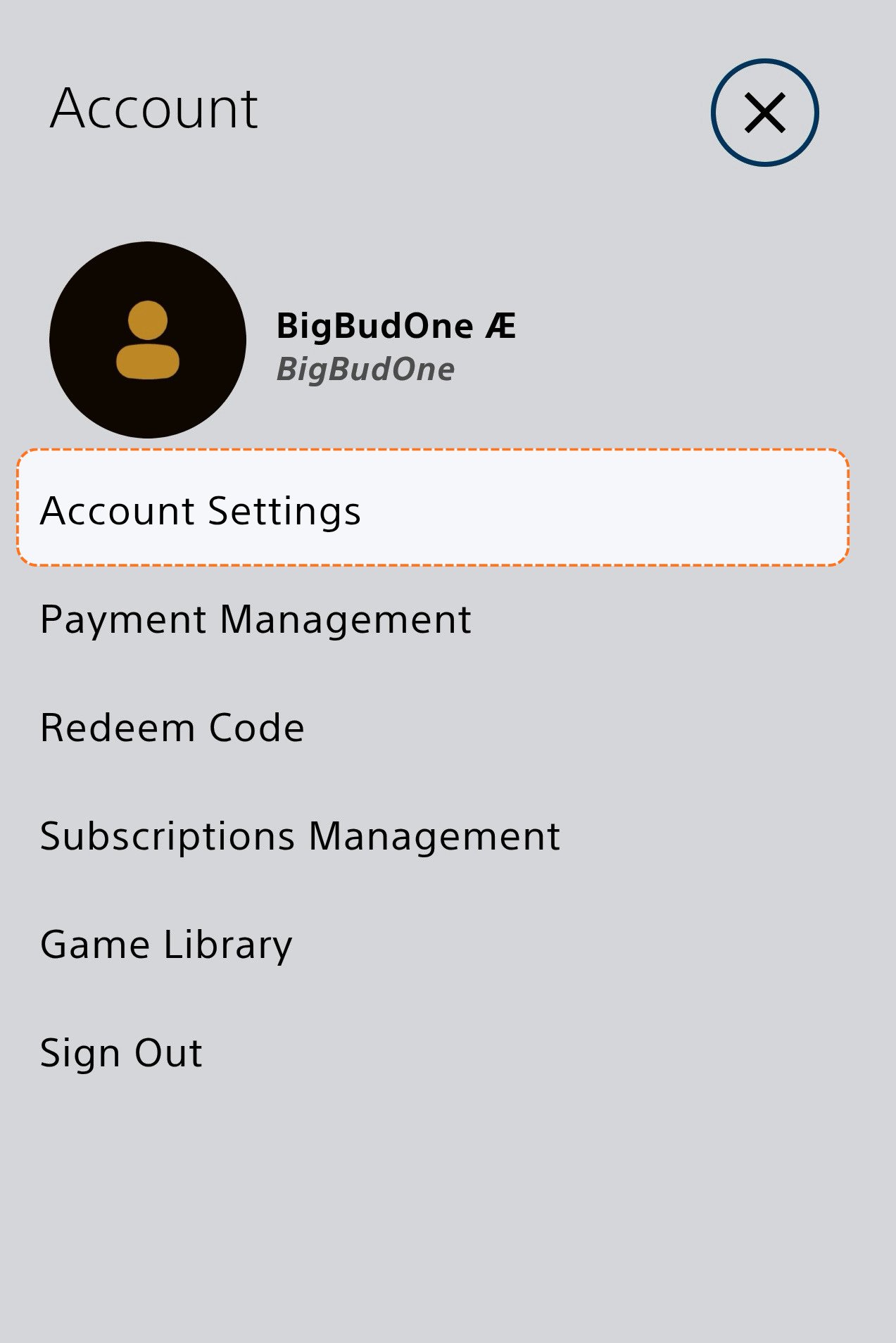
20
Open Security
Click Security.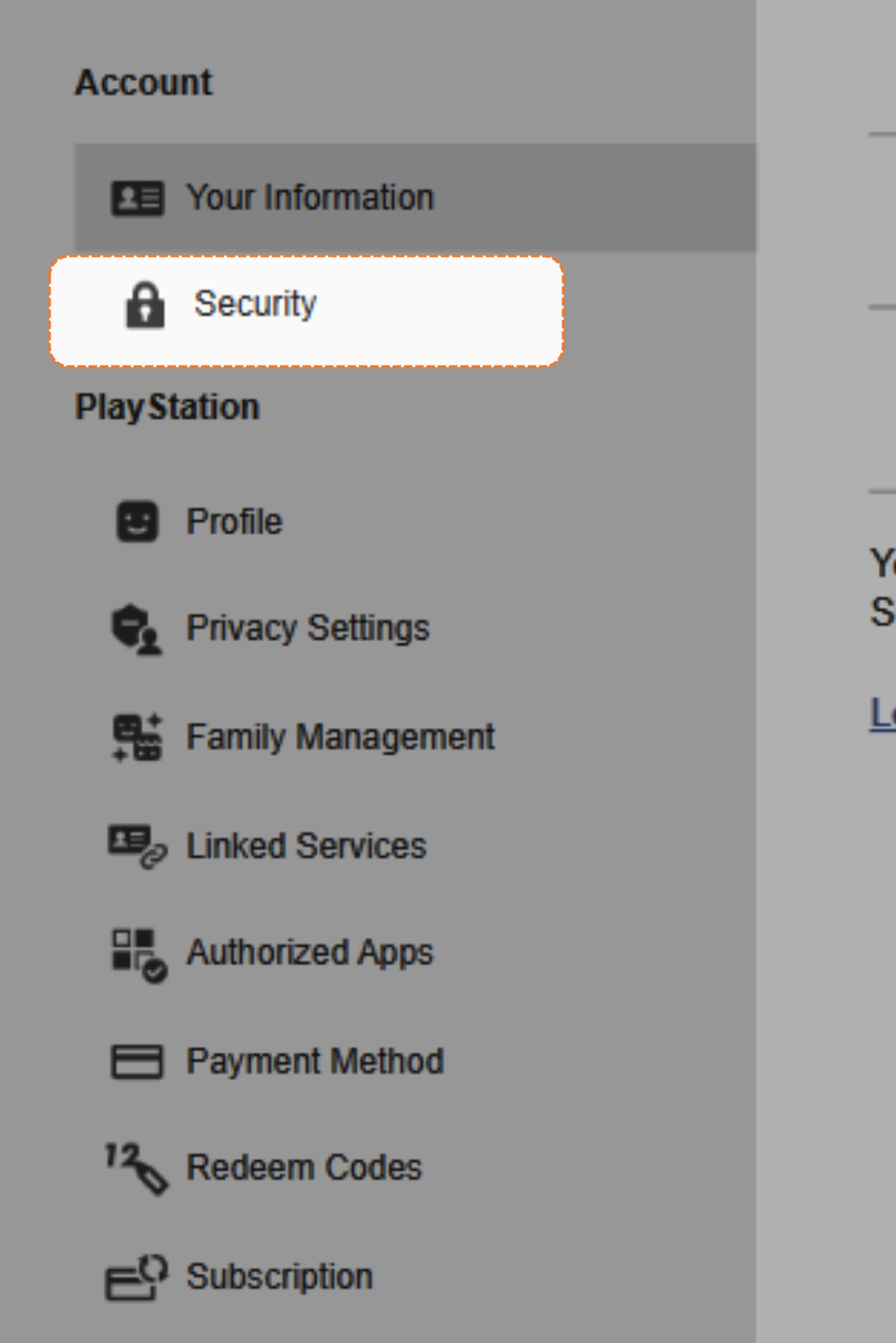
21
Edit the email
Click the edit button next to the email.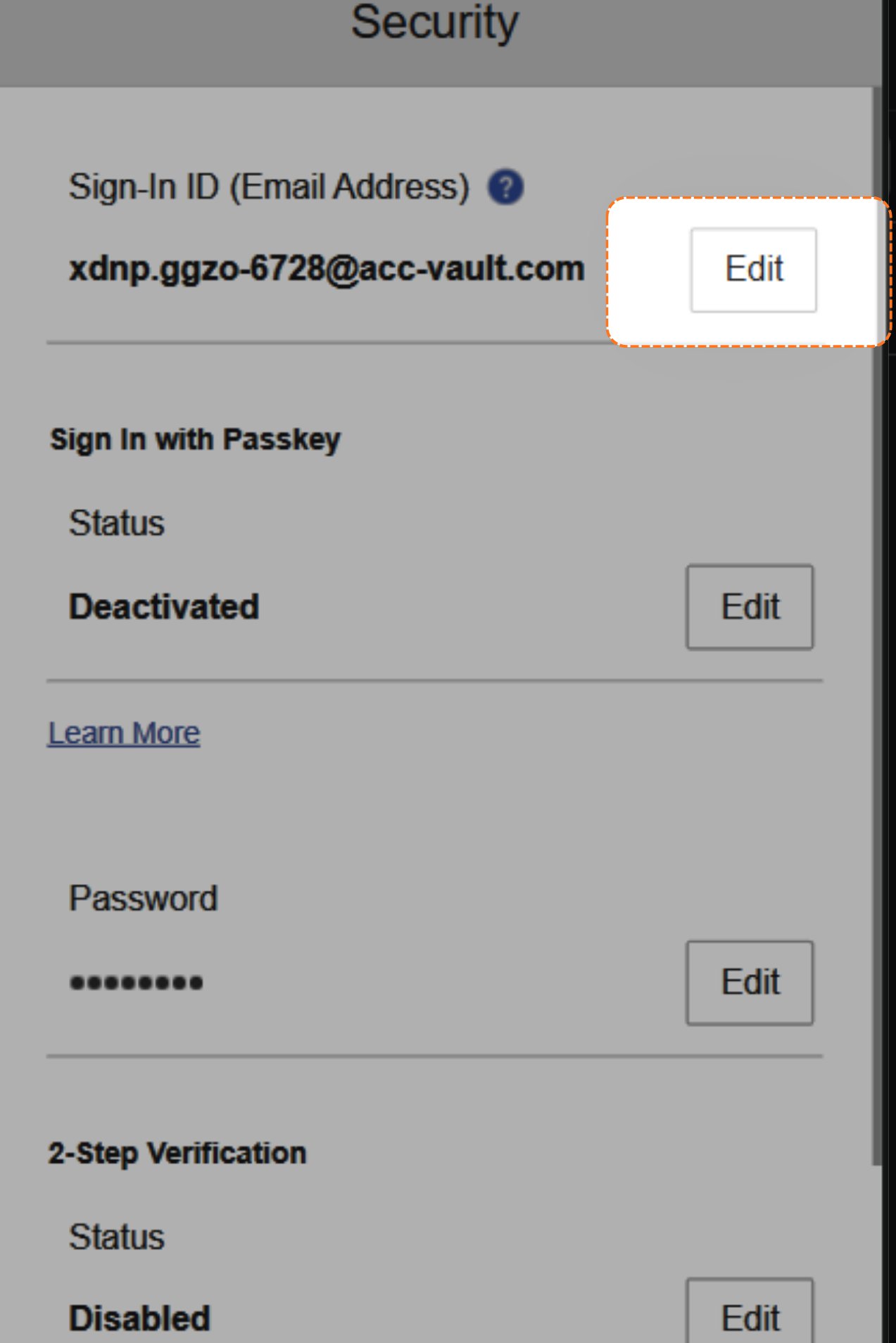
22
Save the new email
Type your new email in the box, then click Save.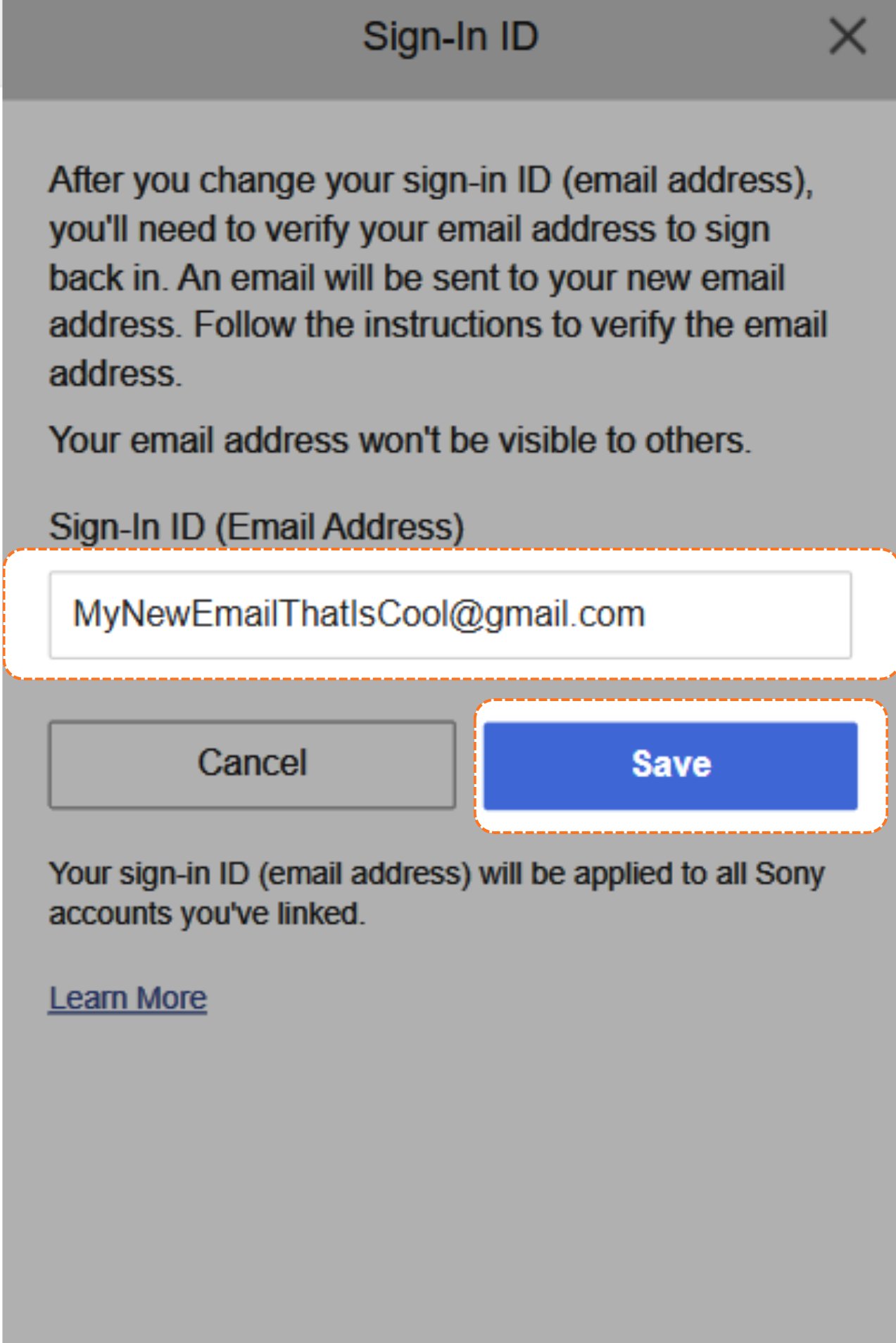
23
Sign back in
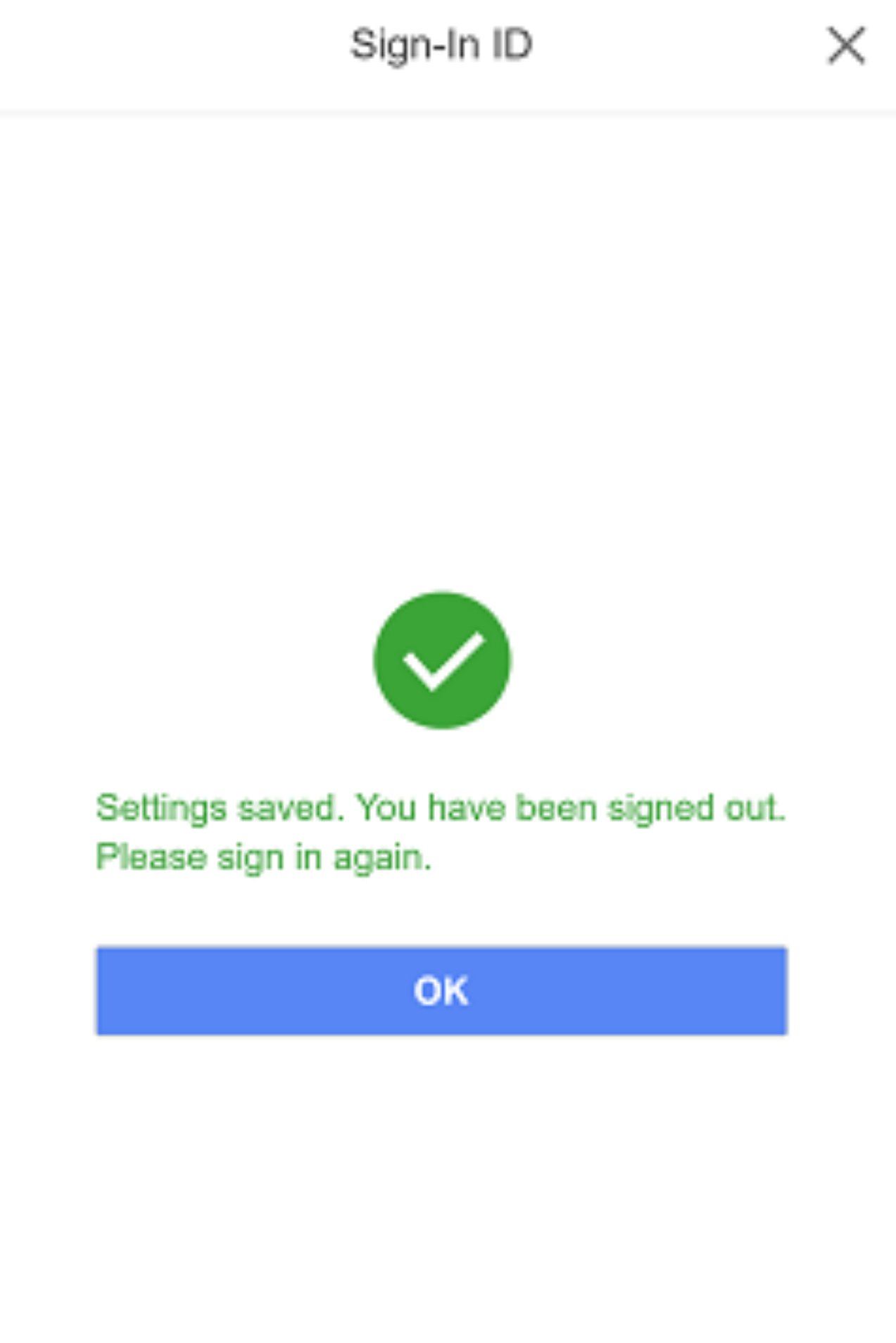
You’ll see Settings saved. You have been signed out. Please sign in again. That means it worked. Sign back in with your new email and new password.