1

Sign Out & Back Into PlayStation

Go to PlayStation.com. Click your profile icon in the top right corner.

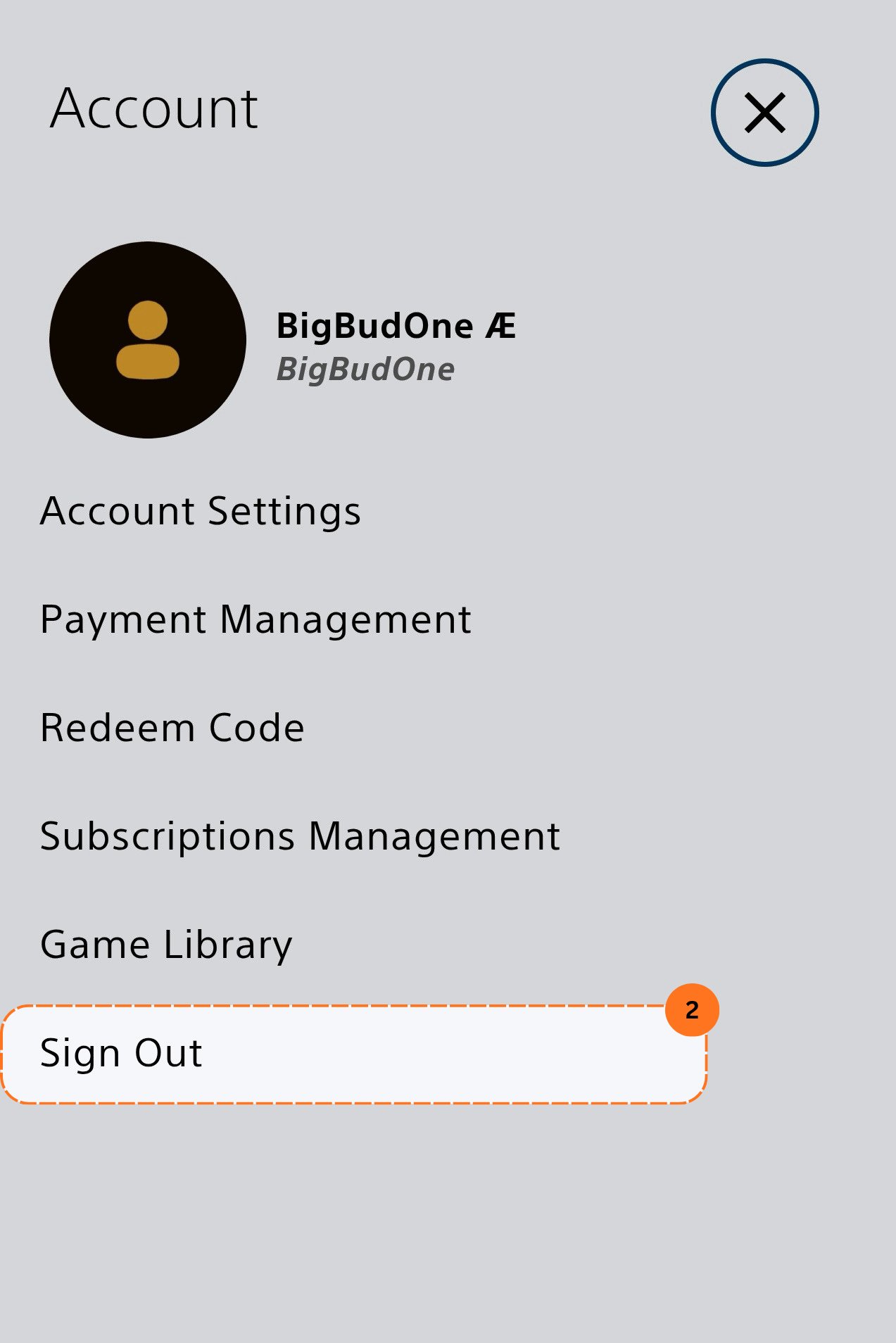
Playstation Profile Corner
From the dropdown, go to your account section & click Sign Out.
PlayStation account section, click sign out
Once signed out, sign back in with your PSN account.
Signing out and back in gives you a fresh cookie that PSNTools needs to authenticate you.
2

Sign Up on PSNTools

3

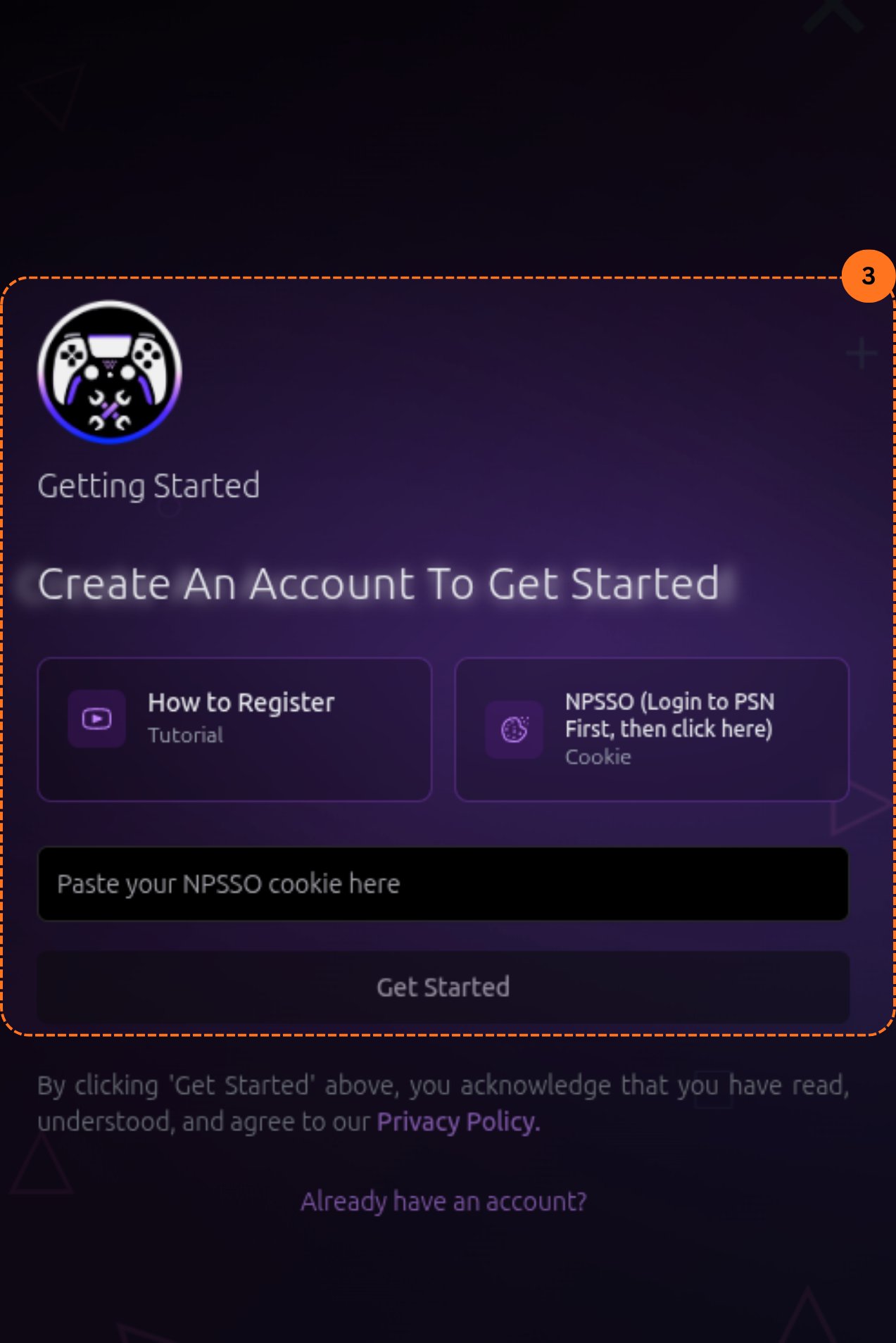
Paste Your NPSSO Cookie

On the sign-up page, click the NPSSO bar. (Make sure you’re logged into PSN first), then click it.
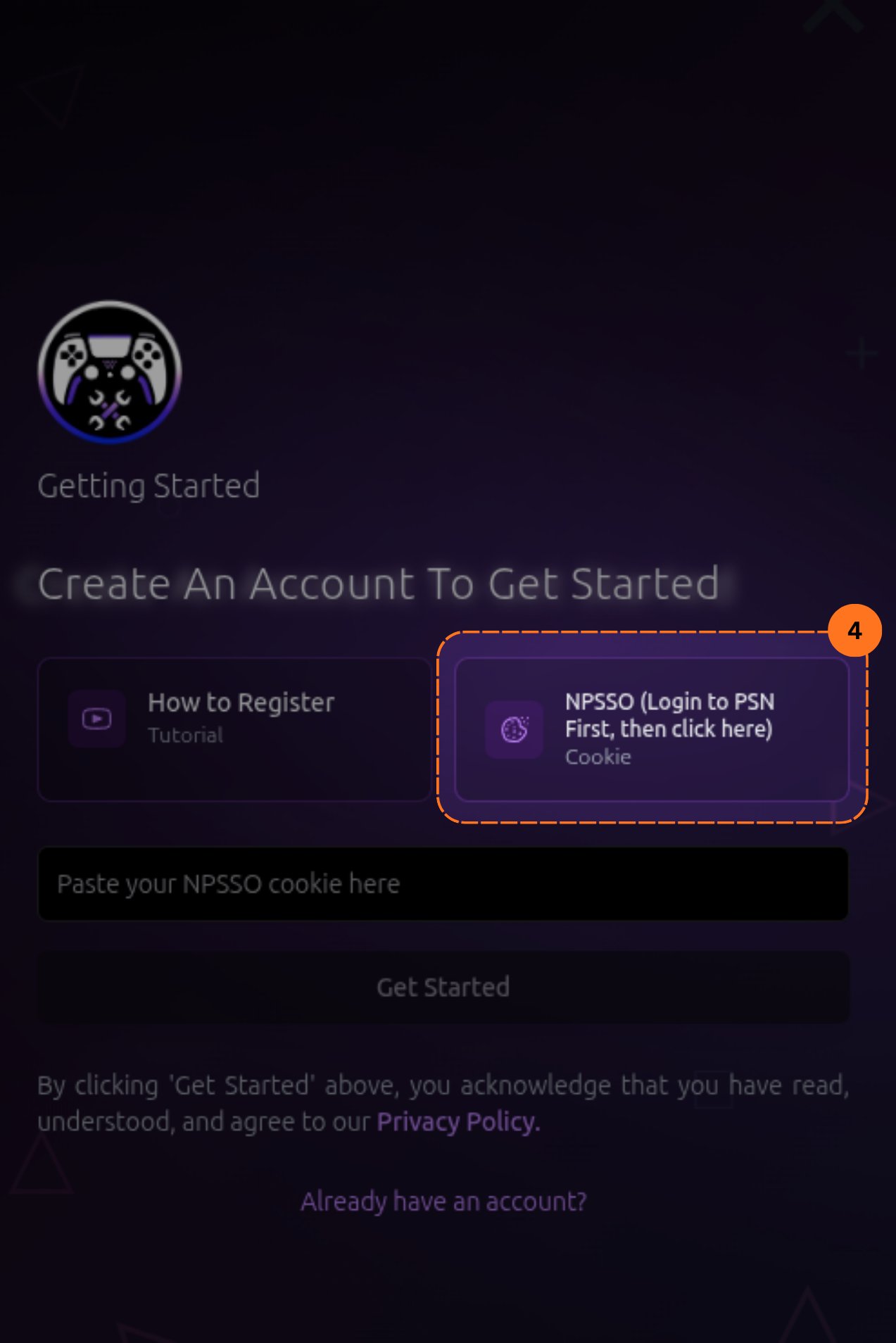
Npsso Bar Click
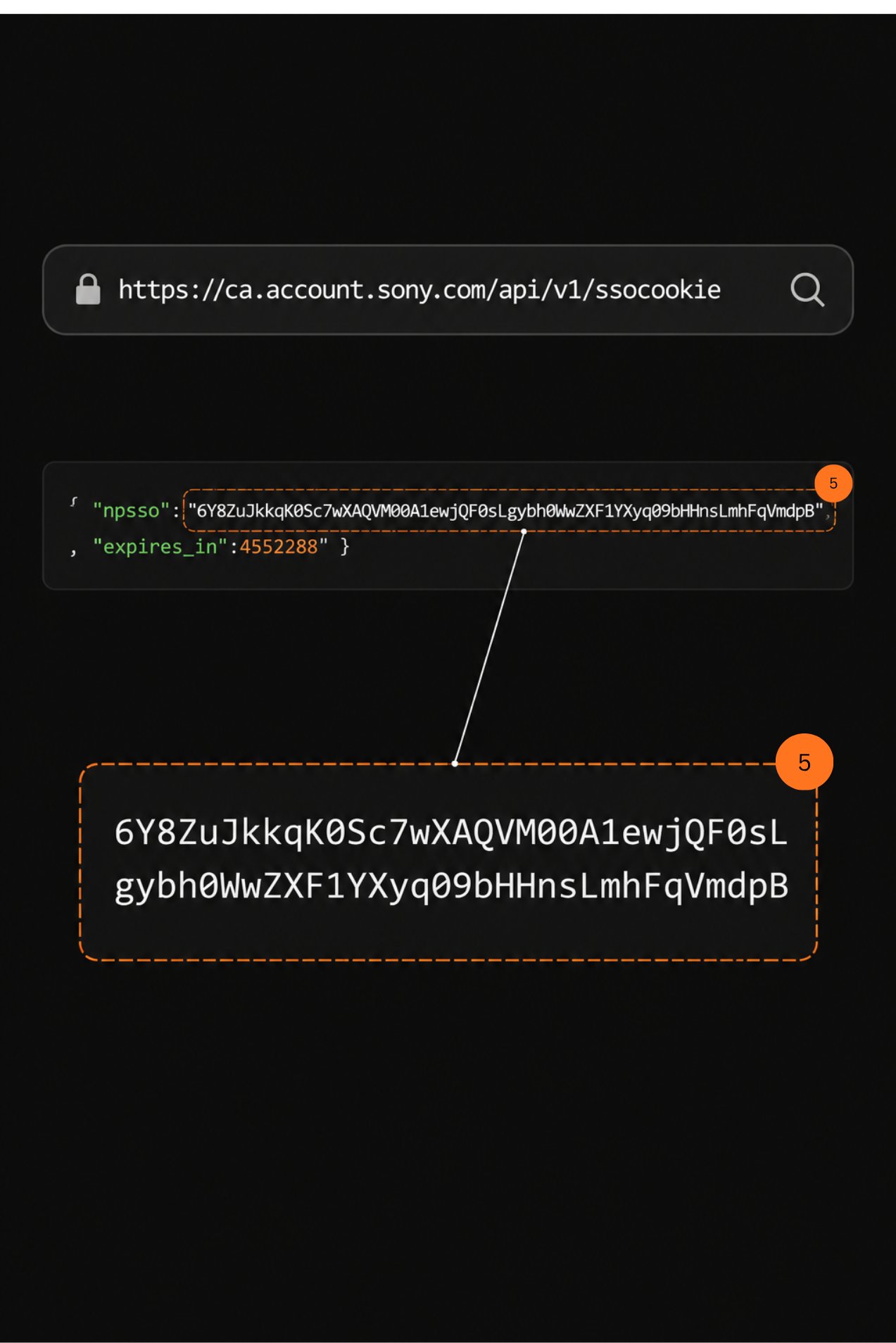
This will open a page showing your cookie. Copy only the text between the quotes, not the whole page.
NPSSO cookie, copy only between the quotes
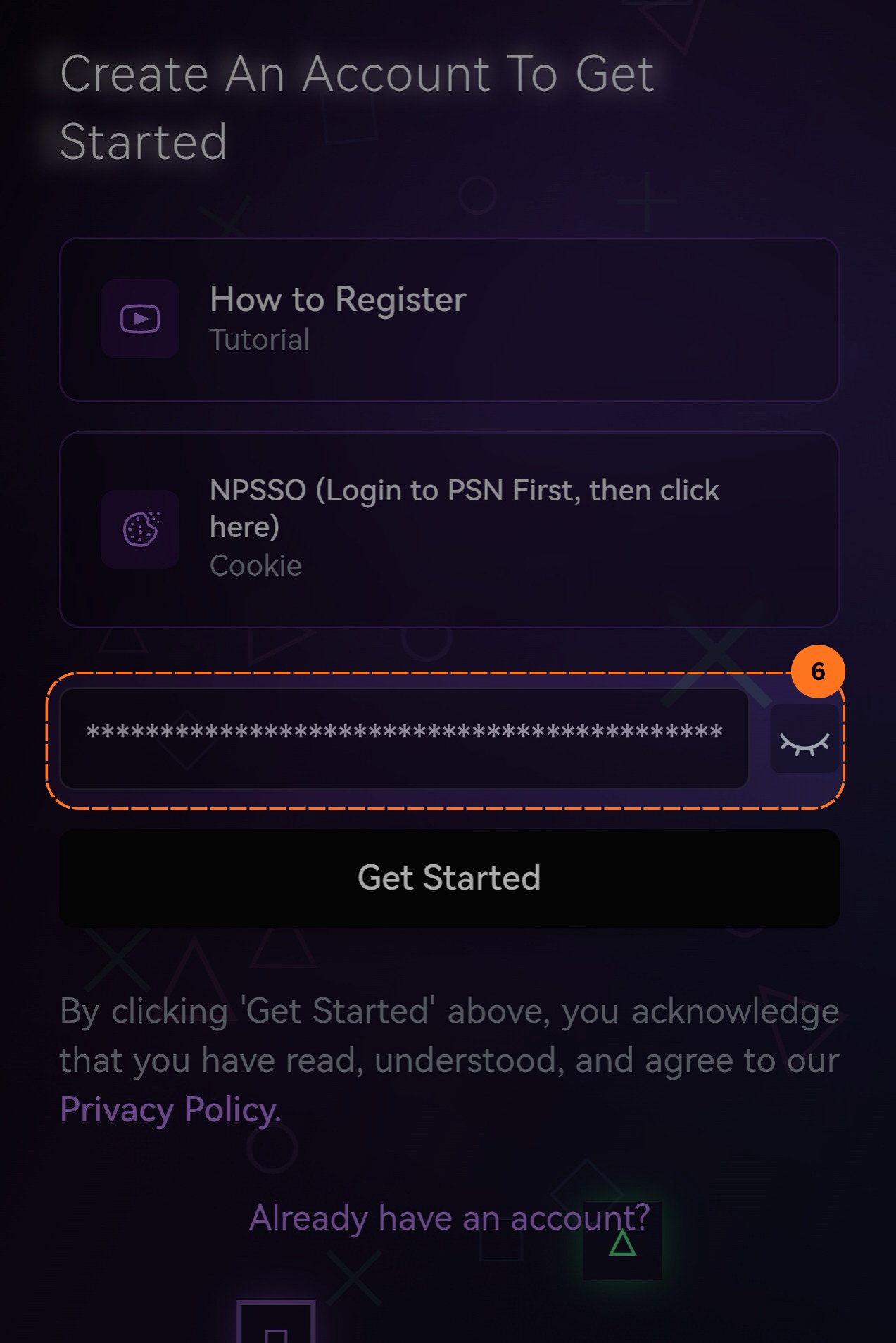
Paste that cookie back into the sign-up form on PSNTools.
Paste the NPSSO cookie into the sign-up form
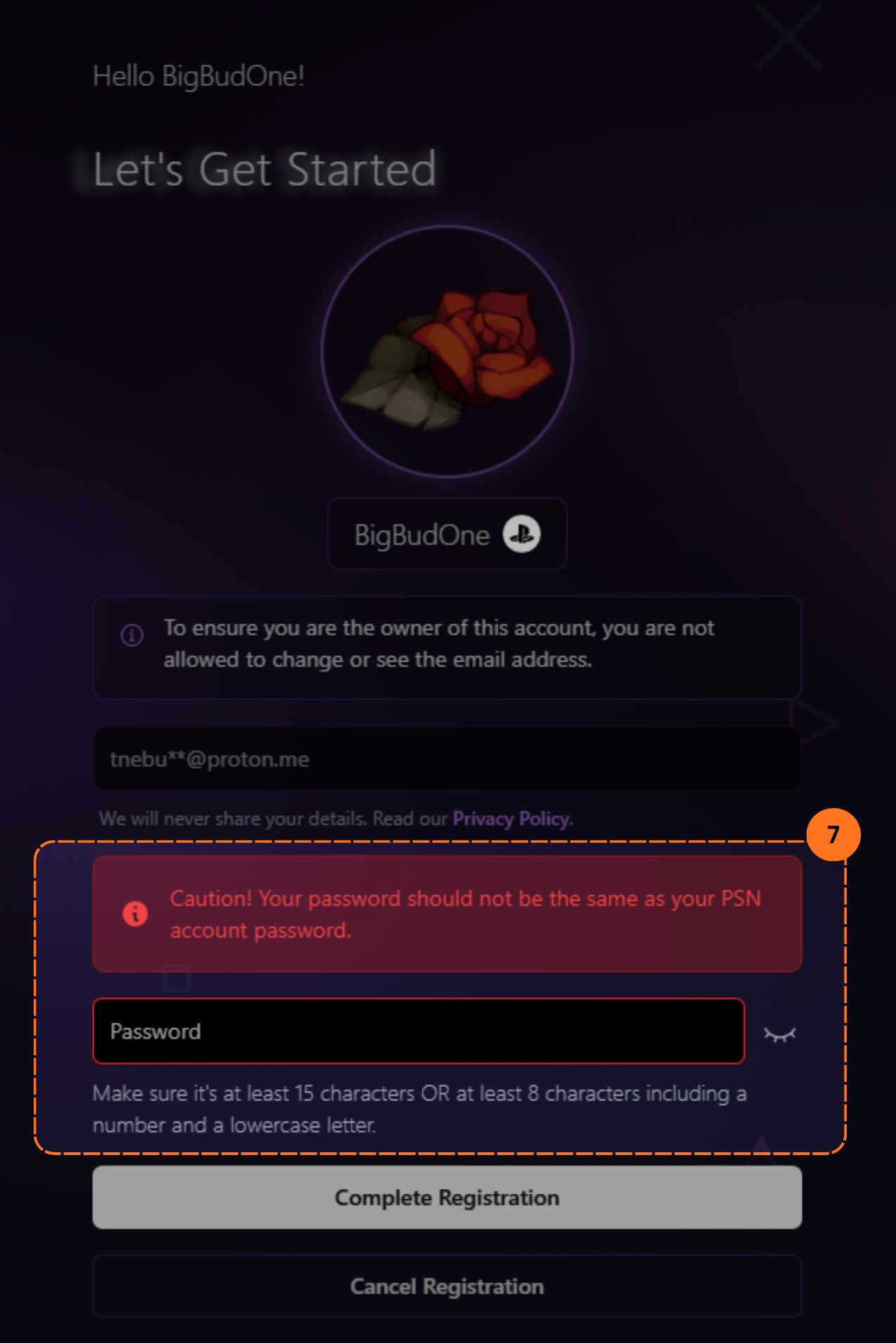
Choose a password. It should not be the same as your PSN account password. This is your PSNTools account password.
Psn Tools Password Field
Already have an account? Click Yes, update account.
4

Verify Your Email

After signing up, you’ll be taken to the email verification section. Enter your PlayStation account email and click Resend.
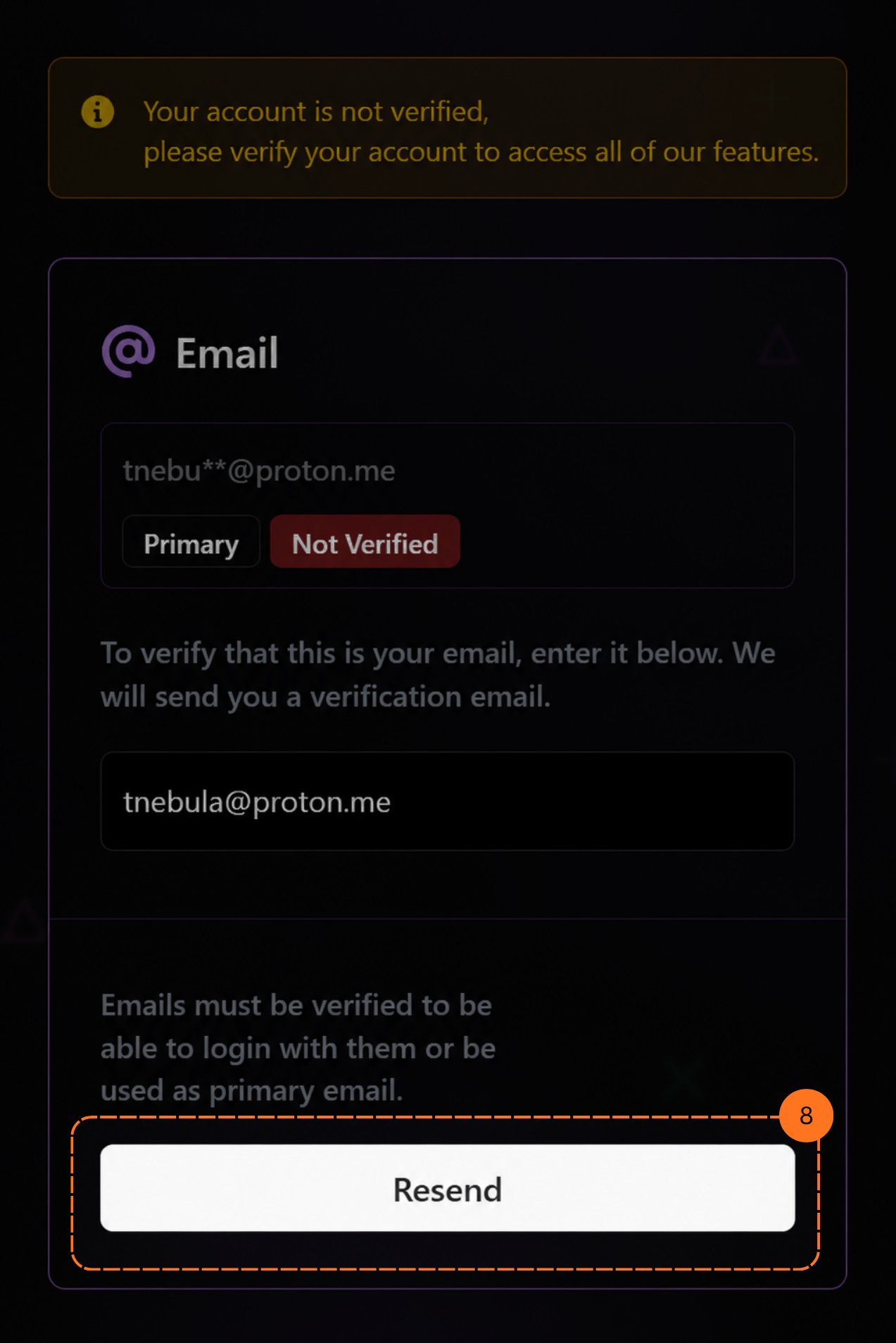
PSNTools email verification, click Resend
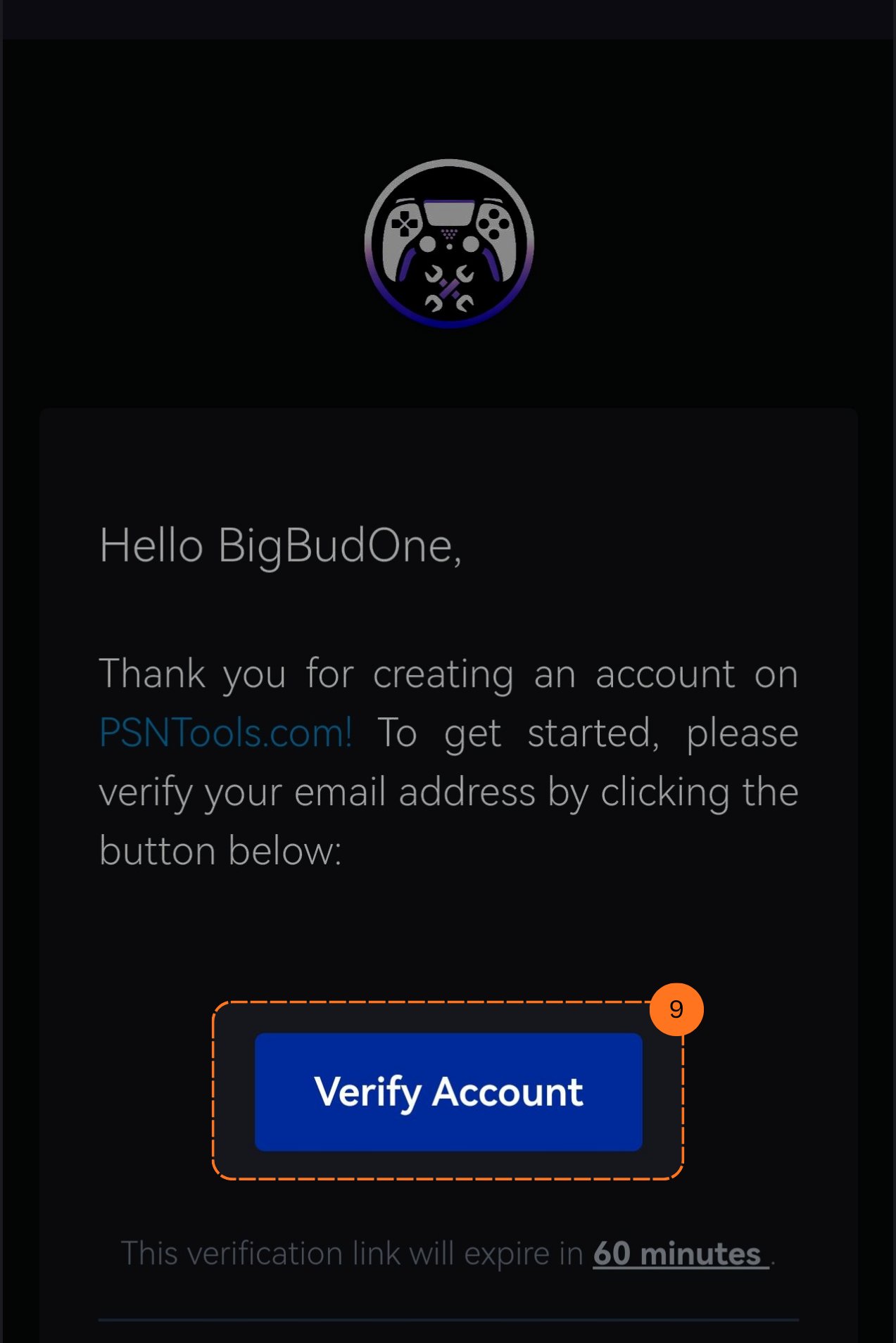
Go to your inbox and look for the PSNTools verification email (check spam if you don’t see it). Click Verify Account.
PSNTools verification email in inbox, click Verify Account
Link expires in 60 minutes. Check spam if you don’t see it.
5

All Done

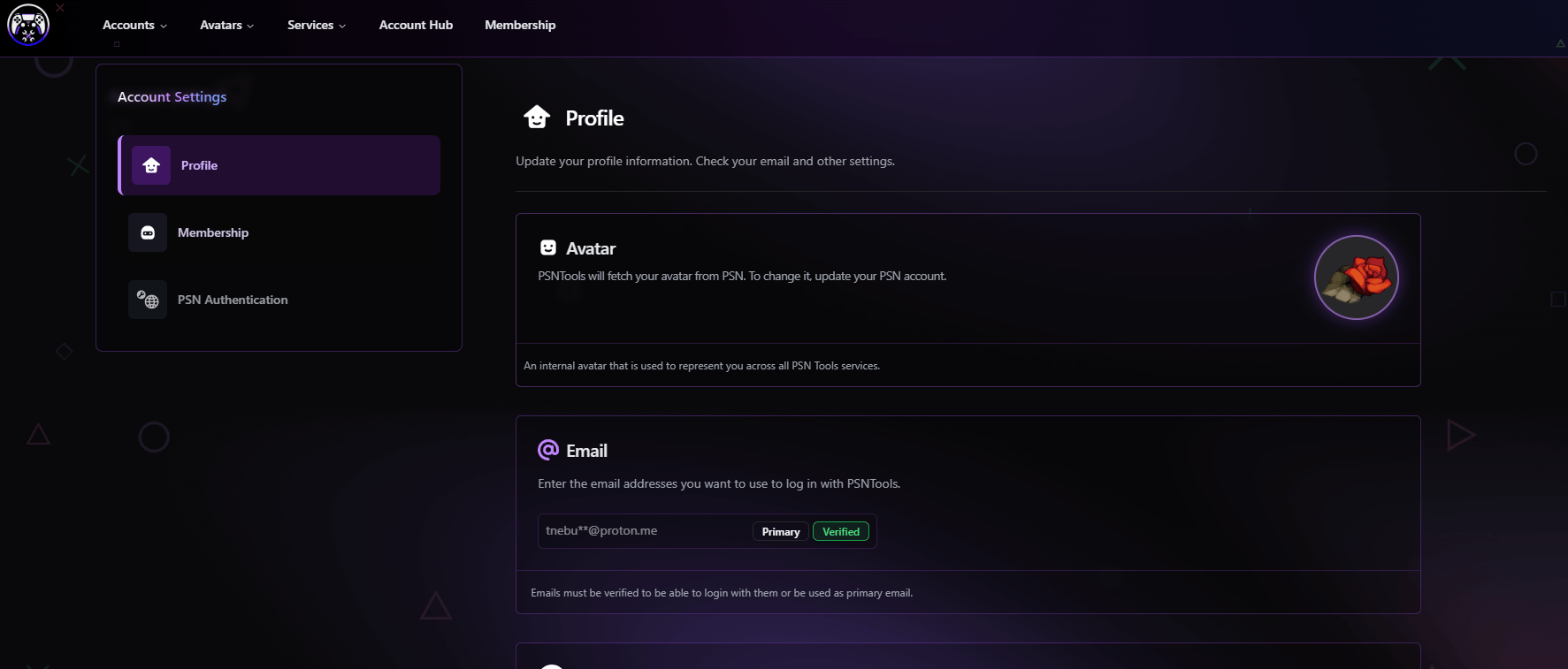
Your dashboard is ready. Manage Profile, Membership, & PSN Authentication from here.
Account Dashboard